Windows 11 File Explorer Styler: The Gray Window Isn’t a Bug
Your transparent File Explorer theme turning flat gray the second you click another window isn’t the mod breaking. That’s Windows, and it does the same thing to every app using that material, so there’s nothing to fix. The Windows 11 File Explorer Styler is a free mod that changes how File Explorer looks by letting you pick a theme from a dropdown, and it runs on top of Windhawk, a free open source tool that loads small mods into Windows components. It gets blamed for that gray window constantly, which is most of why I wanted to write this one up.
I’ll get into why that happens properly further down, along with the checks that actually matter when a theme genuinely refuses to apply. Setup first though, since that’s what most of you guys came here for.
Everything here is off my ROG Zephyrus G16 on Windows 11 25H2 (build 26200.9168), running Windhawk 1.7.3 and File Explorer Styler 1.6.
How to set up Windows 11 File Explorer Styler
There are 4 steps here and honestly none of them are complicated.
- Install Windhawk. It’s free and open source, and I walked through the whole process including the antivirus warnings it sometimes sets off in my Windhawk install guide.
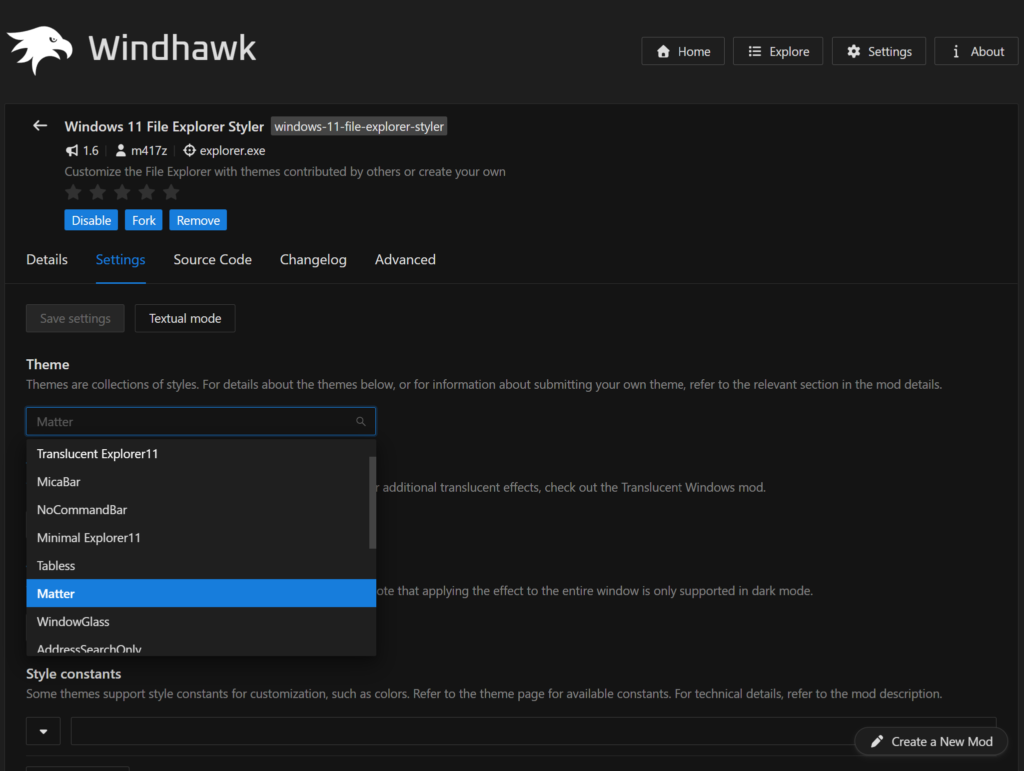
- Open Windhawk, hit Explore, and search for “File Explorer Styler.” The one you want is by m417z.
- Install it, then click into the Settings tab on the mod’s page.
- Pick a theme from the dropdown.
That’s the whole thing. Mine applied the second I picked a theme, no Explorer restart, no reboot, nothing.
Where the Windows 11 File Explorer Styler settings live
Everything worth touching sits on the Settings tab of the mod page inside Windhawk. The theme dropdown is up top, and underneath it you’ll find two boxes called Control styles and Resource variables, which are there for people who want to write their own styling rather than use a prebuilt theme.
Windows 11 File Explorer Styler not working? Here’s the full breakdown
Here’s the one that catches people, and it catches enough of them that “not working” is the most common thing people type after this mod’s name, ahead of themes and ahead of how to install it. You set up a transparent theme, it looks great, and then you click on another window, and Explorer turns into a flat gray slab. It looks completely broken, like the mod gave up.
It didn’t. That’s Windows’ fault.
The gray window is acrylic, not a broken mod
Acrylic is the name Microsoft gives that frosted, semi see-through material you get on things like the notification panel. Their own acrylic material documentation spells out what happens to it: background acrylic swaps its translucency and texture for a solid color when an app window on the desktop deactivates. It happens whenever the window isn’t focused, whether or not you run any mods. Every app using background acrylic behaves this way and always has, Explorer included.
I tested it on mine with the Translucent Explorer11 theme. Focused, you can see my wallpaper straight through the window. Click literally anywhere else and it goes gray instantly.
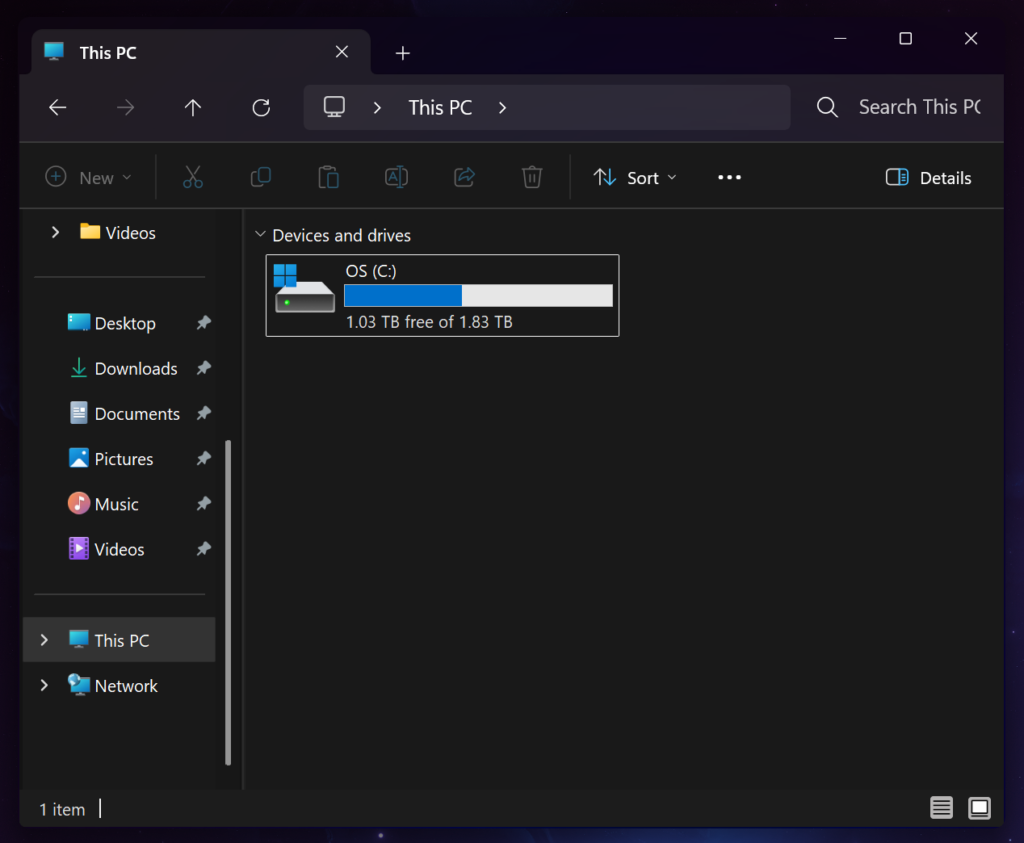
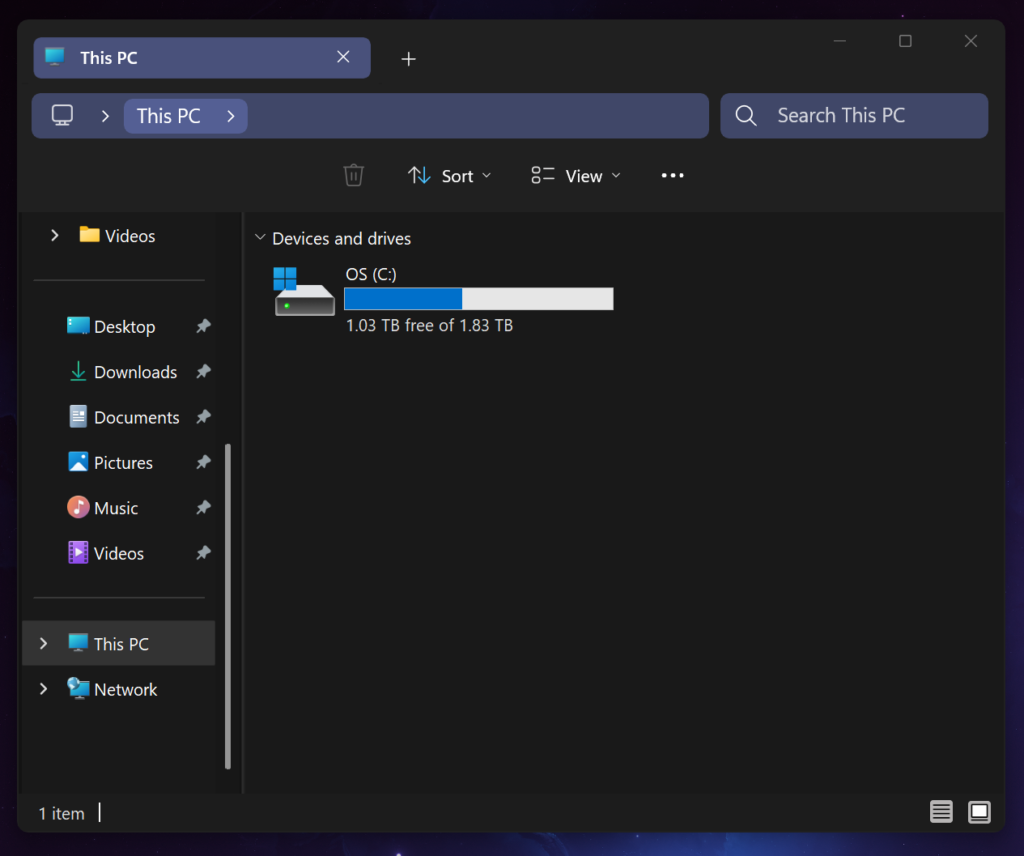
Then I switched over to Matter, which isn’t a transparent theme at all, and it does the exact same fade. So this isn’t a quirk of one theme in the list, it’s just how the material underneath all of them behaves.
That same documentation page also says acrylic gets disabled under battery saver, when you turn transparency effects off in Settings, or when the app is running on low-end hardware. If you’re on a laptop, that battery saver one is worth filing away. Funnily enough, when I ran that exact test against a different Windhawk mod that makes the Start menu translucent, the transparency held up fine with battery saver on, which I wrote up in my Windows 11 Start Menu Styler guide. So the two don’t behave identically, and I’d test yours rather than assume.
When it actually is broken
Now, if your theme genuinely isn’t applying at all rather than just fading when you click away, there are 3 things to check before you start uninstalling stuff.
Restart Explorer. This mod hooks into explorer.exe and nothing else, so anything that leaves Explorer in a weird state can leave your styling behind with it. Open Task Manager, find Windows Explorer in the process list, and hit Restart. Mine applied instantly on install without needing this, but it’s the cheapest thing to rule out.
Check for a pending mod update. This is the one that gets people. Windhawk doesn’t apply mod updates on its own, it just sticks an “Update available” badge on the mod and waits for you to click it. I sat 3 releases behind on one of these mods for months without noticing, so it’s worth a look before you assume anything is actually wrong.
Check whether Windows moved under you. These mods work by targeting specific elements inside Explorer’s interface, and the mod’s own documentation points out that those targets get evaluated once rather than continuously re-checked. Microsoft has been rebuilding File Explorer fairly aggressively lately, so a Windows update is a real cause of Windows 11 File Explorer Styler not working properly. That one usually gets fixed by a mod update rather than by anything you do. If your other mods stopped at the same time, that’s Windhawk rather than this mod, and I go through it in my Windhawk not working guide.
For what it’s worth, mine has been running on 25H2 (build 26200.9168) for about 2 months and the styling has never once dropped on its own.
All 15 Windows 11 File Explorer Styler themes
Version 1.6 ships with 15 themes built into that dropdown: Translucent Explorer11, MicaBar, NoCommandBar, Minimal Explorer11, Tabless, Matter, WindowGlass, AddressSearchOnly, TintedGlass, LiquidGlass, MicaTabless, OS26 Liquid Glass, ZEUSosX_044, Compact Explorer11 and Float.
The names don’t tell you much, but they split roughly into 2 groups. Some are material themes that change what the window appears to be made of, glass or frosted or tinted, and the rest are layout themes that strip pieces of the interface away to make things cleaner.
Matter, and why I stuck with it
I’ll be honest, I didn’t audition the whole list. Matter matched the dark blue thing I already had going with my wallpaper, and that was enough for me.
What surprised me is how much I ended up liking it. I run a few Windhawk mods and this is the one I enjoy the most, which is a bit funny considering File Explorer is easily the app I open the least out of the ones I’ve themed. It stopped feeling like a chore to be in there.
What Matter actually takes away
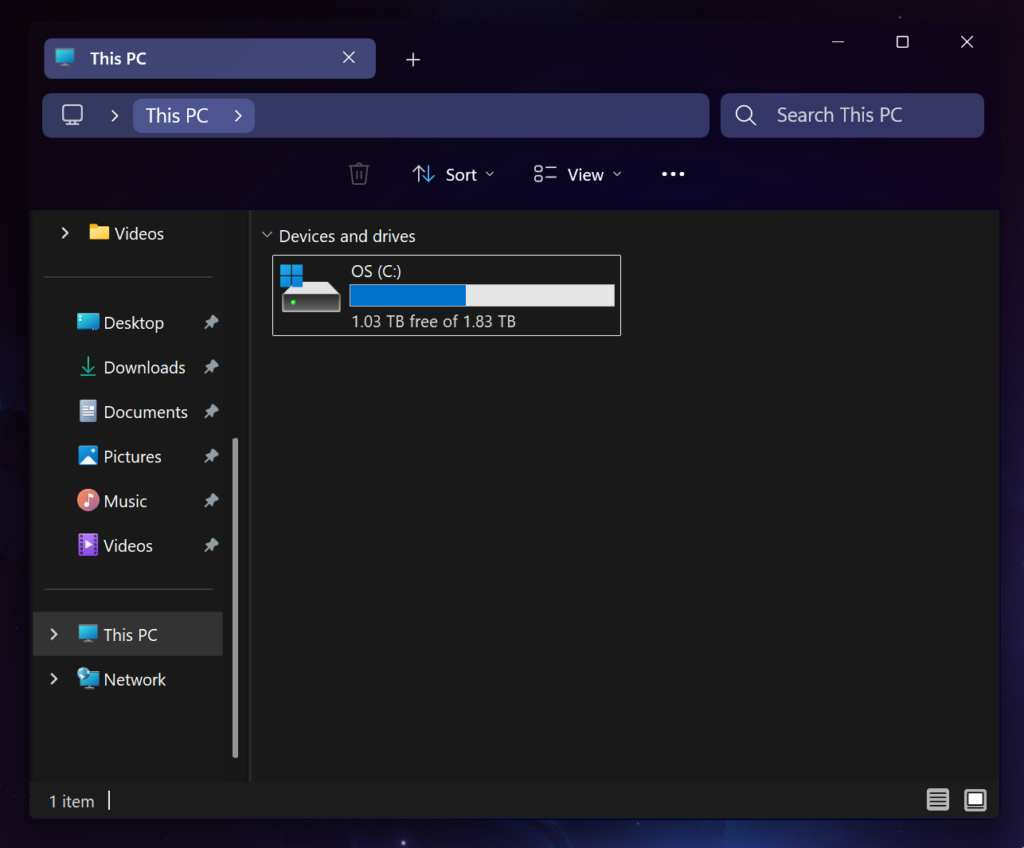
Here’s the part you should know before installing, because it caught me off guard. Put stock Explorer next to Matter and the command bar loses quite a bit. The New button is gone. So are cut, copy, paste, rename and share. What’s left is the trash icon, Sort, View and the overflow menu, and it all gets centered instead of sitting over on the left.
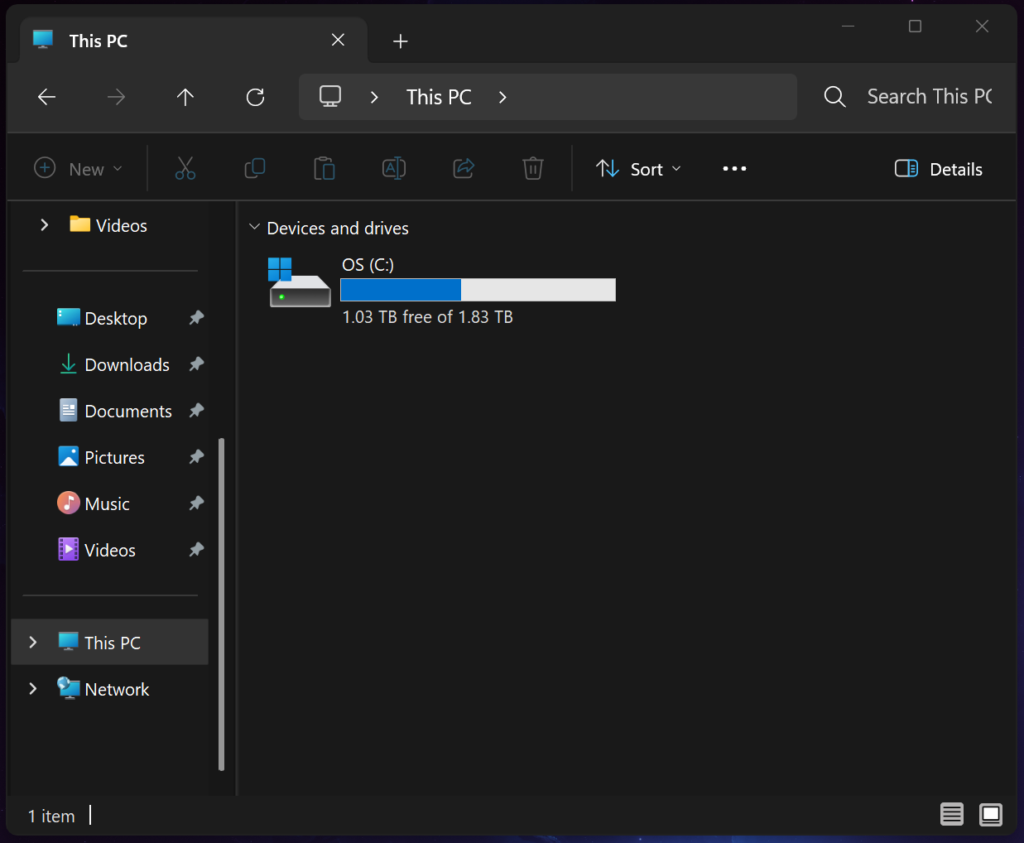
The address bar and search box also split into 2 separate rounded pills instead of one joined strip, and the tab turns into a pill of its own.
None of that bothered me because I use right-click and keyboard shortcuts for all of it anyway, Ctrl+Shift+N for a new folder and so on. But if you’re someone who reaches for that New button with the mouse 20 times a day, this theme will annoy you, and there’s no shame in picking one of the other 14 instead. Worth checking what your theme removes before you commit to it.
The Windows 11 File Explorer Styler transparent themes
If transparency is what you’re after, Translucent Explorer11, WindowGlass, TintedGlass, LiquidGlass and OS26 Liquid Glass are all chasing it in different ways. The 2 Liquid Glass ones are going for the Apple look, which isn’t my thing, but they’re there if it’s yours.
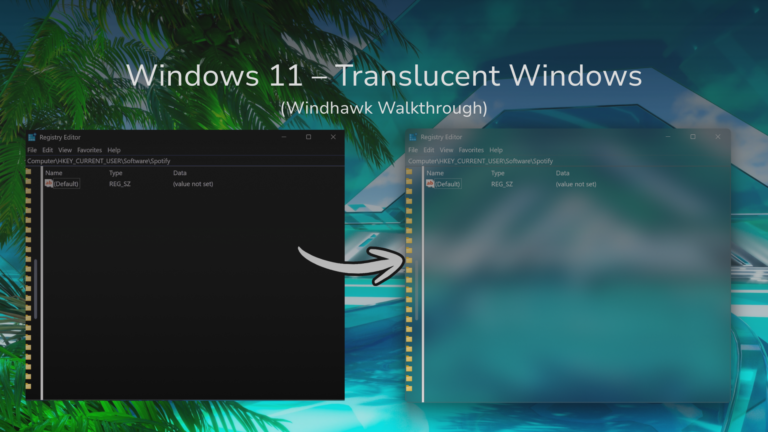
These themes only cover File Explorer itself. If you want the same glass on older programs like regedit and Control Panel, that’s what the Windhawk Translucent Windows mod does, and it stacks with these themes rather than fighting them. Running it on top of OS26 Liquid Glass even cleared up a dark strip next to the navigation pane scrollbar for me.
Go in knowing about the gray fade from earlier, though. Every Windows 11 File Explorer Styler transparent theme is going to flatten out the moment you click another window, and that’s not something the mod or the theme author can fix. You’ll only notice it if you like leaving Explorer open in the background.
If you add the taskbar mod too, they share a process
Worth flagging because it’s a conflict risk that turned out to be nothing. There’s a companion mod called Taskbar Styler that does the same job for your taskbar, and both it and this one inject into explorer.exe, since that single process runs Explorer windows, the taskbar and the desktop all at once. Two mods living inside the same process is the kind of thing that sounds like trouble.
I installed both at the same time, along with a third one for the Start menu, and got away with it completely. No flicker, no crashes, no slow window opens, and both themes come back together whenever Explorer restarts. If you’re curious what the taskbar side looks like, I covered it in my Taskbar Styler guide, and the rest of what I run is in my list of Windhawk mods worth keeping.
One thing I’d pass on, though: install mods one at a time rather than in a batch like I did. If something does go sideways you’ll know immediately which one caused it, instead of turning 5 things off to find the culprit.
Windows 11 File Explorer Styler code and custom styles
If none of the 15 themes work for you, the mod lets you write your own targeting through those Control styles and Resource variables boxes. Windows 11 File Explorer Styler code is written against Explorer’s interface elements, where you name a control and then set properties on it.
You don’t have to write it from scratch. The official styling guide keeps a collection of ready-made snippets for the things people ask for most, and a tool called UWPSpy lets you inspect Explorer’s elements live so you can see what you’re actually targeting. Point it at explorer.exe and pick the WinUI 3 framework.
I haven’t needed to write any Windows 11 File Explorer Styler code myself, so I’m pointing you at the people who have.
Windows 11 File Explorer Styler FAQ
Is Windows 11 File Explorer Styler safe to install?
Mods get reviewed before they show up in the Windhawk marketplace and the full source code is viewable from inside the app. It’s still third-party code loading into a Windows process though, so if you want the honest full picture on what that actually means, I went through it properly in is Windhawk safe.
Is Windows 11 File Explorer Styler on GitHub?
It is, in the ramensoftware windhawk-mods repo, and the Source Code tab inside Windhawk shows you the same file without leaving the app.
Can I add a theme that isn’t in the dropdown?
Yes. The styling guide repo has more themes than the 15 integrated ones, and you can paste their styles into the settings manually. Contributions get folded into the mod over time, which is how the built-in list grew in the first place.
Does it break when Windows updates?
It can, since it’s hooking into a component Microsoft keeps changing. Mine hasn’t broken in 2 months on 25H2, but if yours does, check for a pending mod update before assuming the mod is dead.
The gray window isn’t something to fix
The reason I wanted to write this one is that the most common complaint about this mod is normal Windows behavior. A pile of people have installed a transparent theme, watched it turn gray when they clicked away, and gone looking for a fix that doesn’t exist because nothing is actually broken.
Past that, it’s about as low maintenance as Windows customization gets. Pick something that matches whatever you’ve already got going on, check what your theme removes from the command bar before you commit, and then leave it alone.
If your theme won’t apply at all, drop the theme name and your Windows build in the comments and I’ll take a look.