Make Windows 11 Look Like Windows XP: My 20-Minute Build
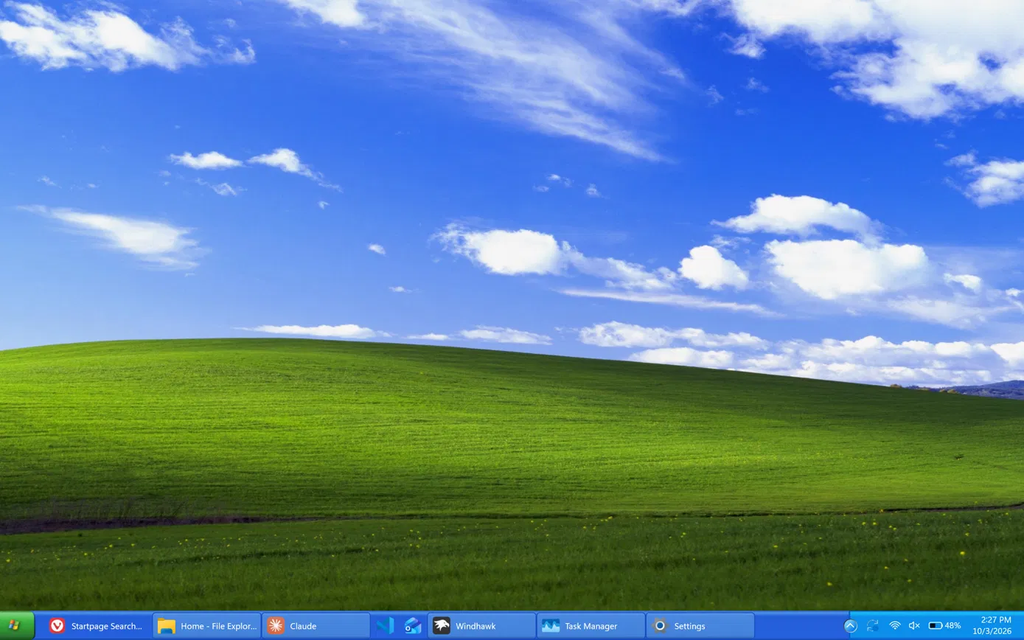
You can make Windows 11 look like Windows XP in about 20 minutes using 4 free Windhawk mods, 2 Windows settings and the Bliss wallpaper. The taskbar is the part that gets really close, with the blue bar, the green Start button and labeled window buttons all there. The Start menu and File Explorer are where it falls short, because Windhawk has no XP theme for either one, so I’d put the finished build at a 7/10 for accuracy.
Everything here is off my ASUS ROG Zephyrus G16 (GA605WI) on Windows 11 25H2, running Windhawk 1.7.3.
So the thing I wanted to find out with this build was how much of XP you can get from Windhawk by itself, with no extra apps and no patched system files. On my laptop the answer was 1 part out of 4. The taskbar has a real XP theme built in, and the Start menu, File Explorer and icons don’t have one at all. I also found out the hard way that one of the Start menu themes has no power button, and I’ll show you that one in the Start menu section.
Quick heads up before we start, XP was before my time and I never used it myself, so I built this by comparing against screenshots of the real thing. If you grew up on XP and something looks off to you, tell me in the comments and I’ll fix it.
If you don’t have Windhawk yet, it’s a free open-source app that loads small mods into Windows, and my guide on how to install Windhawk takes about 2 minutes. The mods I keep running day to day are in my list of the best Windhawk mods.
How Close Can You Make Windows 11 Look Like Windows XP?
Each part of the desktop came out differently, so this table shows what I used for it and how it turned out on my laptop.
| Part | What I used | How it turned out |
|---|---|---|
| Taskbar and Start button | Windows 11 Taskbar Styler, WinXP theme | Blue bar and green Start button, very close |
| Taskbar buttons | Taskbar Labels + Taskbar height and icon size | Labeled, equal-width buttons like XP |
| Start menu | Windows 11 Start Menu Styler, Windows10 theme | Clean, but it isn’t XP’s layout |
| File Explorer | Nothing | Stock Windows 11 |
| Icons | Nothing | Stock Windows 11 |
| Wallpaper | Bliss in 4K | Same image XP shipped with |
My honest score for trying to make Windows 11 look like Windows XP with only Windhawk and Windows settings is 7/10. If the Start menu and File Explorer matter more to you than the taskbar, skip down to the section on where to look for those before you spend the 20 minutes.
Windows XP Taskbar for Windows 11
The taskbar does most of the work when you make Windows 11 look like Windows XP, and it only takes 3 mods and 2 settings to get there.
Step 1: Apply the WinXP Theme in Taskbar Styler
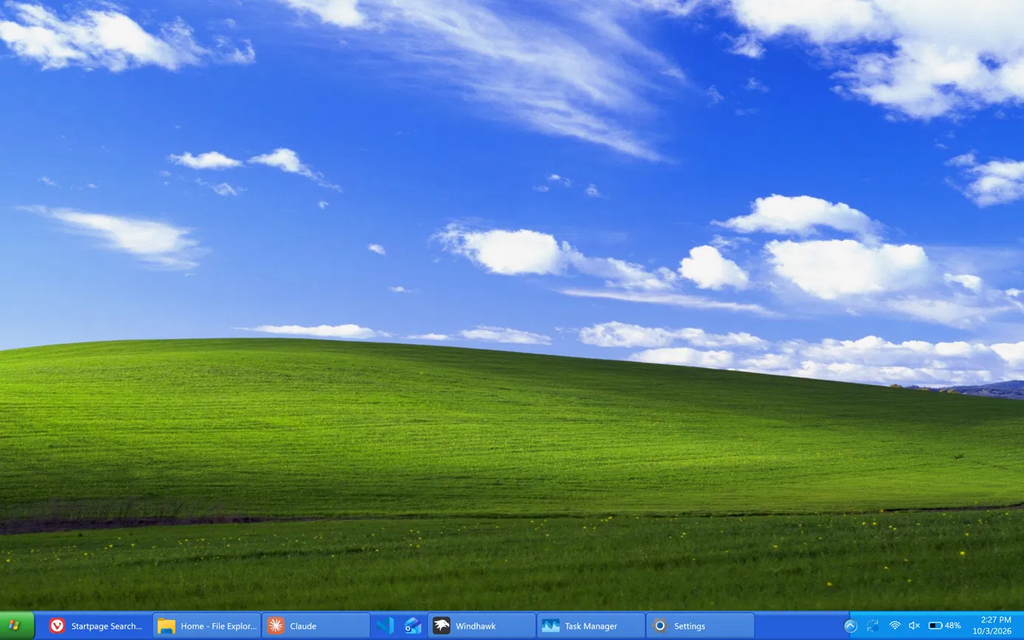
Open Windhawk, click Explore, search for Windows 11 Taskbar Styler, click Details, then Install. Once it’s installed, open the Settings tab, set the Theme drop-down to WinXP, then click Save settings. The taskbar turns blue right away, with the green Start button and a lighter blue section around the clock. My Windows 11 Taskbar Styler guide covers the rest of the themes in that drop-down.

There’s a second option in the list called WinXP (Zune), which gives you a gray bar with an orange Start button. I stuck with the regular WinXP since the blue and green is the XP everyone recognizes. Both come from the Windhawk developer, and the WinXP theme page on GitHub has the full style code if you want to edit it yourself.

Step 2: Move the Start Button to the Corner
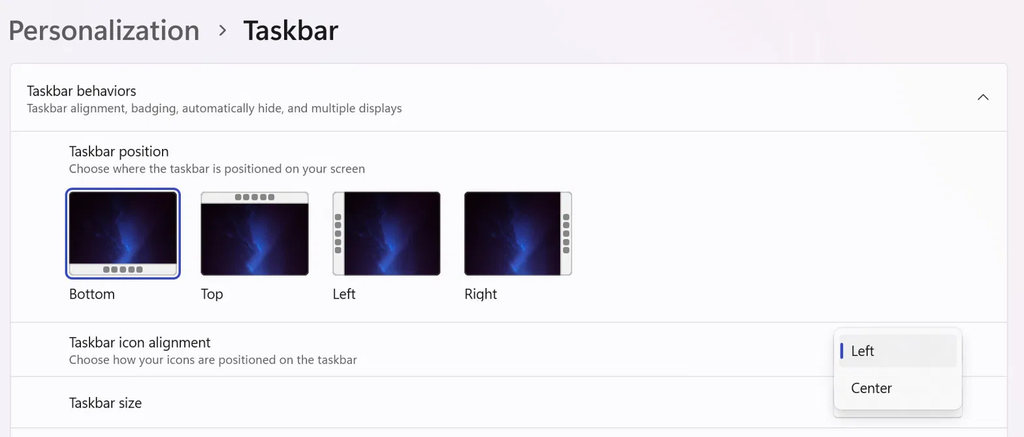
Now out of the box the green Start button sits in the middle of the taskbar, which looks wrong since XP had it in the left corner. Right-click an empty part of the taskbar, click Taskbar settings, expand Taskbar behaviors and set Taskbar icon alignment to Left. It applies instantly with no save button to click. It’s the opposite of what I did to make Windows 11 look like macOS, where the dock theme needs the taskbar left on Center.
While you’re on that page, set Search to Hide under Taskbar items. XP never had a search box on the taskbar, and it was the most obvious Windows 11 thing left on mine.
Step 3: Set the Taskbar Height and Icon Size
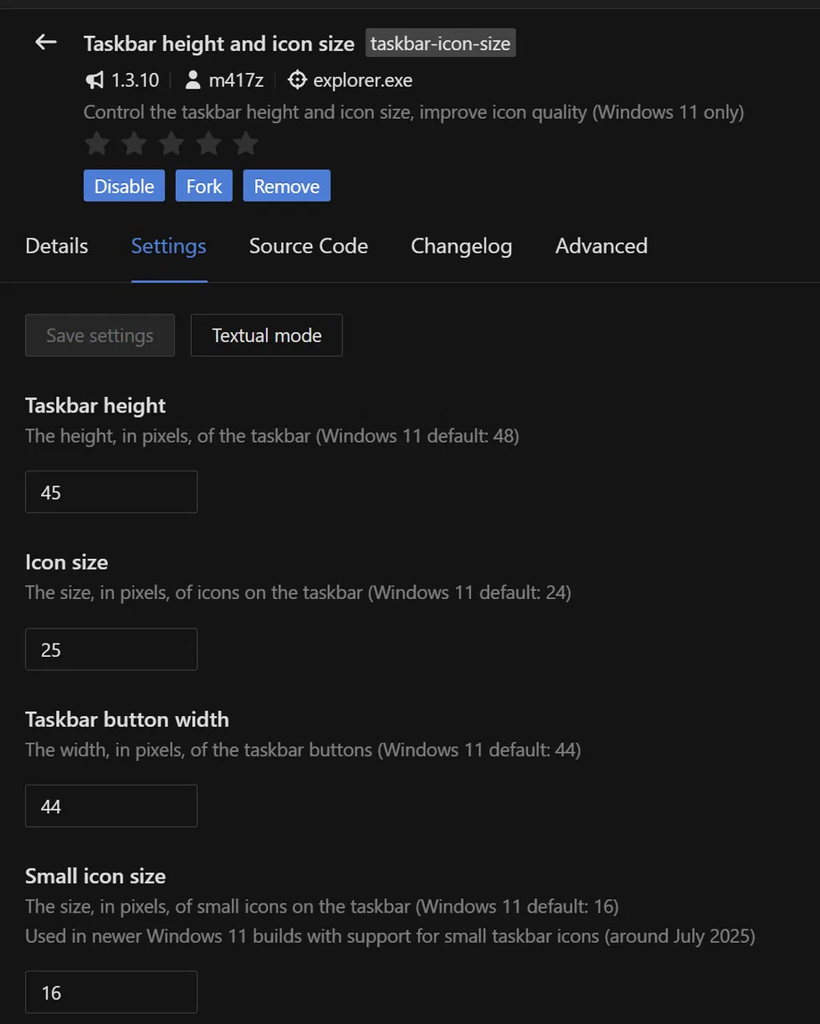
Install Taskbar height and icon size from Explore the same way. In its Settings tab I set Taskbar height to 45 (the Windows 11 default is 48) and Icon size to 25 (the default is 24), left Taskbar button width at 44, then clicked Save settings. Heads up, I normally tell people not to run this mod next to a Taskbar Styler theme, since most themes set the taskbar height themselves. The WinXP theme is the exception, its own README recommends this mod, and I had no problems running the 2 together.
Step 4: Turn On Taskbar Labels
XP showed the window title next to every open app, and Windows 11 hides those by default. Install Taskbar Labels for Windows 11 from Explore, then open its Settings tab. Mine has Mode on Show labels, don’t combine taskbar buttons and Taskbar item width at 160, and if you change either one you need to click Save settings. Every open window becomes a wide button with its name on it, all the same width, and pinned apps that aren’t open stay as plain icons.
With labels on, my taskbar showed Startpage Search, Home – File Explorer, Claude, Windhawk, Task Manager and Settings as labeled buttons in a row, which is the same layout the Windhawk Windows XP theme is copying.
The Start Menu: The Closest I Got
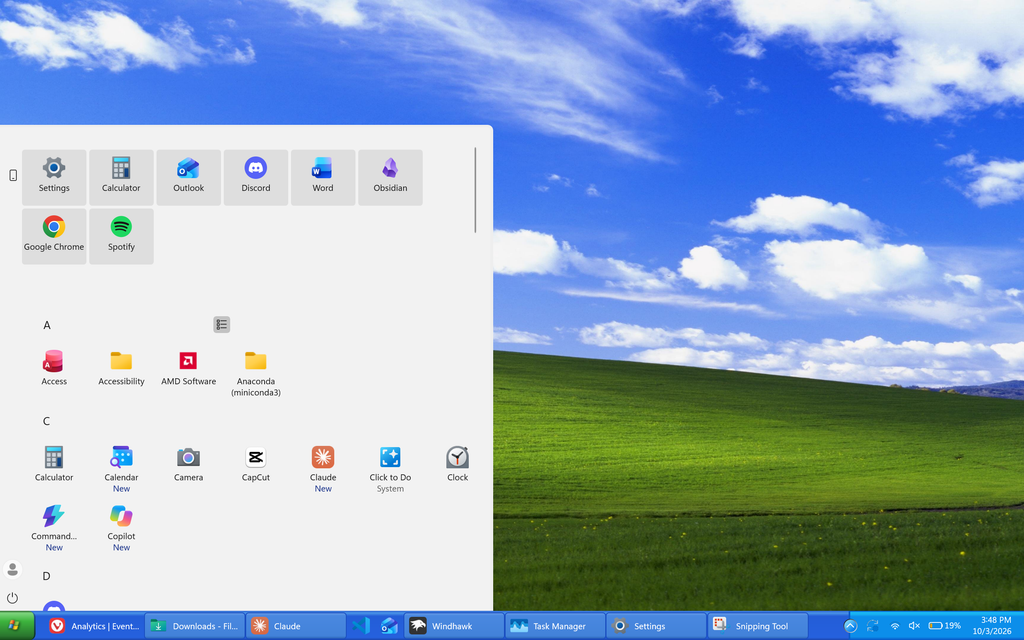
Windhawk has no XP theme for the Start menu, so if you make Windows 11 look like Windows XP this way, the Start menu is where the look falls apart. I went through the themes in Windows 11 Start Menu Styler looking for the closest one.
My first pick was Windows10X, and I thought it looked a little better than the rest. Then I noticed it had no power button at all, so there was no Shut down or Restart anywhere in the menu. You can still shut down with Win + X > Shut down or sign out, but I wasn’t going to keep a Start menu that can’t turn the laptop off.
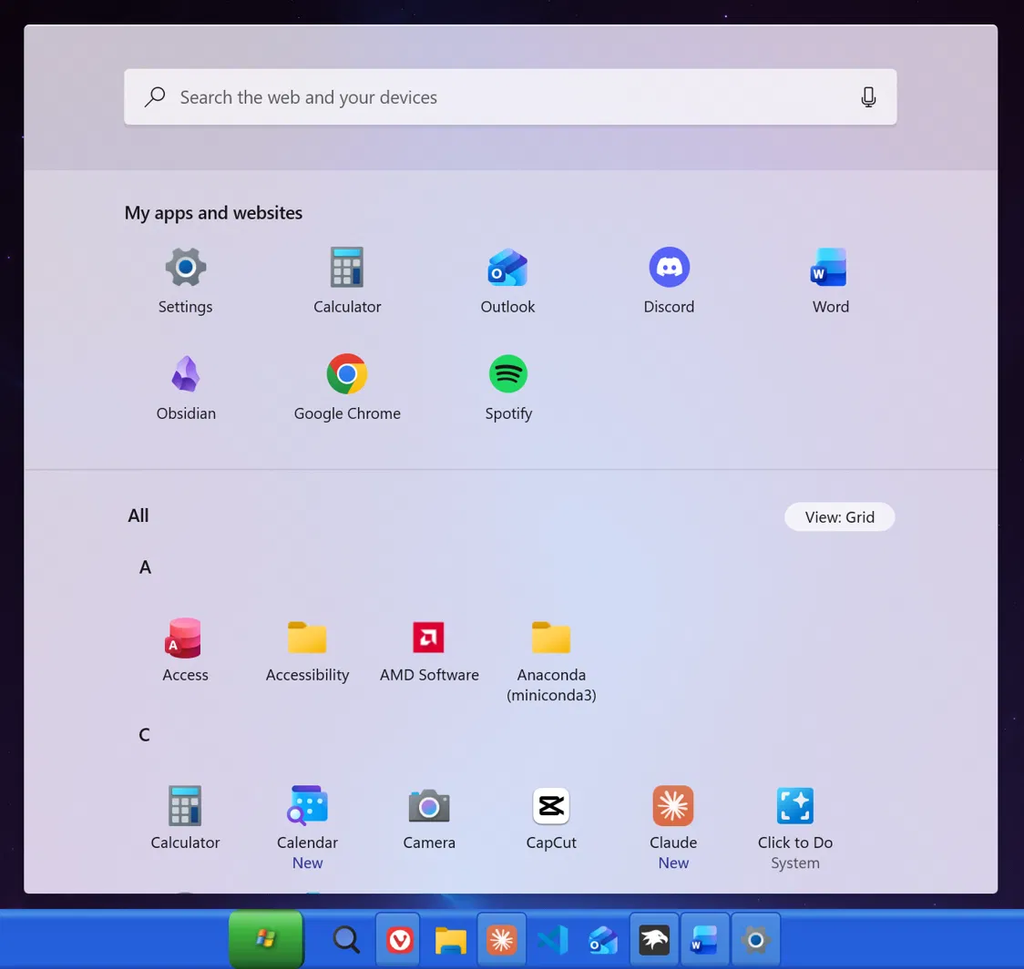
I ended up on Windows10, which keeps the power and profile buttons on the left side and puts your pinned apps in tiles. Open the mod’s Settings tab, pick it from the Theme drop-down and click Save settings. It’s a clean light menu, but XP’s had 2 columns with your username across the top, and nothing in the list recreates that. The other themes are covered in my Windows 11 Start Menu Styler guide.
File Explorer and Icons Stay Stock
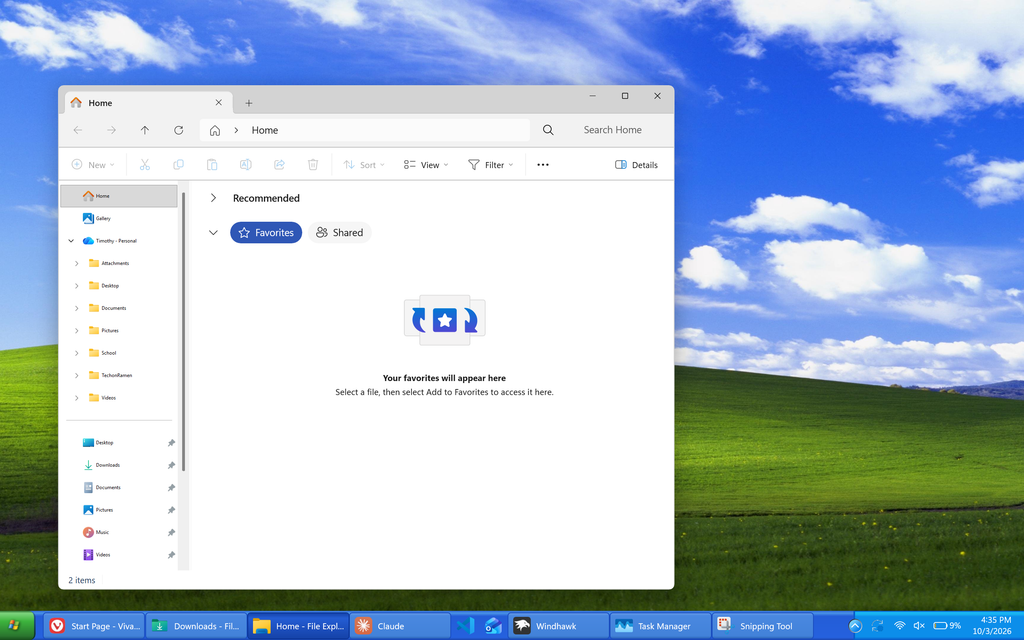
I checked every theme in Windows 11 File Explorer Styler and none of them are close to XP, they’re mostly glass and transparent styles. So Explorer stays as stock Windows 11, and you’ll notice it the second you open a folder on top of the blue taskbar.
Icons are the same story. The Resource Redirect mod can swap Windows icons, and its official icon theme list has around 150 packs, but they’re Linux and macOS styles with no Windows XP pack in there. There are XP packs on forums that you’d have to install by hand, but icon quality can vary heavily from pack to pack, so I kept mine stock. So I’m pointing you to where the options are, and you can pick.
For those of you who keep shortcuts on the desktop, there’s also a mod called Classic Desktop Icons that changes how the labels under them are drawn. My desktop is empty, so I didn’t test that one.
The Wallpaper
Honestly the wallpaper helps more than I expected, and it’s the easiest step when you make Windows 11 look like Windows XP. I used a 4K version of Bliss and set it through Settings > Personalization > Background. The taskbar looked way more like XP the moment the green hill was sitting behind it. I ran into the same thing on my Frutiger Aero Windows 11 build, where the wallpaper did at least half the work before any mod went on.
Why I Skipped the Classic Theme Mod
Searching Windhawk for XP stuff will lead you to a mod called Classic Theme, and it sounds like the answer when you want to make Windows 11 look like Windows XP. It doesn’t give you the XP look though. The mod turns off visual styles completely, which leaves you with the gray Windows 2000 style windows.
The bigger problem is in the Classic Theme mod’s own description, which says the Classic theme is not compatible with the Windows 11 taskbar and lists more than 10 extra steps and fix mods to get everything working. Since this whole build sits on the Windows 11 taskbar, I left it alone.
Windows XP Theme for Windows 11 25H2: Did Anything Break?
On 25H2 nothing broke or glitched during the build, and none of my other Windhawk mods conflicted with the WinXP theme. I had Taskbar Dock Animation and my 2 auto-hide mods running the whole time. The whole thing took me about 20 minutes from the first mod to the wallpaper.
If you want your old setup back afterward, switch each Theme drop-down back to what you had and click Save settings. My uninstall Windhawk guide also covers backing up your mods before you experiment.
Where to Look for an XP Start Menu and File Explorer
For those of you who want the Start menu and Explorer to match, you’ll need tools outside Windhawk. I haven’t used either of these myself, so treat them as places to start looking. Open-Shell is a free Start menu replacement with classic layouts, and RetroBar replaces the taskbar with a copy of the old ones, XP included.
Can You Make Windows 11 Look Like Windows XP Exactly?
With Windhawk alone, no. You get an accurate taskbar and wallpaper, a Start menu from the wrong era and a stock File Explorer. To make Windows 11 look like Windows XP all the way down to the window frames, people combine those other tools with custom visual styles, and that goes past what I’ve tested on my laptop.
FAQ
Is there a Windows XP theme for Windows 11?
Yes for the taskbar. The WinXP theme is built into the Windows 11 Taskbar Styler mod in Windhawk, and it’s the closest thing to a real Windows XP theme for Windows 11 that I found. There’s no matching theme for the Start menu or File Explorer.
Is the Windhawk Windows XP theme free?
Yes. Windhawk and all 4 mods are free, and you pick the theme from a drop-down with nothing to download separately. If you’re wondering about the app itself, I went through that in Is Windhawk Safe.
Does the Windows XP theme for Windows 11 work on 25H2?
It did on mine. I built all of this on Windows 11 25H2 and the taskbar theme, labels and height mod applied without any errors.
Can I undo it after I make Windows 11 look like Windows XP?
Yes. Change the Theme drop-down in each styler mod back and click Save settings, or click Disable on the mod, then set Taskbar icon alignment back to Center in Windows settings.
Are You Keeping It?
I’m going to run this for a while and see if it sticks. If XP isn’t your thing, I’ve done 2 other theme builds with the same mods, a macOS dock with only Windhawk and a glass Frutiger Aero theme that goes for the Vista and Windows 7 era.
If you make Windows 11 look like Windows XP with a different set of mods, or you find a Start menu theme that actually pulls off the XP layout, drop the name in the comments and I’ll test it on my G16 and add it here.