Make Windows 11 Look Like macOS With Only Windhawk
Three free mods get you a floating, centered glass dock with icons that magnify under your cursor. That’s the macOS feel, and it takes about 20 minutes. You don’t pay for anything, and nothing gets downloaded from outside Windhawk.
I’m running this on my ASUS ROG Zephyrus G16, and Windhawk is free and open source, so this is how to make Windows 11 look like macOS for free in the most literal sense. I’ll walk you through it in the order I’d do it myself, so just follow along top to bottom.
What you need to make Windows 11 look like macOS
Three mods total, all free, all sitting in Windhawk’s own catalog: the Windows 11 Taskbar Styler for the dock itself, Taskbar Dock Animation for the hover magnification, and Taskbar height and icon size to keep your icons sharp. If you don’t have Windhawk yet, grab it from windhawk.net and run through my Windhawk install guide first, then come back here.
How long it takes to make Windows 11 look like macOS
About 20 minutes start to finish, and most of that is you flipping through themes deciding which one you like. Every theme in this guide ships inside the Taskbar Styler and is documented over in the Windows 11 taskbar styling guide on GitHub, so you’re never downloading anything loose. If you want the full tour of that one mod on its own, my Windows 11 Taskbar Styler guide digs into it properly.
Step 1 — Pick your Windhawk macOS theme
First thing we’re doing is the dock itself, because it’s the piece that carries the whole look.
Head into Windhawk, go to the Explore tab, search Windows 11 Taskbar Styler and hit Install. This is the mod that restyles your taskbar, and it ships with a couple dozen themes built in.
Picking a theme to make Windows 11 taskbar look like macOS
Now, on which theme to grab. I went through most of them over an afternoon. DockLike is the obvious one since it’s literally built to look like a dock. CleanSlate is cleaner and slightly see-through, and when I pulled in a friend who actually runs a MacBook and made him pick between the 2, he went CleanSlate immediately. Surface looks sharp but its own docs say it’s meant to run alongside a separate paid status bar app, so by itself you’re getting half a setup.
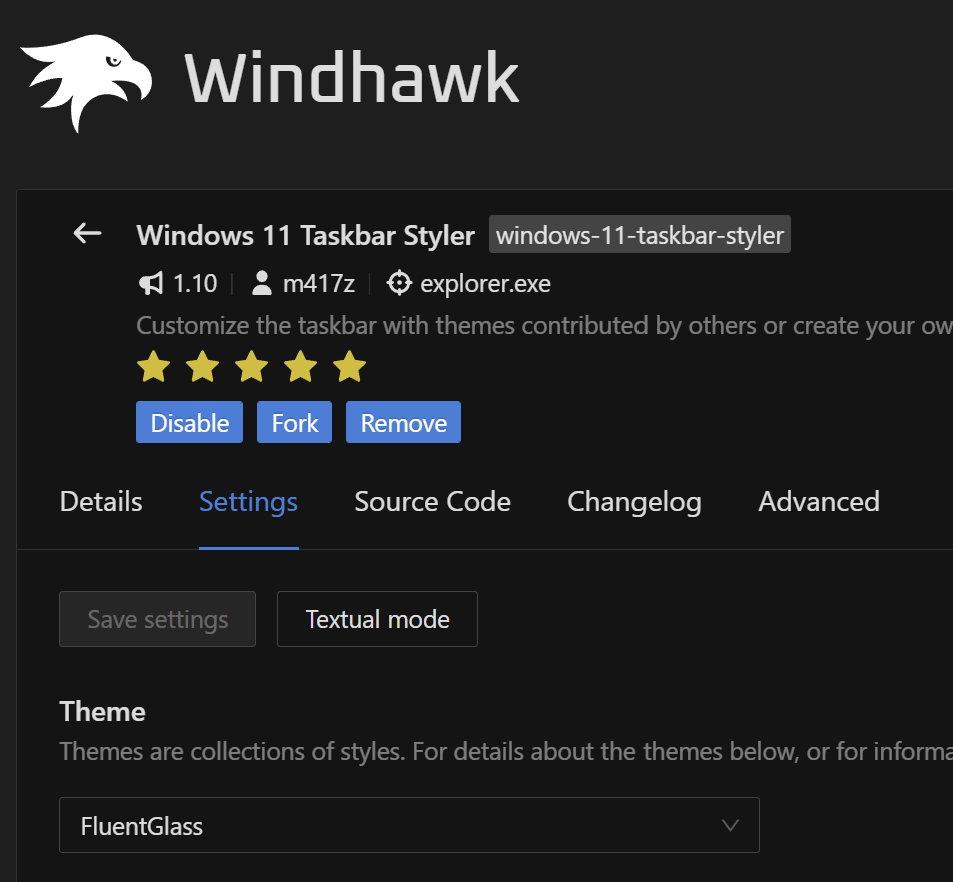
I ended up on FluentGlass, and I’ll be honest that it’s a Fluent Design theme, so it’s chasing Microsoft’s look rather than Apple’s. But it gives you a floating centered bar with heavy blur and soft rounded corners, and on my screen that reads more like a dock than the themes actually trying to be one. Go look at all 4 and pick your favorite, there’s no wrong answer here. Whichever you land on, the Windhawk macOS theme you choose is the single biggest call in this whole guide, since everything after it is tuning.
To set it: open the Taskbar Styler in Windhawk, go to the Settings tab, choose FluentGlass from the theme dropdown, then hit Save settings. That save button matters — picking from the dropdown does nothing on its own, which got me the first time I used this mod.
Step 2 — Center your taskbar
Quick one before we move on. FluentGlass expects the default center alignment, and if you’ve ever moved yours to the left you’ll need to put it back or the dock sits off to the side.
Right-click your taskbar, go to Taskbar settings, open Taskbar behaviors, and set alignment to Center. That’s it.
While you’re in there, it’s worth taking a quick look at the rest of that panel, since a couple of native toggles do real work here before any mod touches anything. Hiding the Search box and the Widgets button strips 2 things off your taskbar that macOS has no equivalent for, and both are a single switch under Taskbar items. Microsoft documents the whole panel in its own customize the taskbar guide if you want to see what else is in there. Neither is required to make Windows 11 look like macOS, but both get you a cleaner dock for free.
Step 3 — Add the Windhawk macOS dock magnification
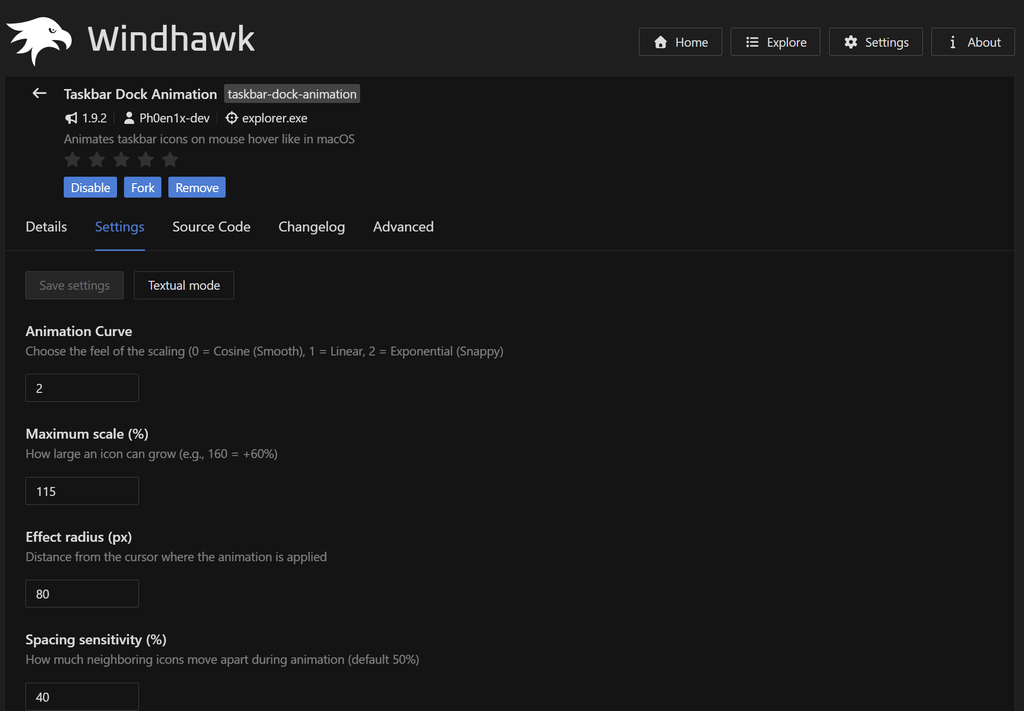
Alright, next up is my favorite part and the one that really sells it. Back to the Explore tab, search Taskbar Dock Animation, install it. This grows your icons as your cursor sweeps across them, and the mod’s own description says “like in macOS” right on the tin.
The defaults get you close but not all the way. A Windhawk macOS dock lives or dies on these numbers, so here’s what I run:
- Animation Curve: 0 (Cosine). Steer clear of Exponential. Real dock magnification eases in and settles instead of snapping.
- Maximum scale: 125. The docs warn anyone also running the taskbar sizing mod to stay at or below 130% or your icons get clipped by the bar edge. I’ve had zero clipping at 125 on my G16.
- Effect radius: 100. If you do hit clipping, drop this before you touch the scale.
- Spacing sensitivity: 50. The neighboring icons sliding apart is half of what makes it feel right.
- Disable vertical bounce: ON. This one sounds backwards, I know. But the idle breathing animation isn’t something macOS does — a Mac bounces an icon when an app launches or wants your attention, not constantly while it sits there.
One warning, the mod calls itself beta and not fully stable in its own readme, with known issues around clipping and upscaled icons going a bit soft. It’s been fine for me, but you should know that before you install it.
Now if you want to know what you’re actually aiming at here, Apple’s own documentation on using the Dock is worth a skim. A real Mac dock magnifies on hover, sits centered by default, and can be resized or moved, and the magnification amount is a slider the user controls. That’s the behavior we’re chasing, and it’s why the scale and radius values above matter more than they look. Get those 2 numbers wrong and your Windhawk macOS dock looks like a regular taskbar with a bounce on it.
Step 4 — Sharpen up your icons
Next up, the third and last required mod. Search Taskbar height and icon size and install.
Now this one seems like a throwaway but it’s not. Windows 11 puts 24×24 icons in your taskbar, except Windows icon files only come in 16×16 and 32×32 — meaning those 24s are shrunk-down 32s. Your taskbar icons have been slightly blurry this entire time and you probably never noticed. Set icon size to 32 and you get the real thing.
Leave the height setting alone though. FluentGlass sets its own bar height, so just let it do that.
That’s the 3 mods done, and this is the point where most people stop and decide whether they like it. If your dock looks squashed or the icons sit oddly in the bar, it’s almost always the sizing mod and the theme arguing over height, so set the icon size and let the theme own everything else. It’s the one conflict I ran into while trying to make Windows 11 look like macOS, and it takes about 5 seconds to undo once you know what’s causing it. I’ll be straight with you, in my Taskbar Styler guide I tell people not to run this mod next to a styling theme at all, and that still holds if you’re touching the height slider. Icon size is the exception, since the theme isn’t setting that one.
Step 5 — Tune the feel
So at this point you’ve got a working dock, and honestly that’s already 90% of what it takes to make Windows 11 look like macOS. These last few are optional, but they’re what took mine from good to actually convincing. All of them live in the Taskbar Styler settings under Style constants, and you hit Save settings after each change.
Tighten the bar up. TaskbarFrameWidth is 1280 out of the box, which on a wide screen leaves a lot of empty bar hanging off both sides. A Mac dock is only as wide as its icons. Try TaskbarFrameWidth=1000.
Round it harder. GlobalRadius sits at 8, which the theme calls native modern rounding. Bump it to GlobalRadius=16 for what the docs describe as the aggressive dock look. That’s closer to how round the macOS dock is.
More frost. BlurAmount defaults to 22, and pushing it toward 40 gets you heavier frosted glass.
And one to turn off: if you’ve got Accent Color Sync running, your wallpaper color leaks into quick settings and sliders. A Mac keeps Control Center neutral no matter what’s behind it, so turn that mod off for this build.
The wallpaper does more than you’d think
Don’t skip the wallpaper. Every theme here is translucent, which means whatever sits behind the dock is bleeding through it and setting the tone for the entire look. A busy, high-contrast wallpaper turns your glass bar into a smeared mess, and no amount of blur tuning fixes that. Apple ships fairly calm gradients and landscape shots for exactly this reason.
I’d grab something with a soft gradient or a single dominant color and see how much further it carries you. Between that and the blur setting, the wallpaper is probably the highest-impact 30 seconds you’ll spend trying to make Windows 11 look like macOS, and it costs nothing.
Funny enough, the opposite approach works too if you’re going for a different era. In my Frutiger Aero Windows 11 setup, a bright, busy wallpaper is the whole point, and similar glass themes over it end up reading like 2008 instead of macOS. Same story when I used the Bliss wallpaper to make Windows 11 look like Windows XP, where the taskbar only started looking right once the green hill was behind it.
How close does it get
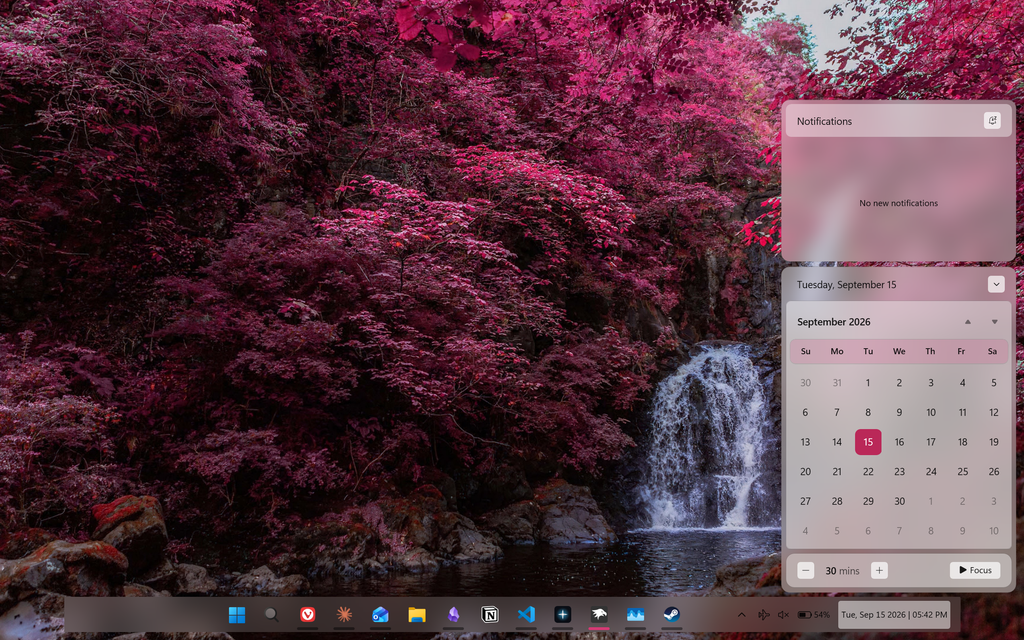
Pretty close on the part that counts. Once you make Windows 11 taskbar look like macOS this way, that floating dock with the magnification is the thing people clock instantly, and day to day it genuinely changes how the machine feels.
Worth saying that how to make Windows 11 look like macOS for free has a ceiling, and this is roughly it. You’re matching how the dock looks and how it moves, which covers most of what people actually notice.
The one place it parts ways is the top of the screen — a Mac has its menu bar up there with the clock and Wi-Fi and battery, while Windows keeps that bottom-right. Windhawk can’t build that, since it restyles things Windows already draws and Windows has no menu bar to work with.
Everything below that line is yours though, and for 3 mods and 20 minutes it’s a solid trade. If you want to make Windows 11 look like macOS without spending anything or trusting a sketchy download, this is the cleanest route I’ve found. And if you’d rather push the rest of the shell to match, the Start Menu Styler and File Explorer Styler guides cover the other 2 surfaces. If you’d rather go retro than Apple, the same Taskbar Styler mod has a WinXP theme built in, and I used it for my Windows XP theme for Windows 11 build.
FAQ
Is this free?
Yes. Windhawk is free and open source, and every mod and theme here comes out of its built-in catalog, so you can make Windows 11 look like macOS for free without paying for a single thing. That’s the whole appeal — most guides on how to make Windows 11 look like macOS for free end up pointing you at a paid dock app halfway through. If you’re curious whether it’s safe to run, I covered that separately in my is Windhawk safe breakdown.
Do I need to download a macOS theme zip file?
No, and I’d skip those. Everything installs from the Explore tab, where each mod’s full source sits public on GitHub. A stranger’s desktop-modifying file off a random host gets you the same look with none of that visibility.
Does the macOS version matter — Tahoe, Sequoia, macOS 26?
Not really. None of these themes track a specific release. You’re matching the general dock shape and material, and that hasn’t shifted much across recent versions.
Will this slow down my PC?
Not in any way I’ve noticed day to day. I actually measured it with 11 mods running, the 3 in this guide included: Explorer used about 2 MB more than with Windhawk closed, battery drain went up by half a watt at most, and Cyberpunk 2077 benchmarked within 0.2% either way. Blur itself is drawn by your GPU, which is why the glass doesn’t show up as CPU load. The full test is in does Windhawk affect performance.
Can I undo it if I don’t like it?
Completely, and this is the part that makes it worth trying at all. Windhawk mods inject into running processes rather than patching anything on disk, so toggling a mod off in the Installed mods tab puts your taskbar straight back to stock. Nothing to reinstall, nothing to clean up.
Do I need all 3 mods to make Windows 11 look like macOS?
No, but I’d argue for at least 2. The Taskbar Styler alone gets you the floating glass bar, which is most of the visual change. Adding Taskbar Dock Animation gives you the magnification on hover, and that’s the one I’d never skip. The icon sizing mod is the smallest of the 3 and purely about sharpness.
The rest of what I run on top of these 3 is in my best Windhawk mods list. And if your dock comes out clipped or sitting off to one side, drop your theme and your screen resolution in the comments and I’ll take a look.