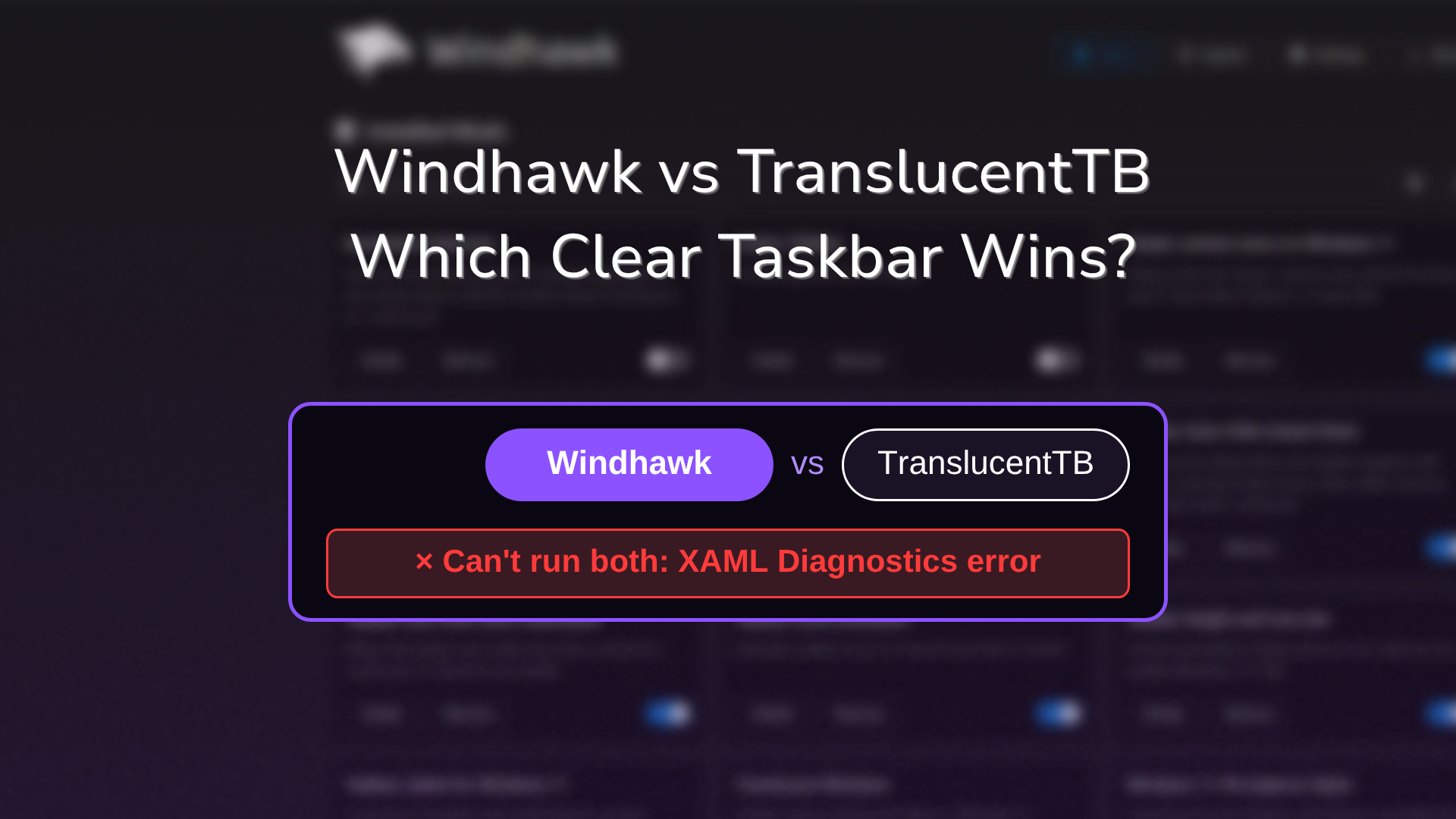
Windhawk vs TranslucentTB: Which Clear Taskbar Wins? (2026)
Windhawk vs TranslucentTB comes up the moment you want a see-through taskbar on Windows 11, since both are free and both will do it. I figured I’d just run them side by side on my laptop and compare, and that plan died on the first click. TranslucentTB crashed on all 3 launches while Windhawk’s Taskbar Styler was running, and switching the mod off still wasn’t enough to get it going. If you’re trying to decide which one deserves a spot on your taskbar, I’ll go through how they clash, what each one costs your PC, and which one I’d keep down below.
After I ran Windhawk’s Taskbar Styler and TranslucentTB on the same taskbar:
- TranslucentTB with the Styler: Crashed on all 3 launches
- Styler switched off: TranslucentTB still didn’t get going
- Memory: TranslucentTB on its own used about 43 MB, while the Styler added no measurable RAM inside Explorer
- The keeper: Only the Styler could give me my full Windows7 theme, so it’s the one I kept
- ROG Zephyrus G16
- Windows 11 26H2
- Build 26300.9711
- Windhawk 1.7.3
- Taskbar Styler 1.10
- TranslucentTB 2026.2
Ryzen AI 9 HX 370 · TranslucentTB from the Microsoft Store
The short answer
Pick one, because they can’t share the taskbar. If all you want is a clear or blurred bar and nothing else, TranslucentTB is the simpler install. If you already run Windhawk, or you want the taskbar to actually look different (shape, size, icons, a whole theme), the Taskbar Styler does transparency too, so TranslucentTB has nothing left to add.
| TranslucentTB | Windhawk Taskbar Styler | |
|---|---|---|
| What it changes | Taskbar background only | Background, size, shape, icons, full themes |
| Clear / blur / acrylic | Yes, from the tray menu | Yes, through themes like TranslucentTaskbar and SimplyTransparent |
| Different look per situation | Yes (window maximized, Start open, search open and more) | No built-in per-situation switching |
| RAM on my G16 | About 43 MB, its own process | Lives inside Explorer, no measurable increase on my G16 |
| CPU while idle | ~0% | ~0% |
| Runs alongside the other | No, they fight over the same connection | |
Why Windhawk vs TranslucentTB is an either-or choice
The simple version is that Windows only lets 1 program at a time hook into the Windows 11 taskbar this way, and these 2 use the exact same hook.
The Windows 11 taskbar is drawn with XAML, the UI framework behind a lot of newer Windows apps. To change it while it’s running, both apps connect through a Windows feature called XAML diagnostics, which exists so developer tools can inspect a live interface. The Taskbar Styler’s settings put it bluntly: “There can only be one consumer at a time.” The Taskbar Styler mod page even names TranslucentTB as a program that will conflict with it.
What happened when I ran both
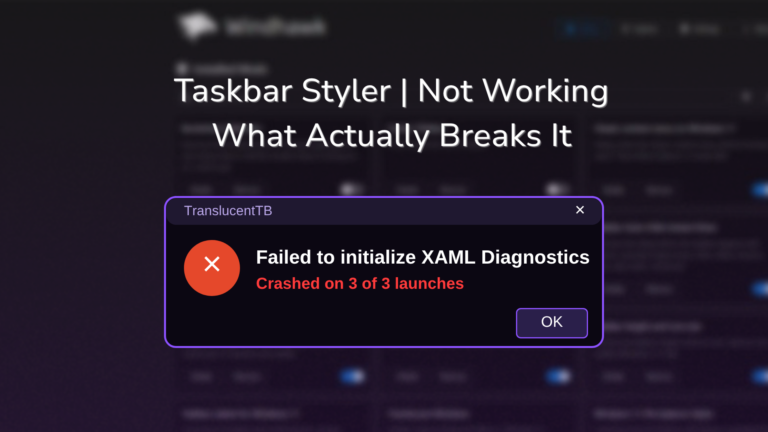
With the Styler running my Windows7 theme, TranslucentTB never got past launching. Every time, it threw this:
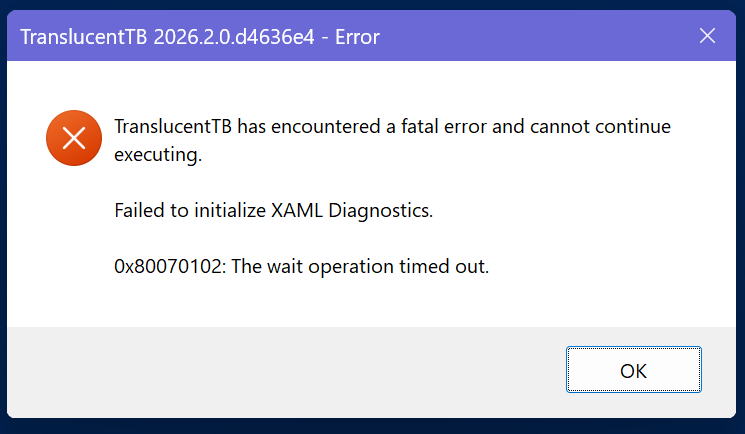
Then I switched the Styler off in Windhawk and tried again, expecting that to free things up. It didn’t, and TranslucentTB crashed the same way. It only started after I restarted Explorer (Task Manager > right-click Windows Explorer > Restart), and that’s when its welcome window finally showed up.
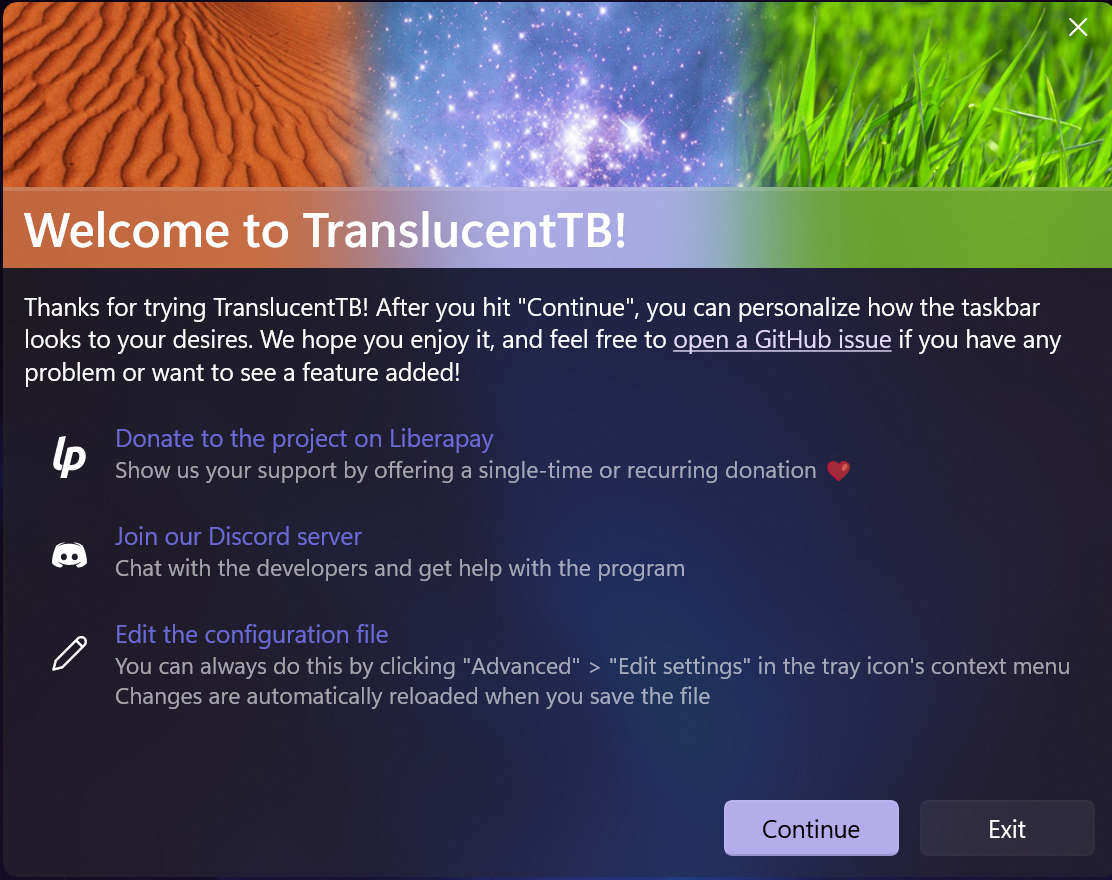
The last test was the reverse. With TranslucentTB running and my bar fully clear, I switched the Styler back on. My Windows7 theme came straight back over the top and TranslucentTB’s clear bar was gone, even though TranslucentTB was still running in the tray. So on my laptop the Styler won both fights, and the only way TranslucentTB got the taskbar at all was with the Styler off and a fresh Explorer.

It doesn’t always go the Styler’s way though. In this GitHub thread, someone running both had the opposite problem: their Styler theme disappeared after every reboot until they toggled it off and on, and the Windhawk maintainer called it a known incompatibility. The fix there was dropping TranslucentTB and using a transparent Styler theme instead. If that sounds like your taskbar right now, the full set of fixes is in my Windhawk Taskbar Styler not working guide.
TranslucentTB on its own
Once it actually ran, TranslucentTB is about as simple as it gets. After you click Continue on the welcome window, your taskbar goes fully clear straight away, since the default style is Clear with no tint and no line along the top. Everything else lives in its tray icon menu, where you pick between Normal, Opaque, Clear, Blur and Acrylic.

The feature the Styler doesn’t have is per-situation styles. TranslucentTB’s config has separate looks for when a window is visible, when a window is maximized, and when Start, search or Task View is open, so you could have a clear bar on the desktop that turns solid when you maximize something. They’re all off by default, and you turn them on from the tray menu or by editing the settings file it points you to.
One thing to know before you install it: when I clicked Continue, it switched on its own start-with-Windows setting without asking. That’s convenient if you’re keeping it, but if you were only trying it out, check Settings > Apps > Startup afterward, especially if you also run Windhawk.
Getting a transparent taskbar on Windows 11 with Windhawk
For a transparent taskbar on Windows 11 without TranslucentTB, Windhawk’s Taskbar Styler already covers it:
- Open Windhawk, click Explore, search for Windows 11 Taskbar Styler and click Install.
- Open the mod’s Settings tab.
- Pick TranslucentTaskbar or SimplyTransparent from the Theme dropdown.
- Click Save settings.
If you want a specific tint or opacity, the official taskbar styling guide shows how to set a custom background color, and the Windhawk maintainer pointed a user switching off TranslucentTB to that exact section. Where the Styler pulls ahead is everything past the background. I run the Windows7 theme daily because I like that Windows Aero feel, and there’s no way to get that out of TranslucentTB. The full theme rundown is in my Windows 11 Taskbar Styler guide, and the other taskbar mods worth stacking on top are in my Windhawk taskbar mods roundup. If you want your windows see-through to match the bar, Windhawk Translucent Windows handles that part.
Does TranslucentTB affect performance?
Barely. I sampled both setups for a minute (12 readings, 5 seconds apart) with Task Manager-style numbers from PowerShell:
- TranslucentTB: about 43 MB of private memory (95 MB working set) and 0% CPU while the desktop sat idle.
- Taskbar Styler: it doesn’t have its own process since it runs inside Explorer. My first reading looked like it added about 58 MB to Explorer, but those 2 readings were a few minutes apart. When I re-measured on a fresh Explorer with the Styler and 12 other taskbar mods all on, Explorer sat at 131.9 MB of private memory, lower than the 158.6 MB I’d measured with the Styler off. CPU stayed around 0% both times.
Explorer’s memory drifts by tens of MB on its own as you open and close windows, and whatever the Styler adds gets lost in that swing. Either way, neither one is going to cost you anything you’d notice on a modern laptop. I also measured what my whole Windhawk mod stack costs in games and on battery in does Windhawk affect performance.
Which one I’d keep
Windhawk, because I already use it for my Start menu and File Explorer too, and the Styler gives me transparency plus a full theme from 1 tool. TranslucentTB makes the most sense if you don’t want Windhawk on your PC at all, or if the per-situation styles are the whole point for you. Either way, uninstall the one you’re not using instead of just closing it, so it can’t sneak back in at startup.
Windhawk vs TranslucentTB FAQ
Is Windhawk better than TranslucentTB?
For a transparent bar alone, they’re even. Windhawk is better if you want to change anything beyond the background, and TranslucentTB is better if you want the bar to switch looks when you maximize a window or open Start.
Why did TranslucentTB stop working?
If it says “Failed to initialize XAML Diagnostics,” something else already has the taskbar’s connection, usually Windhawk’s Taskbar Styler. Turn the Styler off, then restart Explorer from Task Manager. Turning it off alone didn’t work for me.
Is TranslucentTB safe?
It’s open source on GitHub and free on the Microsoft Store, which is where I installed it from. Stick to those 2 sources rather than random download sites. If you want the same question answered for the other side, I went through it in is Windhawk safe.
Can I make the taskbar transparent without any app?
Only partly. Turning on Transparency effects under Settings > Personalization > Colors gives the stock taskbar a light see-through tint, but a fully clear bar needs one of these 2 apps.
If you’ve had both installed and your taskbar keeps flipping between them, drop which one you’re keeping and your Windows build in the comments and I’ll help you sort out the cleanup. And if you’re going the Windhawk route and don’t have it yet, how to install Windhawk takes about 2 minutes, and my best Windhawk mods list covers what else is worth installing next to the Styler.