Best Armoury Crate Settings: The 5 That Matter (Tested 2026)
I went looking for the best Armoury Crate settings on my Zephyrus G16 expecting the top modes to win, and the first test went the other way. Ultimate, the graphics mode that’s supposed to be the fastest, ran Cyberpunk 2077 about 10% slower than Standard (101.48 vs 113.33 FPS) and made me restart the laptop to get there.
Battery was just as lopsided. Out of everything I changed, only 1 setting slowed down how fast my battery drained, and it cut that roughly in half. Another one that ASUS tells you to turn on for battery said it was on the whole time and never did its job. So whether you’re looking to increase FPS or save battery life, I’ll outline the best Armoury Crate settings I personally tested on my laptop down below.
Everything here is off my ROG Zephyrus G16 (GA605WI) with the Ryzen AI 9 HX 370 and RTX 4070, running Armoury Crate 6.5.14.0 on Windows 11 25H2 with NVIDIA driver 595.97.
So Armoury Crate has a lot of tabs and tiles, and honestly most of them don’t change anything you’d feel. I decided to measure the ones that do matter, and found there’s about 5 main ones. Short version first: if you searched for the ASUS Armoury Crate best settings and just want the answer, check out the table below. The reasoning for each row comes right after it.
Best Armoury Crate Settings at a Glance
| Setting | Gaming | Everyday | Battery |
|---|---|---|---|
| Operating mode | Performance | Performance (Silent for 0 fan noise) | Silent |
| GPU mode | Standard | Standard | Eco |
| Refresh rate | 240 Hz | 240 Hz | 60 Hz, set by hand in Windows |
| Power mode synchronization | On | On | On |
| Battery Care charge limit | 80% | 80% | 100% only before a long day out |
What Armoury Crate Actually Controls
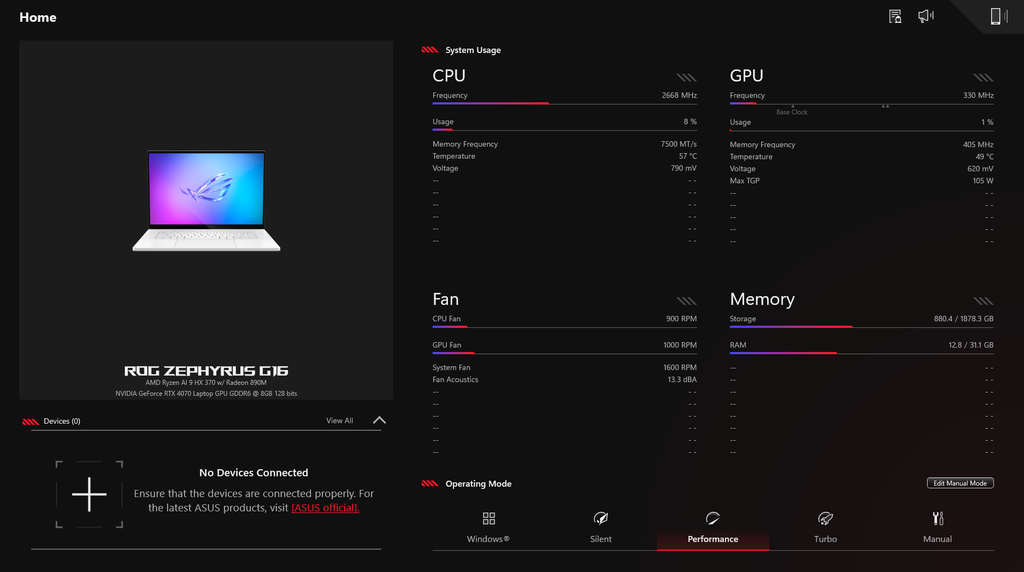
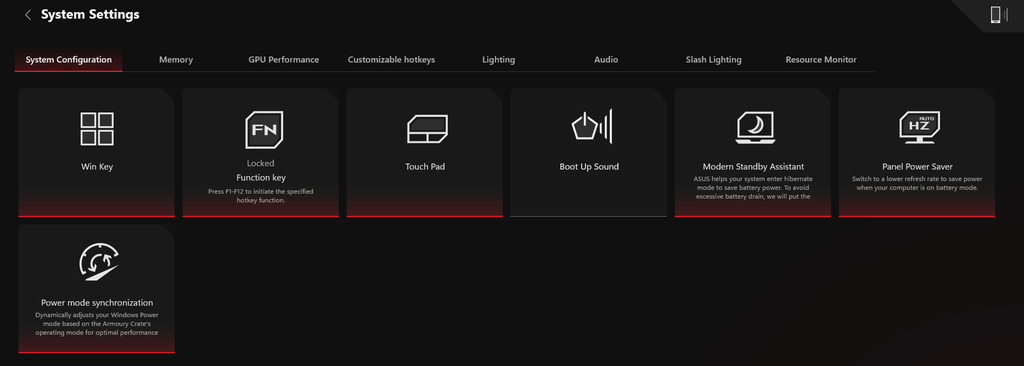
Armoury Crate is the ASUS app that sits between you and the laptop’s firmware. The parts that affect how the laptop runs are the Operating Mode bar on the Home page (power limits and fans), the GPU Performance tab (which graphics chip is awake and which one drives the screen), and the tiles on the System Configuration tab. Everything else is lighting, hotkeys, audio and monitoring.
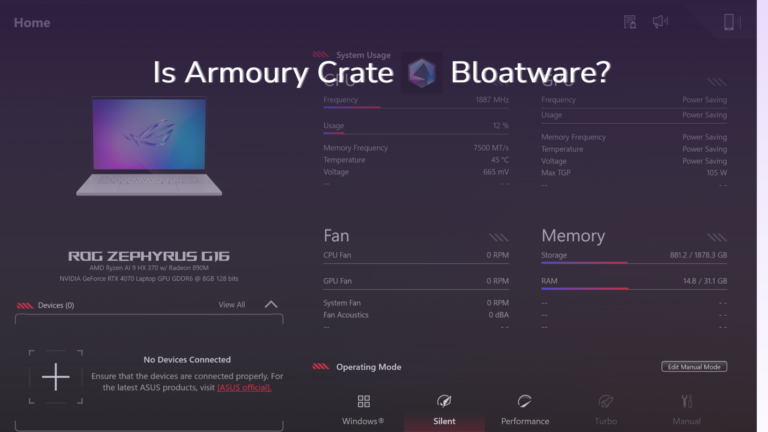
It also runs a fair amount in the background. I counted 26 ASUS processes using 114 MB at idle in my Armoury Crate bloatware test, so if you’re here deciding whether to keep the app at all, that post has the numbers. The rest of this one assumes you’re keeping it.
Best Armoury Crate Settings for Gaming
For gaming on the charger, the best Armoury Crate settings I found are Performance for the operating mode and Standard for the GPU mode. Both of those are probably what your laptop shipped on, and I’m aware that’s a boring answer. I went in expecting Turbo and Ultimate to win, and neither did.
Operating mode: Performance
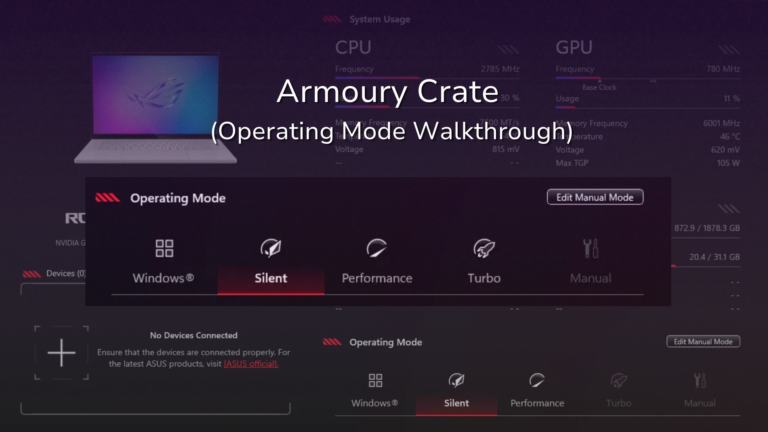
I tested this one in my Armoury Crate operating mode post. Performance averaged 112.33 FPS in Cyberpunk 2077 and Turbo averaged 111.05, which is a tie once you look at how much identical runs move, and Turbo was a lot louder for it. Silent came in at 105.55 FPS, about 6% lower, so even that is playable if you want the quiet.
GPU mode: Standard beat Ultimate
GPU mode decides which graphics chip is awake and which one is wired to the screen. In Standard, both chips are on and the laptop decides which to use. Ultimate wires the screen straight to the Nvidia GPU all the time, and the usual advice is that it gets you the most FPS. Eco turns the Nvidia GPU off completely, to the point where ASUS’s Armoury Crate documentation says it stops showing up in Device Manager.
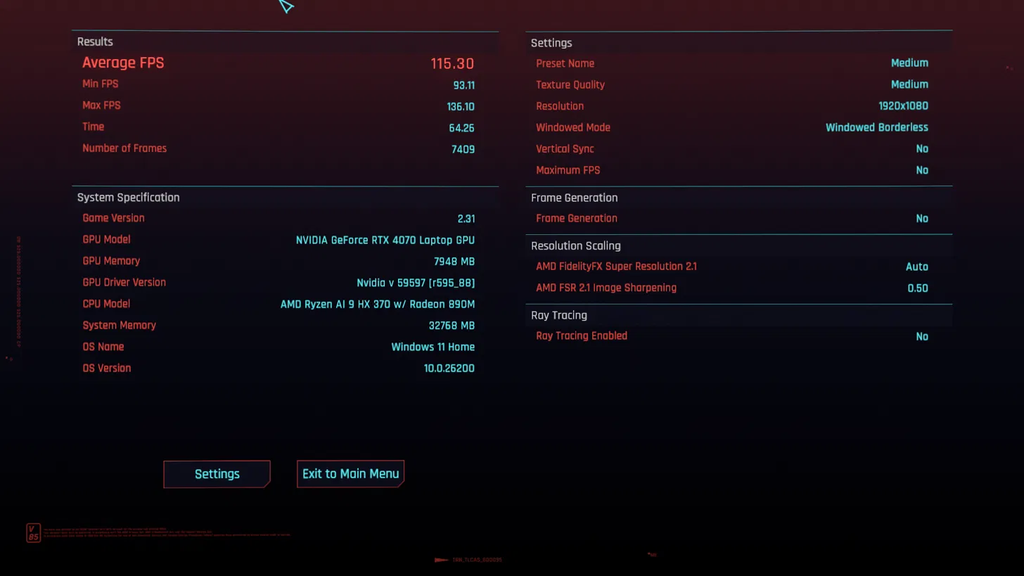
So I ran the built-in Cyberpunk 2077 benchmark in Standard and Ultimate, on Performance mode with the barrel charger. Settings were the Medium preset at 1920×1080, Windowed Borderless, VSync off, no FPS cap, Frame Generation off and ray tracing off, on game version 2.31. I threw out the first run after each restart, since my one cold run scored 100.57 where the next 2 scored 114 and 115.
| GPU mode | Average FPS | Min FPS |
|---|---|---|
| Standard, run 1 | 114.27 | 91.76 |
| Standard, run 2 | 115.30 | 93.11 |
| Ultimate, run 1 | 100.94 | 85.12 |
| Ultimate, run 2 | 102.01 | 83.59 |
| Standard, after restarting back | 110.43 | 89.72 |
| Standard mean | 113.33 | 91.53 |
| Ultimate mean | 101.48 | 84.36 |
Standard->
Ultimate->
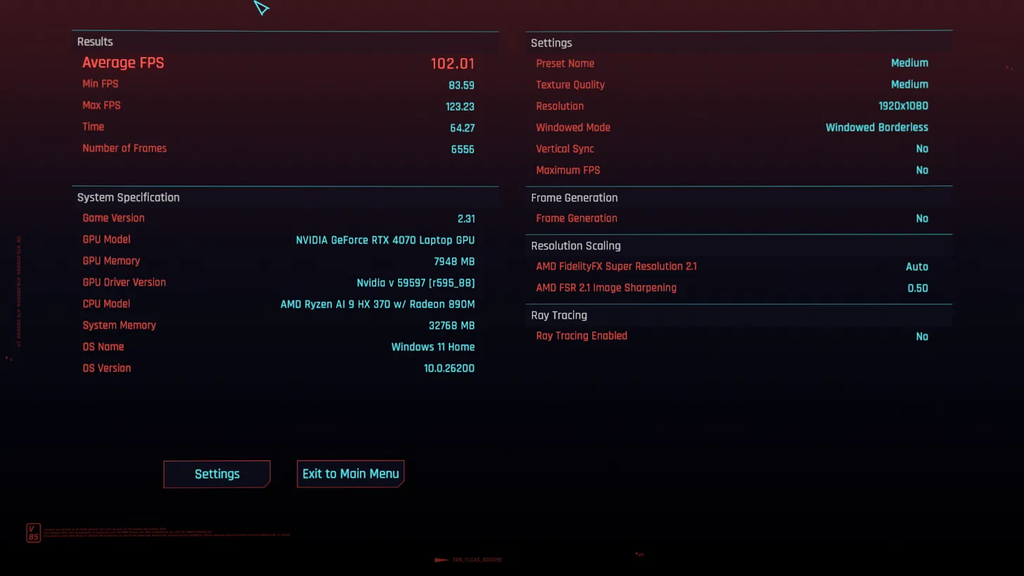
Ultimate averaged 11.85 FPS under Standard, which is about 10.5% slower. My 3 Standard runs were spread over 4.87 FPS, and the slowest of them still beat the fastest Ultimate run by 8.4. Switching to Ultimate also needs a restart, and so does switching back.
The most likely reason is a setting I found later in NVIDIA’s Laptop display mode panel, which was on Automatic Select, and I never set that myself. On that setting the laptop can hand the screen over to the Nvidia GPU when a game starts, so Standard may have already been getting the direct connection Ultimate is supposed to add. That fits the numbers, though I didn’t check which chip was driving the screen mid-game. It’s also 1 game at 1080p in borderless windowed, and a different game or exclusive fullscreen could land differently.
So for the best Armoury Crate settings for gaming, I’d leave GPU mode on Standard and skip the restart. If you want to check your own laptop, run the same benchmark twice in each mode and compare the averages.
Manual mode
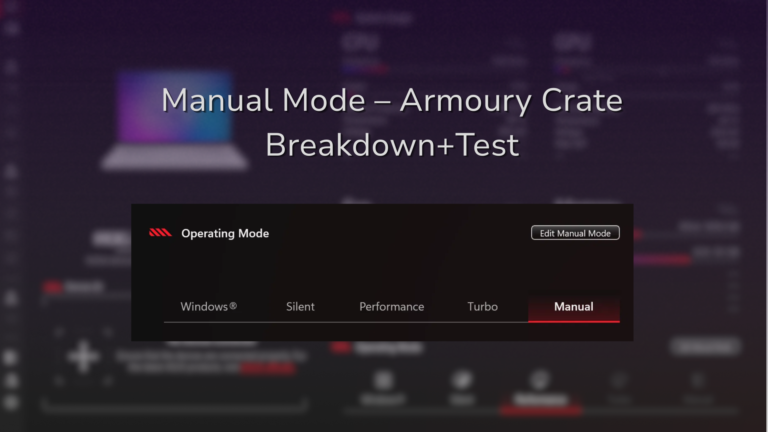
Manual lets you set your own power limits and fan curves. I tested 4 profiles in my Armoury Crate Manual Mode guide and none of them beat Performance or Turbo for FPS. A 45 W profile did run the CPU 16°C cooler (79°C against 95°C) for fewer frames, so Manual didn’t make my best Armoury Crate settings for performance, but it’s worth a look if heat bothers you more than FPS does.
Best Armoury Crate Settings for Performance Without the Noise
For everyday use on the charger I leave mine on Performance and Standard and basically never touch it. At idle, Armoury Crate read 22.5 dBA in Performance, which you’d have to put your ear to the keyboard to hear. Turbo sat at 26.6 dBA with nothing running, and it didn’t get me any FPS for that.
If any fan noise at all bugs you, Silent took all 3 fans to 0 RPM at idle on mine. You give up about 6% in games, and for browsing or writing I couldn’t tell the difference. So the best Armoury Crate settings for performance on my G16 turned out to be the defaults, since Turbo, Ultimate and Manual all cost me noise, a restart or setup time without adding frames.
Best Armory Crate Settings for Battery Life
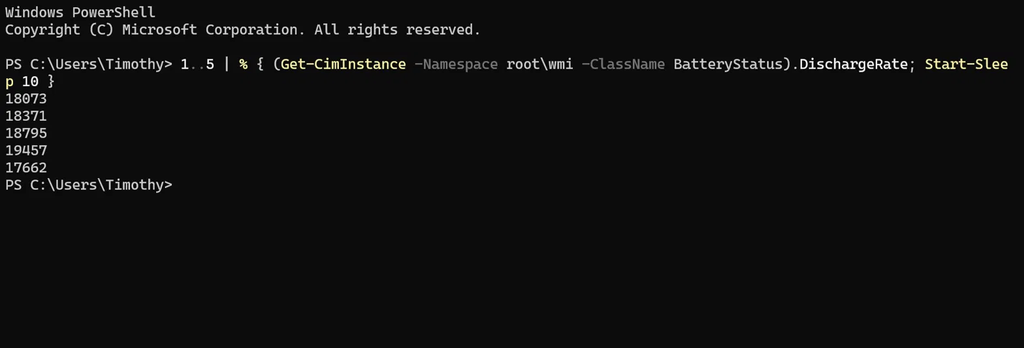
Battery is where a setting finally made a big difference, and the best armory crate settings for battery life turned out to be mostly 1 switch. I unplugged, set the screen to 50% brightness, and read the battery’s discharge rate from PowerShell, 5 readings per setting with a 2 minute wait after each change. A browser window was open behind PowerShell the whole time, so my numbers are higher than a bare desktop would be, but it was the same for every reading.
I used PowerShell because the laptop version of Armoury Crate doesn’t list a battery wattage. ASUS’s documentation covers CPU, GPU, fan speed, memory, FPS, network and disk across the System Usage panel and Resource Monitor, with no battery draw. If a live number is something you want, G-Helper shows the discharge rate in watts right in its main window, with no commands involved. It’s how I tracked my G16 down to about 13 W in my G-Helper battery life settings guide.
| GPU mode | Operating mode | Panel Power Saver | Idle draw |
|---|---|---|---|
| Standard | Silent | On | 18.64 W |
| Standard | Performance | On | 18.90 W |
| Standard | Silent | Off | 18.36 W |
| Eco | Silent | On | about 9.6 W |
GPU mode: Eco
Eco cut my idle drain roughly in half, from about 18.6 W to somewhere between 9 and 10 W. If you only change 1 thing in Armoury Crate for battery, I’d make it this one.
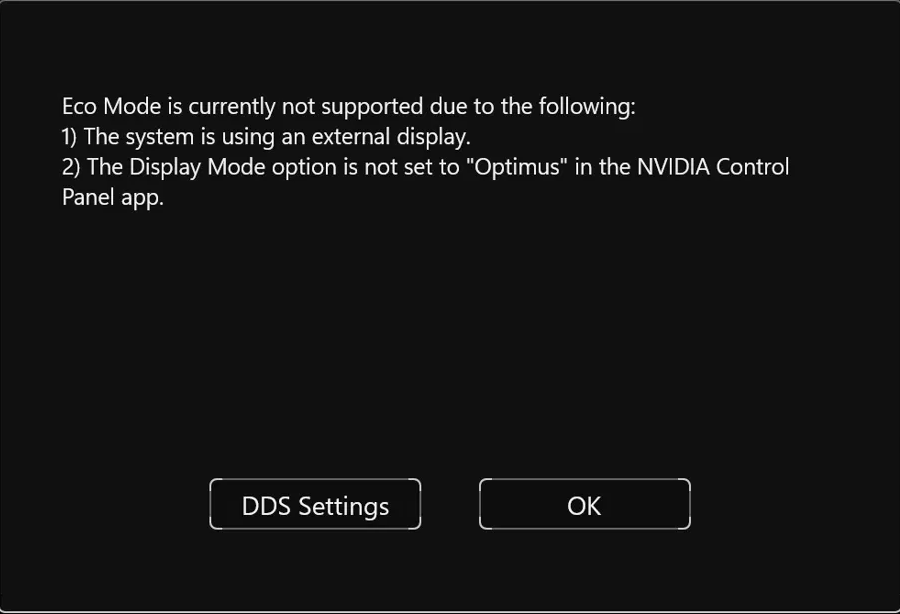
Here’s the catch though, the first time I clicked Eco it refused, with a dialog saying “Eco Mode is currently not supported” because either an external display is connected or the Display Mode isn’t set to Optimus in the NVIDIA Control Panel. I had no monitor plugged in, and I’d never seen that dialog before. It turned out to be that same Automatic Select setting from the gaming section. What got it working for me:
- Open NVIDIA’s Laptop display mode panel. The dialog has a DDS Settings button for it.
- Click Optimus.
- Go back to the GPU Performance tab in Armoury Crate and click Eco.
- Armoury Crate told me other apps were still using the GPU and closed them, which was everything except PowerShell, Armoury Crate itself included. After that it still wasn’t showing Eco, so I opened it again and clicked Eco a second time, and that one stuck.
So save your work before you switch, because it will close things on you. Once it was on Eco I reopened everything and it all ran fine.
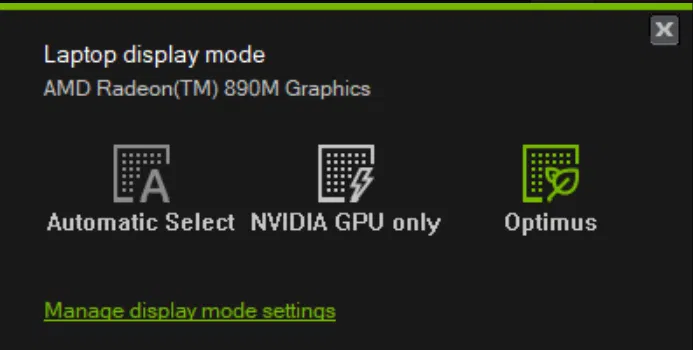
Setting Optimus by itself, without Eco, didn’t save anything (18.37 W). Optimized is the 4th GPU mode, and it’s meant to do the switch for you, Standard on the charger and Eco on battery. I left it untested in Armoury Crate, and I’d set Optimus first before relying on it, since Eco needed that. I go deeper on all 4 modes in my G-Helper GPU mode guide, since they’re the same modes under a different app.
Operating mode on battery
Silent and Performance were 0.26 W apart at idle (18.64 vs 18.90 W), and my Silent readings alone moved more than that. So at idle the operating mode didn’t matter on mine. I’d still use Silent on battery because it keeps the fans off and lowers how much power the laptop is allowed to pull once you put load on it, but I didn’t measure battery drain under load, so that part comes from how ASUS describes the mode.
Panel Power Saver
Panel Power Saver is the tile on the System Configuration tab that’s supposed to drop your screen to 60 Hz when you unplug. On mine it didn’t. I checked Settings > System > Display > Advanced display on battery with the tile on and with it off, and it said 240 Hz both times, which is why that row in the table shows no savings. After I unplugged, Armoury Crate even popped a notification saying Panel Power Saving is on, and Windows still showed 240 Hz.
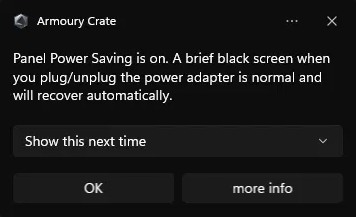
I didn’t know it wasn’t working until I checked, and that bugs me, because I’m used to G-Helper where the refresh rate button just does it. Other owners report it switching to 60 Hz fine, so check yours the same way. If yours stays at 240 Hz too, set it by hand on that same Advanced display page under Choose a refresh rate. Microsoft’s refresh rate guide says a lower rate saves battery, and I haven’t measured how much on this laptop yet.
Battery Care
Battery Care is about how long the battery lasts over years, where the other 3 are about a single charge. The charge limit stops charging at 80% so the battery doesn’t sit full on the charger all day. It’s stored on the laptop itself, so it doesn’t matter whether you set it in Armoury Crate or MyASUS. I went through the 60, 80 and 100% options in ASUS Battery Care Mode.
Put together, the best armory crate settings for battery life on my G16 are Eco, Silent, 60 Hz set by hand, and the 80% charge limit for the days it lives on the charger.
Power Mode Synchronization: On or Off?
Power mode synchronization is another System Configuration tile, and it decides whether clicking an operating mode also changes the Windows Power Mode, the Windows setting under Settings > System > Power & battery.
With it off, I switched from Performance to Silent and the Windows Power Mode didn’t move. With it on, on battery, Performance set Windows to Best Performance and Silent set it to Balanced. Mine was off when I checked.
ASUS recommends leaving it on in that same Armoury Crate documentation, and I’d agree for most of you guys, since it means 1 click sets everything. Turn it off if you’d rather pick the Windows Power Mode yourself. I didn’t measure battery drain with it on, so the numbers in the battery section are all with it off. If the toggle seems to do nothing for you, there’s a ROG forum thread on exactly that.
Settings You Can Leave Alone
- Memory Allocation > Dedicated Graphics Memory — sets how much RAM is reserved for the integrated Radeon graphics. Mine is on Auto, and since games on this laptop run on the RTX 4070 with its own 8 GB, I left it there. Changing it needs Apply and a restart.
- Turbo — no extra FPS over Performance in my testing, more fan noise, and it only shows up on the barrel charger.
- Ultimate — slower in my test, and a restart each way.
- Lighting, Audio, Customizable Hotkey and Resource Monitor — these come down to preference. The keyboard backlight does cost a little on battery, about 1 to 2 W at max brightness when I measured it for my G-Helper keyboard backlight post.
My honest complaint with Armoury Crate is how spread out all of this is. Operating mode is on Home, GPU mode is on its own tab and the tiles are on another, so going from a gaming setup to a battery setup means clicking through a few different menus, and I find myself double checking that everything took. It never actually failed to save a setting on me. It also has more options than I gave it credit for, and if you’re the type to set it once and leave it, it does the job. The screen protection toggles are their own topic, and I went through each one in ASUS OLED Care settings.
ASUS Armoury Crate Best Settings: The Full Checklist
For anyone going down the list with the app open, the ASUS Armoury Crate best settings from this post are all here in one place.
Gaming, plugged in
The best Armoury Crate settings for gaming from my testing:
- Operating mode — Performance
- GPU mode — Standard
- Refresh rate — 240 Hz
- Power mode synchronization — On
Everyday, plugged in
These are my best Armoury Crate settings for performance with barely any fan noise, and it’s what my laptop sits on most of the day.
- Operating mode — Performance, or Silent if you want the fans fully off
- GPU mode — Standard
- Battery Care — 80%
Battery
The best armory crate settings for battery life, in the order I’d set them:
- Save your work, since switching GPU mode can close apps.
- In NVIDIA’s Laptop display mode panel, click Optimus.
- On Armoury Crate’s GPU Performance tab, click Eco, and check that it shows as active afterward.
- On Home, click Silent.
- Open Settings > System > Display > Advanced display and check the refresh rate. If it still says 240 Hz, pick 60 Hz under Choose a refresh rate.
When These Settings Aren’t Enough
If you’ve gone through the ASUS Armoury Crate best settings here and still want more, that’s where I’d stop tuning Armoury Crate and look at G-Helper. It’s a free open-source app that switches the same modes from 1 small window, and it’s what I ran daily before reinstalling Armoury Crate for these tests. What I miss most is that minimal layout, with operating mode, GPU mode and refresh rate all in the same place. My picks for it are in Best G-Helper settings, and the full tradeoff between the 2 apps is in G-Helper vs Armoury Crate.
Best Armoury Crate Settings FAQ
What are the best Armoury Crate settings for Valorant?
Go with Performance for the operating mode and Standard for the GPU mode, plugged into the barrel charger. Those are the best Armoury Crate settings for gaming from my testing, where they got me the highest FPS, and Turbo and Ultimate didn’t beat them.
What fan mode should I use in Armoury Crate?
Performance for most things. It idled at 22.5 dBA on my G16 and matched Turbo for FPS. Use Silent when you want the fans off completely, and Manual if you want to draw your own fan curve.
Should Power mode synchronization be on or off?
On, unless you want to set the Windows Power Mode yourself. With it on, Performance set mine to Best Performance and Silent set it to Balanced. With it off, changing modes left the Windows setting alone.
Why won’t Armoury Crate switch to Eco mode?
On mine it was the NVIDIA Laptop display mode sitting on Automatic Select, and setting it to Optimus fixed it. The same dialog says Eco is also blocked while an external display is connected.
What does Armoury Crate do?
It’s ASUS’s control app for ROG and TUF machines. On a laptop it switches the operating mode and GPU mode, holds tiles like Panel Power Saver and Power mode synchronization, and handles lighting, hotkeys and system monitoring.
If your Ultimate runs come out faster than Standard, or Panel Power Saver actually drops your screen to 60 Hz, drop your laptop model, Armoury Crate version and numbers in the comments, because I’d like to know whether my G16 is the odd one out. Same goes if you’ve landed on different best Armoury Crate settings for another ROG or TUF model.