Armoury Crate Manual Mode: Is It Better? 4 Profiles Tested
Is Armoury Crate Manual Mode better than Turbo? On my Zephyrus G16 the answer was no for FPS, but it did 2 things Turbo can’t. My Max profile matched Turbo’s frame rate in Cyberpunk 2077 (108.55 vs 109.27 FPS) while running the CPU 5°C cooler and the GPU up to 10°C cooler, and a 45 W profile took the CPU from 95°C down to 79°C. You pay for both, the first in fan noise (47.3 dBA against Turbo’s 38.8) and the second in frames. And if Manual is greyed out for you, that’s most likely because you haven’t set it up yet, which takes about 10 seconds.
Everything here is off my ROG Zephyrus G16 (GA605WI) with the Ryzen AI 9 HX 370 and RTX 4070, running Armoury Crate 6.5.14.0 on Windows 11 25H2, plugged into the barrel charger.
What Armoury Crate Manual Mode Actually Controls
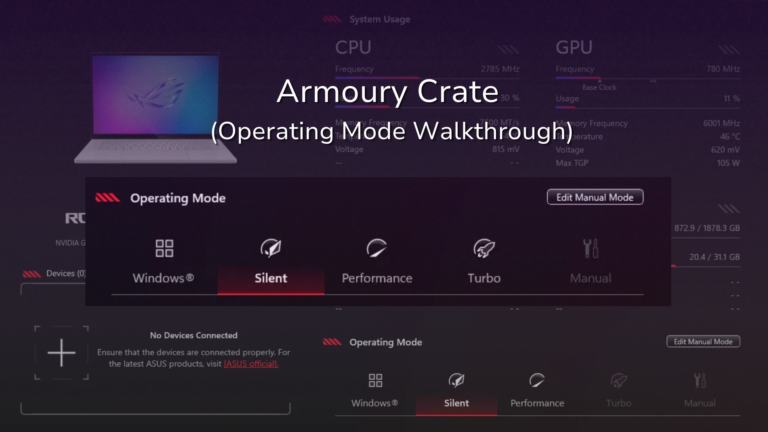
Silent, Performance and Turbo are presets where ASUS picks the numbers for you. Manual is the one mode where you pick them yourself, which comes down to 3 things: how many watts the CPU can pull, how hard the GPU can run, and how fast the fans spin at each temperature. If you want the presets explained first, I tested all of them in my Armoury Crate operating mode breakdown.
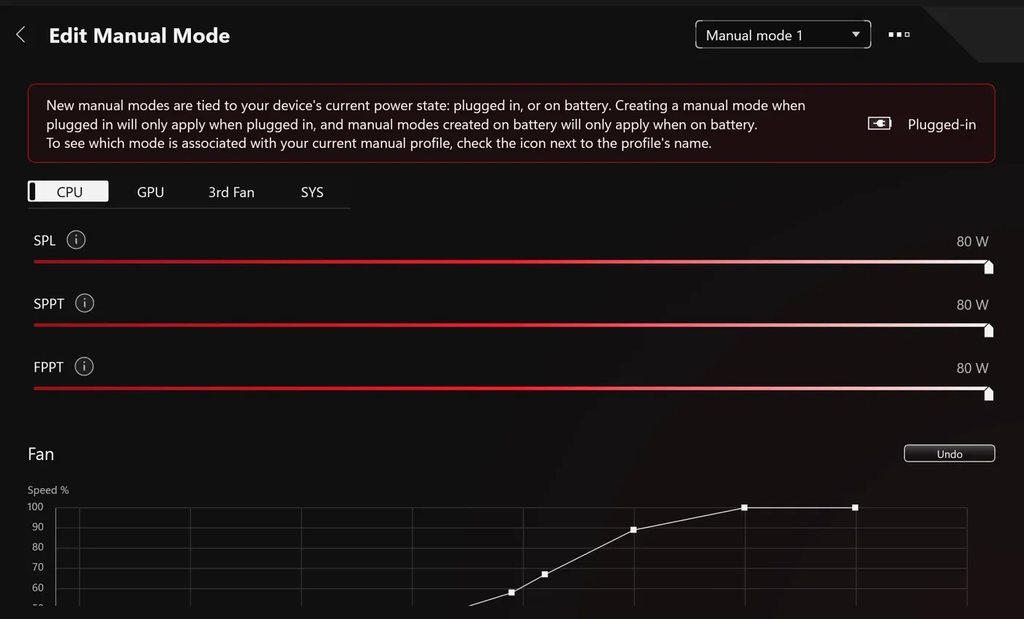
On my G16, Edit Manual Mode has 4 tabs, CPU, GPU, 3rd Fan and SYS. ASUS’s own Manual Mode guide is from 2022 and only covers the first 2, and it lists a GPU Power Saver setting mine doesn’t have, so here’s what the screen looks like now.
The CPU tab
There’s 3 sliders here and all 3 cap how much power the CPU is allowed to pull. SPL is the one it can hold forever (the tooltip calls it “Maximum sustainable APU power limit”). Per ASUS’s guide, SPPT is a higher limit it can hold for up to 2 minutes, and FPPT is the highest one, good for about 10 seconds. Under the sliders is the CPU fan curve. I go deeper on what these 3 limits do in my G-Helper power limits guide, since it’s the same 3 limits under a different app.
The GPU tab
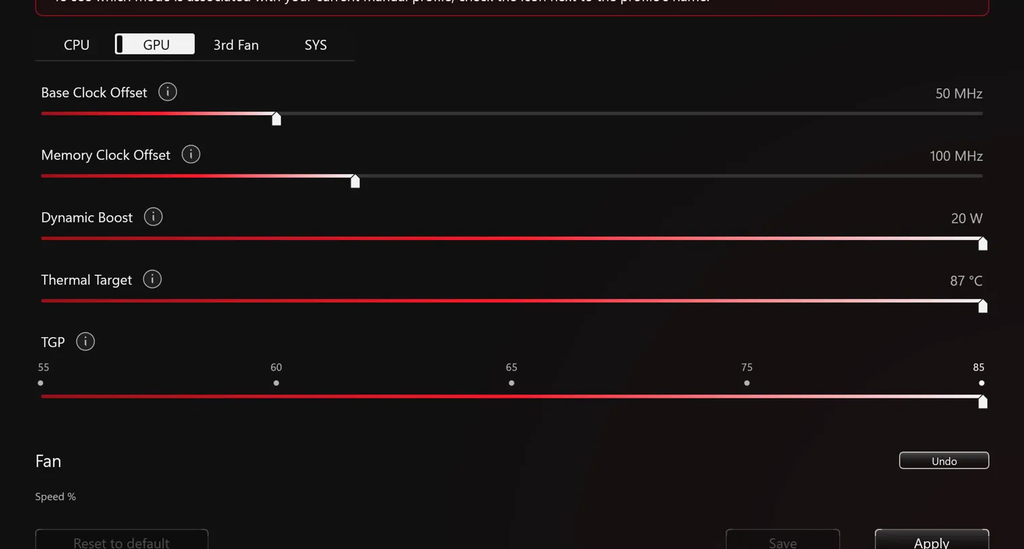
This one has 5 sliders. Base Clock Offset and Memory Clock Offset are the GPU overclock. Dynamic Boost is how many watts the laptop can shift from the CPU over to the GPU. Thermal Target is the temperature where the GPU starts slowing itself down. TGP is the GPU’s base power budget, and it only moves in 5 steps.
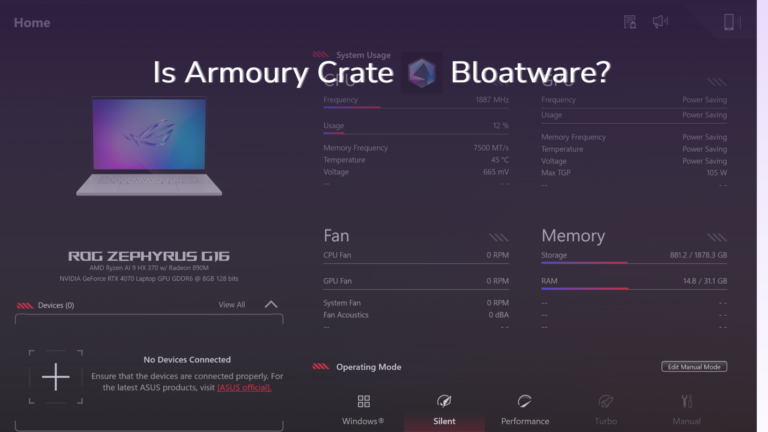
Now, if you’ve ever wondered where the “Max TGP 105 W” on Armoury Crate’s home page comes from, it’s right here. My TGP slider tops out at 85 W and Dynamic Boost at 20 W, and 85 plus 20 is 105.
3rd Fan and SYS
3rd Fan is just a fan curve for the system fan. SYS has a single Power mode dropdown, which is the same Windows power mode setting you’d find in Settings, and mine defaulted to Best performance.
Every slider’s range on my G16
| Slider | Minimum | Default | Maximum |
|---|---|---|---|
| SPL | 15 W | 80 W | 80 W |
| SPPT | 35 W | 80 W | 80 W |
| FPPT | 35 W | 80 W | 80 W |
| Base Clock Offset | 0 MHz | 50 MHz | about 200 MHz |
| Memory Clock Offset | 0 MHz | 100 MHz | about 300 MHz |
| Dynamic Boost | 5 W | 20 W | 20 W |
| Thermal Target | 75°C | 87°C | 87°C |
| TGP | 55 W | 85 W | 85 W |
The thing to notice is the Default column. Out of the box, Manual already has every power limit at its maximum and a small GPU overclock on top, so there isn’t much room left to push up.
How to Set Up Manual Mode
Turning On Armoury Crate Manual Mode for the First Time
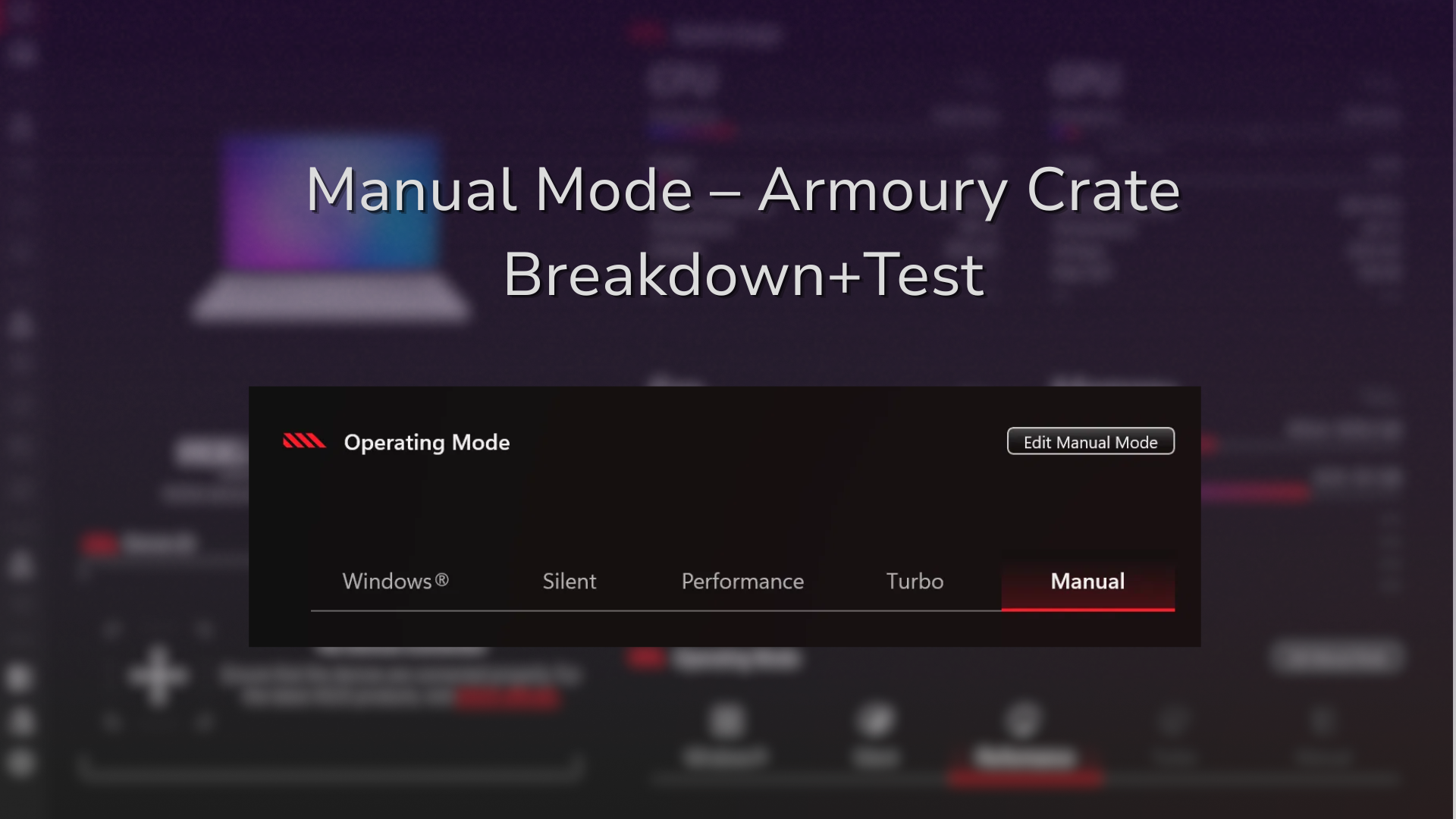
On a fresh install, Manual is greyed out on the Operating Mode bar, and hovering over it shows “Please configure the settings for manual mode before using it.” That one got me for a bit, because I assumed it was a charger thing like Turbo. Here’s how to turn it on:
- Plug in your charger and open Armoury Crate’s Home page.
- Click Edit Manual Mode, which sits right above the Operating Mode bar.
- Change whatever you want (or nothing at all), then click Apply.
- A warning pops up saying manual overclocking “may damage your hardware or negatively affect charging efficiency.” Click Yes.
- Go back to Home and click Manual, which is selectable now.
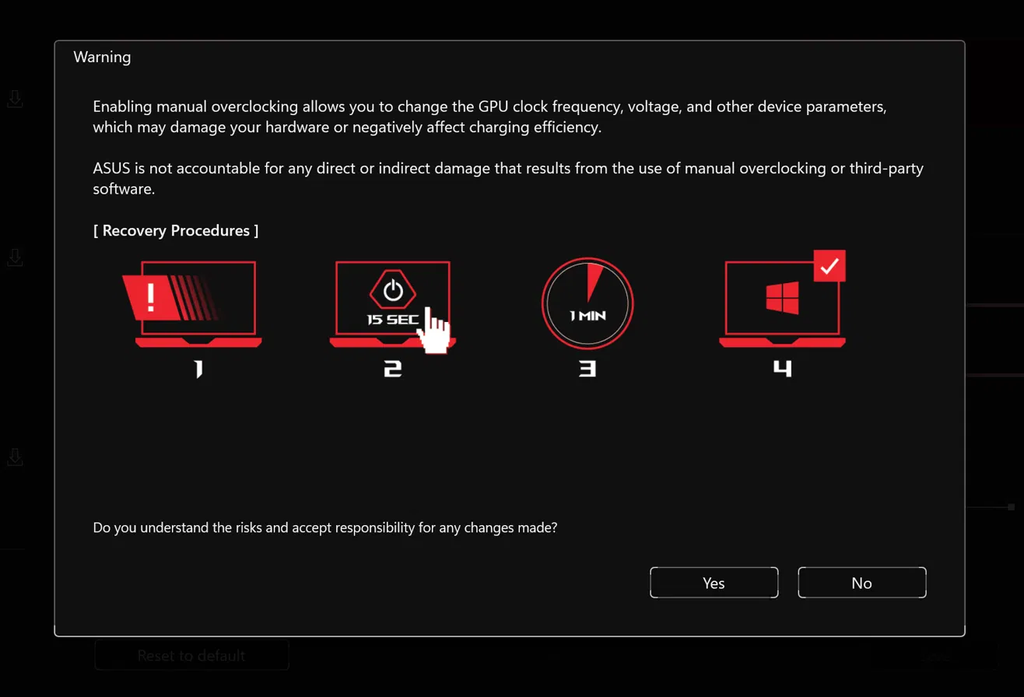
That same warning shows a recovery procedure in case a setting ever leaves you with a frozen screen, which is to hold the power button for 15 seconds, wait a minute, then boot back up. I never needed it.
(Side note: the little (i) icons next to each slider do nothing when you click them. You have to hover. I clicked them for a while like an idiot.)
Saving and switching profiles
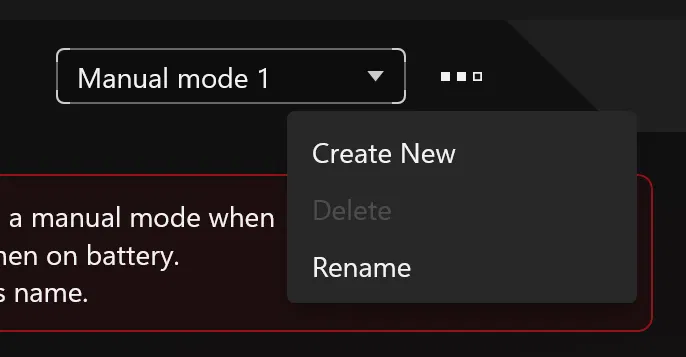
The dropdown at the top right starts as Manual mode 1. Click the 3 dots next to it and you get Create New, Delete and Rename. Create New copies whichever profile is active, so you can make a second one and only change what’s different. Delete stays greyed out while you only have 1 profile.
Fan curves have 8 points each. You can drag a point all the way down to 0% and you can slide it sideways to a different temperature, and Undo or Reset to default will get you back if you make a mess of it. After you change anything, click Apply again.
Armoury Crate Manual Mode Best Settings on My G16
So I made 4 profiles and ran the built-in Cyberpunk 2077 benchmark on each, with Performance and Turbo as the comparison. Settings were the Medium preset at 1920×1080, Windowed Borderless, VSync off, no FPS cap, Frame Generation off and ray tracing off, on game version 2.31.
| Profile | CPU limits (SPL / SPPT / FPPT) | GPU tab | Fan curves |
|---|---|---|---|
| Default | 80 / 80 / 80 W | untouched | default |
| CPU cut | 45 / 55 / 65 W | untouched | default |
| Quiet | 45 / 55 / 65 W | untouched | 0% up to 58°C, 45% at 69°C, 75% at 80°C, 100% from 90°C |
| Max | 80 / 80 / 80 W | Base Clock Offset 100 MHz, Memory Clock Offset 200 MHz | 70% at 59°C, 100% from 69°C |
One heads up before the numbers. I did around 15 benchmark runs in a row, and the laptop got slower as it heated up over the session. Performance scored 115.30 FPS early on, and by the end Turbo was scoring 109. So I’m only comparing runs that happened close together.
Best Armoury Crate Manual Settings for Gaming
If you’re chasing FPS, here’s the catch though, I couldn’t find a Manual setting that beat the presets.
| When | Mode or profile | Average FPS | CPU temp | Fan acoustics |
|---|---|---|---|---|
| Early | Performance | 115.30 | not captured | not captured |
| Early | Manual, Default | 116.17 (117.04 and 115.30) | 95°C | not captured |
| Late | Turbo | 109.27 | 95°C | 38.8 dBA |
| Late | Manual, Max | 108.55 (107.98 and 109.11) | 89 to 90°C | 47.3 dBA |
Default Manual landed 0.87 FPS above Performance, and its own 2 runs were 1.74 FPS apart, so I’m calling that a tie. Max landed 0.72 FPS under Turbo, another tie. The overclock did apply (Armoury Crate showed the GPU at 2,610 MHz against 2,565 MHz, and its memory at 8,201 MHz against 8,101), and the fans did cool things down, with the CPU going from 95°C to about 90°C and the GPU from 76°C to 66 to 70°C. None of it turned into frames, and it got me 8.5 dBA of extra fan noise for the trouble. No glitches or crashes at those offsets, for what it’s worth.
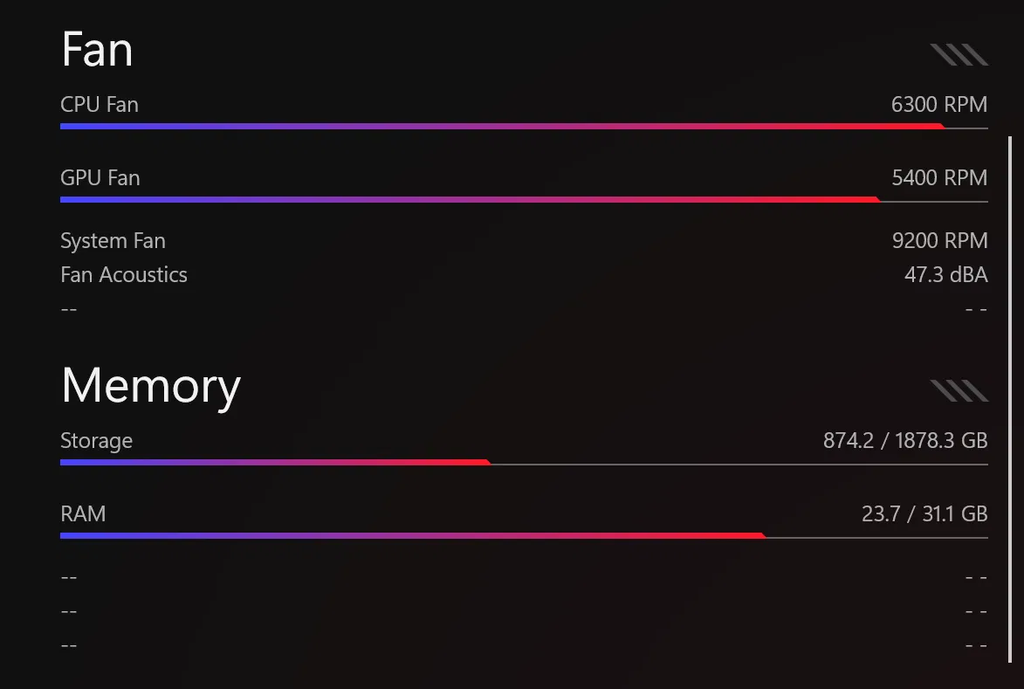
So if FPS is the only thing you care about, the best Armoury Crate manual settings for gaming don’t beat Turbo or Performance, and those take 1 click. The one thing Max did better than Turbo was temps. It got the same frames as Turbo with the CPU at 89 to 90°C where Turbo had it pinned at 95°C, and the GPU 6 to 10°C cooler. If you game with headphones on and you’d rather your laptop not sit at its thermal limit for hours, that’s a real reason to run it. This is 1 game at 1080p on 1 laptop, so a heavier game could behave differently.
Running cooler
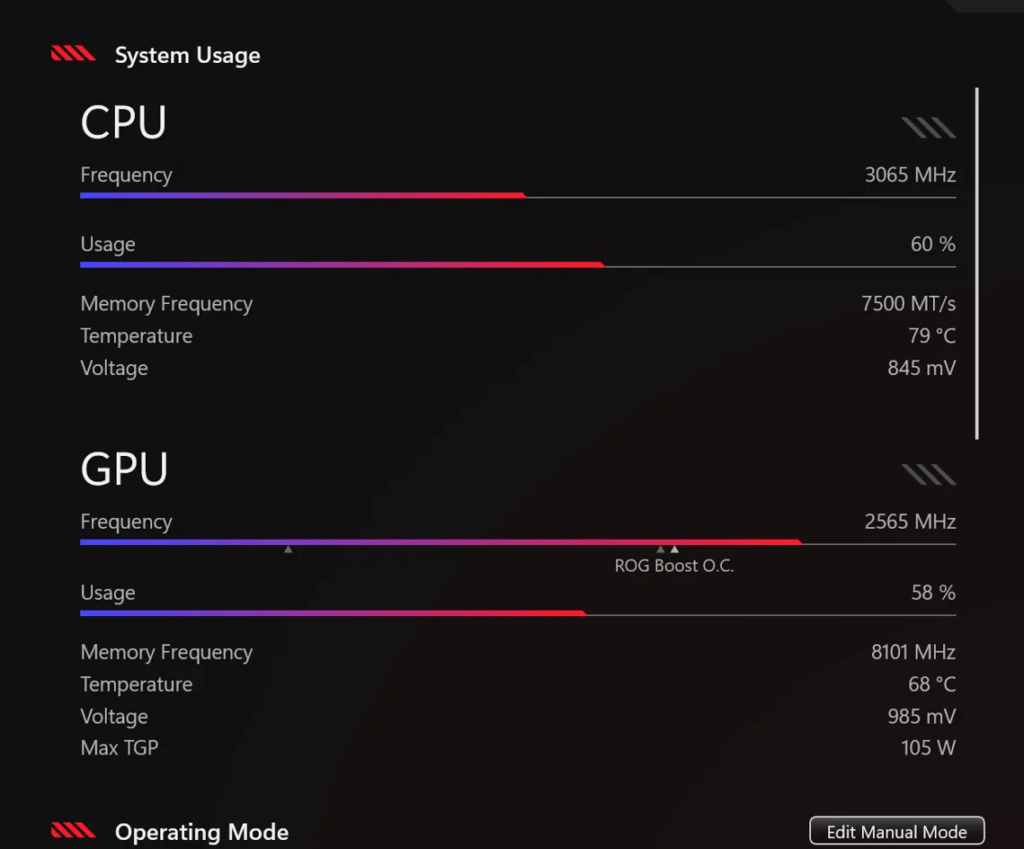
Pulling the limits down is where Manual did something I could measure. With the CPU cut profile at 45 / 55 / 65 W, the CPU sat at 79°C at the end of a run, against 95°C on Default. That’s 16°C off by dragging 3 sliders.
It costs frames though. The run where I confirmed the 45 W limit was active on the panel scored 97.15 FPS, and another came in at 100.12, both lower than anything else I ran all day. That’s somewhere between 11% and 16% slower depending on which runs I compare it to, and I’d need more runs to pin it down.
The Quiet profile kept those same 45 W limits and lowered all 3 fan curves, and the CPU went right back up to 95°C. It was quieter by ear (I didn’t get a dBA reading for it), but you give the temperature drop back to get there.
So Is Manual Mode Better Than Turbo?
It depends on what you want out of it, so here’s how I’d pick based on my numbers:
- You want the most FPS — Turbo or Performance. Manual tied them and never beat them.
- You want Turbo’s FPS with lower temperatures and don’t mind noise — Manual with the Max profile. CPU about 5°C cooler, GPU 6 to 10°C cooler, 8.5 dBA louder.
- You want the coolest CPU and can give up some frames — Manual with the CPU cut profile. 79°C against 95°C, for roughly 11% to 16% fewer FPS.
- You want your own fan curve, like fans fully off under 58°C — Manual is the only mode in Armoury Crate that lets you draw one.
- You want to choose the Windows power mode yourself — Manual has it on the SYS tab, while the presets pick it for you.
So I wouldn’t use Manual to get more FPS. I’d use it if I cared more about temps or fan noise than Turbo does.
Armoury Crate Manual Mode Greyed Out? Check These
There’s 3 reasons I know of for the Armoury Crate Manual Mode greyed out problem, and I ran into 2 of them myself.
- You haven’t configured it yet. This is the tooltip from earlier. Click Edit Manual Mode, click Apply, click Yes on the warning.
- You’re on battery. I set mine up plugged in, and the second I unplugged, Manual greyed out again. The banner at the top of Edit Manual Mode explains it: a profile made while plugged in only applies when plugged in, and one made on battery only applies on battery. If you want Manual on battery, you have to create a profile while you’re on battery.
- Your GPU mode is on Eco. ASUS’s guide says Manual needs the GPU mode on Standard, Ultimate or Optimized. I didn’t test this one myself.
Once it’s set up it sticks. After a restart mine was still on Manual with the same profile.
Armoury Crate Manual Mode Not Working
If you can select Manual but it doesn’t seem to do anything, start with whether your profile is the one that’s active. My own testing got weird here. The CPU cut profile scored 100.12, then 115.89, then 97.15 FPS on 3 runs, and Quiet scored 114.14, 114.78, then 97.31. The high runs match Default almost exactly, and the one CPU cut run where I checked the panel showed the lower temperature and the lower score together. My read is that the profile wasn’t applied on the high runs, but I can’t prove that from screenshots, so take it as a suspicion.
What I’d do before trusting any Armoury Crate Manual Mode profile:
- Open Edit Manual Mode and check the dropdown shows the profile you want.
- Check the sliders show your numbers, then click Apply.
- Go back to Home and confirm Manual is the selected mode.
- Put some load on it and watch the CPU temperature in System Usage. A 45 W limit should sit well under the 95°C you get at 80 W.
There’s also a known bug from the 6.1.13 update where Manual stopped working for a lot of people, and the fix reported in the ROG forum thread was uninstalling and reinstalling Armoury Crate. I’m on 6.5.14.0 and didn’t hit it, so I’m going off the forum here.
Manual Mode vs G-Helper
Manual is the right pick if you want this kind of control without leaving ASUS’s own app. Honestly though, after all that testing, it didn’t feel as effective to me as making the same specific tweaks in G-Helper. If you want the best performance, use Turbo. If you want something extra on top of the presets and you’re open to swapping apps, I’d recommend G-Helper over Manual, and my G-Helper power limits guide walks through the same 3 CPU sliders there. If you’re weighing the 2 apps overall, I compared them in G-Helper vs Armoury Crate.
That’s my preference and not a benchmark. I didn’t run G-Helper against Manual for this post, since you can’t have both controlling the laptop at once.
Armoury Crate Manual Mode FAQ
Does Manual mode give more FPS than Turbo?
Not on my G16. Turbo averaged 109.27 FPS in Cyberpunk 2077 and my Max profile averaged 108.55, with a GPU overclock and much faster fans. Turbo already runs every power limit at its maximum, so there’s very little left for Manual to raise. What Manual did get me was the same FPS at lower temperatures, with the CPU around 90°C where Turbo had it at 95°C.
Why is Manual mode greyed out in Armoury Crate?
Usually because it hasn’t been configured. Click Edit Manual Mode, click Apply, and accept the warning. It also greys out on battery if your profile was created while plugged in.
Is Armoury Crate Manual Mode safe?
ASUS makes you accept a warning that manual overclocking may damage your hardware, and says it isn’t accountable for damage. Lowering the power limits is the low-risk direction. I ran a 100 MHz core and 200 MHz memory offset with no glitches, but that’s 1 laptop over a few benchmark runs.
What are the Armoury Crate Manual Mode best settings for lower temperatures?
On my G16, SPL 45 W, SPPT 55 W and FPPT 65 W with the default fan curves took the CPU from 95°C to 79°C under load. Expect to lose FPS for it. Mine dropped to around 97 to 100.
If your Manual profile behaves differently than mine did, drop your laptop model, your 3 CPU limits and your FPS in the comments, especially if you’ve found settings that beat Turbo, because I’d like to see them.