How to Uninstall G-Helper Completely (And What It Leaves Behind)
You uninstall G-Helper by deleting a single exe, which is exactly what the official docs say. What they don’t mention is that it leaves 2 scheduled tasks running in Windows afterward, both still armed and both pointing at a file that no longer exists. I deleted mine, rebooted, and they were still sitting in Task Scheduler marked Ready. So if you’re looking up how to uninstall G-Helper completely, the exe is most of it, and the rest is a settings reset and 2 tasks you have to clear by hand.
Everything here is off my ROG Zephyrus G16 (2024, GA605WI) with the Ryzen AI 9 HX 370, running G-Helper 0.283.0 on Windows 11.
Where the exe actually is
G-Helper is portable, so there’s no installer and nothing in Apps & Features to click. That’s the part that throws people when they go to uninstall G-Helper, and there’s an open GitHub issue from someone who couldn’t find the file to delete it at all.
It’s wherever your browser put it when you downloaded it. Mine has been sitting in Downloads this whole time, which is where most of you will find it too. If it’s not there, right-click the G-Helper icon in your system tray, or check wherever you keep portable apps.
Reset your settings before you uninstall G-Helper
Here’s the catch that makes the order matter. G-Helper isn’t storing your settings inside itself — it’s writing them into your hardware and your BIOS. Power limits, fan curves, charge limit, GPU mode, undervolt. Delete the exe with all that still applied and nothing on the machine can change it back, because the app that set it is gone.
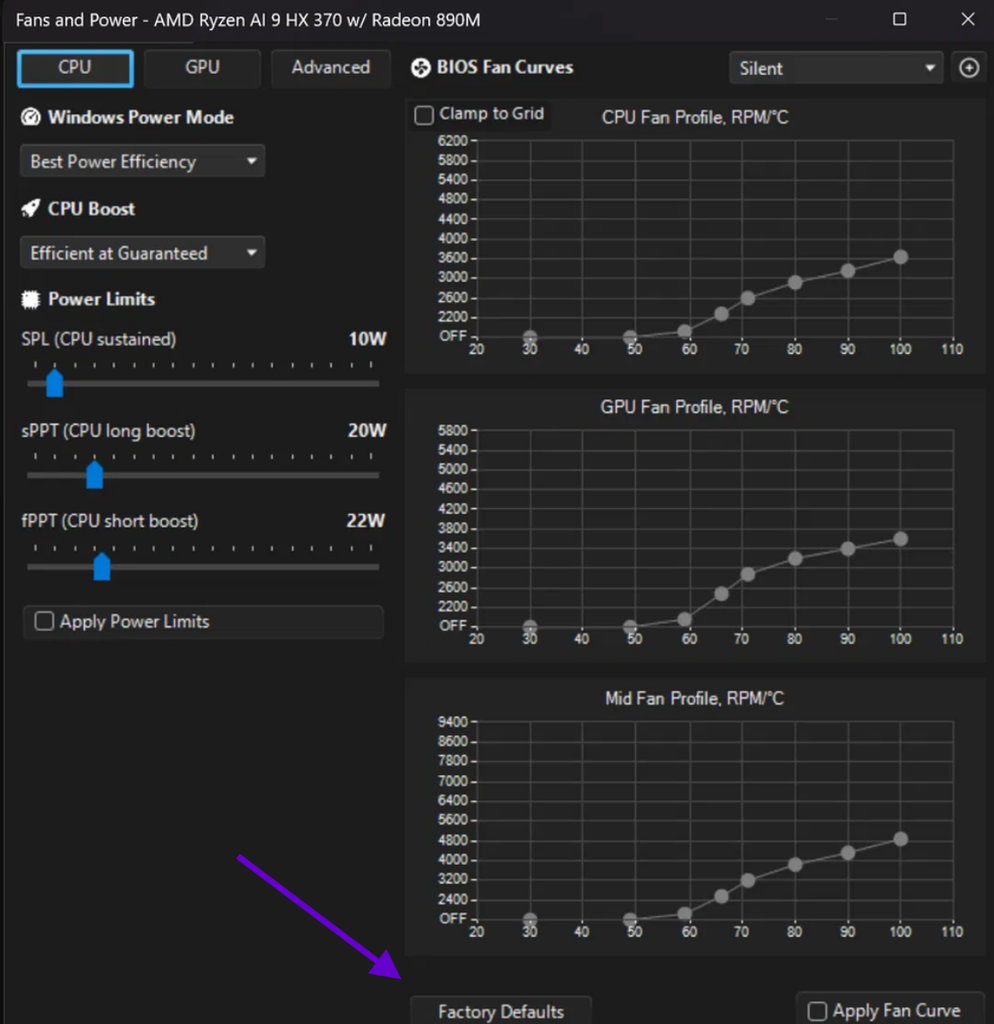
So before you uninstall G-Helper, open Fans + Power and hit Factory Defaults at the bottom of that window.
What Factory Defaults actually resets
On mine it unchecked Apply Power Limits and Apply Fan Curve and put the curves back to stock. My SPL, sPPT and fPPT sliders were at 10W, 20W and 22W and stopped being enforced.
The undervolt does not survive it. That one’s worth knowing because it’s the setting people worry most about leaving behind, and it’s the one that clears itself.
What Factory Defaults doesn’t touch is anything in the main window — your charge limit, GPU mode and refresh rate live outside that panel. Set those back by hand before you delete anything: charge limit slider to 100, GPU mode to Standard, screen back to Auto.
How to uninstall G-Helper completely
Once the settings are back to stock, here’s how to uninstall G-Helper completely in 4 steps.
- Open Extra and restart the ASUS services if you’d stopped them, so the Fn keys and lighting keep working without G-Helper around to handle them.
- Uncheck Run on Startup in the main window.
- Hit Quit rather than just closing the window, so it isn’t holding the exe open.
- Delete the exe from Downloads.
Step 2 is the one people skip, and it’s why the leftovers further down exist.
What happens to your settings after you remove G-Helper
If Armoury Crate is installed
This is the clean exit. I had Armoury Crate back on my G16 from measuring what it actually runs, and when I deleted G-Helper and restarted, the machine went straight back to Armoury Crate’s own modes and settings, whatever they’d been set to. Nothing stranded, nothing to fix by hand.
If you’re going back to ASUS software anyway, install it first and remove G-Helper second. Let Armoury Crate take the hardware back while something is still there to hand it over.
If you debloated the ASUS software first
This is the case I can’t test on my own machine, and it’s the one most of you are actually in. If you followed a debloat guide, pulled Armoury Crate and switched over to G-Helper, then there’s no ASUS software left to reclaim anything when you uninstall G-Helper. Whatever was applied stays applied.
That’s the whole reason the Factory Defaults step above comes first. Don’t rely on something else picking up the pieces.
What G-Helper leaves behind
The official FAQ and the clean uninstall discussion on GitHub both say the same thing: it’s a single exe, it doesn’t install anything in the system, so just delete it. The first half of that is true. The second half isn’t quite.
The registry is clean. I went through HKEY_CURRENT_USER\Software after deleting mine and there’s no GHelper key, so nothing to scrub there.
Task Scheduler is a different story, and it’s the step every answer on how to uninstall G-Helper completely leaves out. After deleting the exe and rebooting, I still had 2 G-Helper tasks sitting in the library, both marked Ready with recurring triggers:
- GHelper_ followed by your Windows user SID — a long string of digits unique to your account, so yours won’t match mine.
- GHelperCharge
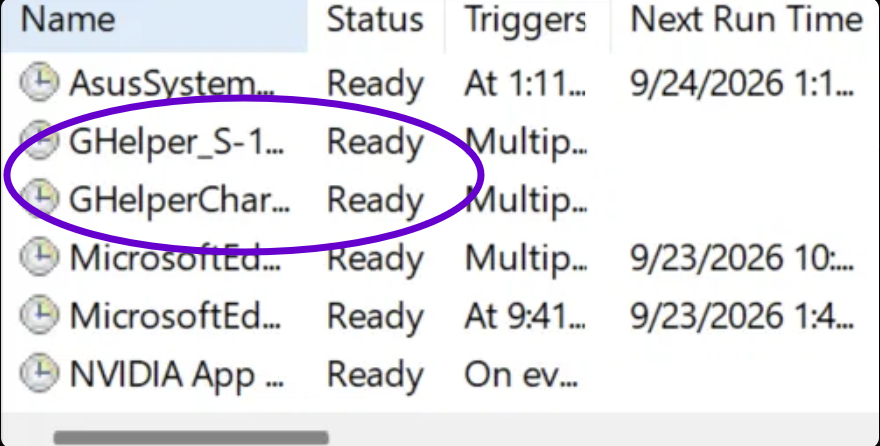
These come from Run on Startup. Uncheck it before you quit and you shouldn’t get them at all, which is why that step is in the list above.
They’re not doing damage sitting there, but a scheduled task aimed at an exe you deleted is clutter at best, and leaving it isn’t what “installs nothing in the system” implies. Here’s how to clear them:
- Press Start, type Task Scheduler and open it.
- In the left pane, click Task Scheduler Library. The tasks show up in the list in the middle, mixed in with ASUS, Microsoft Edge and NVIDIA entries.
- Find GHelper_ followed by your SID, and GHelperCharge. The names get cut off by default, so drag the right edge of the Name column wider if you can’t tell them apart.
- Right-click the first one, pick Delete, then click Yes on the confirmation box.
- Do the same for the second one.
If Windows refuses with an access error, close Task Scheduler, right-click it in Start, pick Run as administrator and try again.
You don’t need a G-Helper uninstall tool
If you searched for a G-Helper uninstall tool, you’ve probably hit a page recommending third-party uninstaller software, or telling you to remove it through Windows Settings. Neither applies here. There’s no installer, no entry in Apps & Features, and no registry key for an uninstaller to clean up. It’s a file and 2 scheduled tasks, so a G-Helper uninstall tool would have almost nothing to actually do.
The G-Helper uninstall Armoury Crate mix-up
A lot of people searching G-Helper uninstall Armoury Crate actually want the opposite of this article. They just set up G-Helper and want Armoury Crate gone. That direction is where a real uninstall tool comes in: ASUS publishes an official Armoury Crate Uninstall Tool, because Armoury Crate genuinely does install a pile of services, and I counted 11 Armoury Crate processes running in the background when I put it back on.
If you’re doing the G-Helper uninstall Armoury Crate swap the other way around and going back to ASUS, the order is the one from earlier. Install Armoury Crate first, then remove G-Helper, so there’s something on the machine to take the hardware back.
Should you actually remove G-Helper?
For most of you, no. If G-Helper is misbehaving, the fix is usually a settings reset rather than a removal, and I went through the common failures in G-Helper not working. Factory Defaults gets you a clean slate without touching the exe.
The real reasons to uninstall G-Helper are narrow: you’re going back to Armoury Crate for something only it does, like per-key Aura on a Strix, you’re selling the laptop and want it stock, or you’re troubleshooting something and need to rule it out. Outside of that, it’s a portable exe sitting in a folder doing nothing when it isn’t running.
If you want the settings I run instead of removing it, that’s all in my best G-Helper settings guide.
FAQ
How do I uninstall G-Helper completely?
Reset your settings with Factory Defaults under Fans + Power, restart the ASUS services, uncheck Run on Startup, quit the app, then delete the exe from wherever you downloaded it. Afterward, remove the 2 GHelper tasks from Task Scheduler.
Does deleting the exe remove G-Helper?
Mostly. There’s no installer and no registry key, so the file is the app. But it leaves 2 scheduled tasks behind if you had Run on Startup enabled, and it doesn’t undo any hardware settings it applied.
Will my settings go back to normal after I remove G-Helper?
Only if something else takes over. With Armoury Crate installed, my G16 went straight back to its modes after a restart. With no ASUS software on the machine, nothing reclaims the hardware, so reset to Factory Defaults before you delete.
Is there a G-Helper uninstall tool?
No, there’s no official G-Helper uninstall tool, and you don’t need one. It’s a portable exe with no installer. Third-party uninstaller software has nothing to remove.
Should I uninstall Armoury Crate or G-Helper first?
Depends which way you’re going. For the usual G-Helper uninstall Armoury Crate setup, where G-Helper stays and Armoury Crate goes, remove Armoury Crate with ASUS’s uninstall tool. If you’re going back to ASUS, install Armoury Crate first and delete G-Helper second.
If you’ve got G-Helper tasks in Task Scheduler that came back after you deleted them, drop your Windows build and whether you had Run on Startup checked in the comments and I’ll take a look.