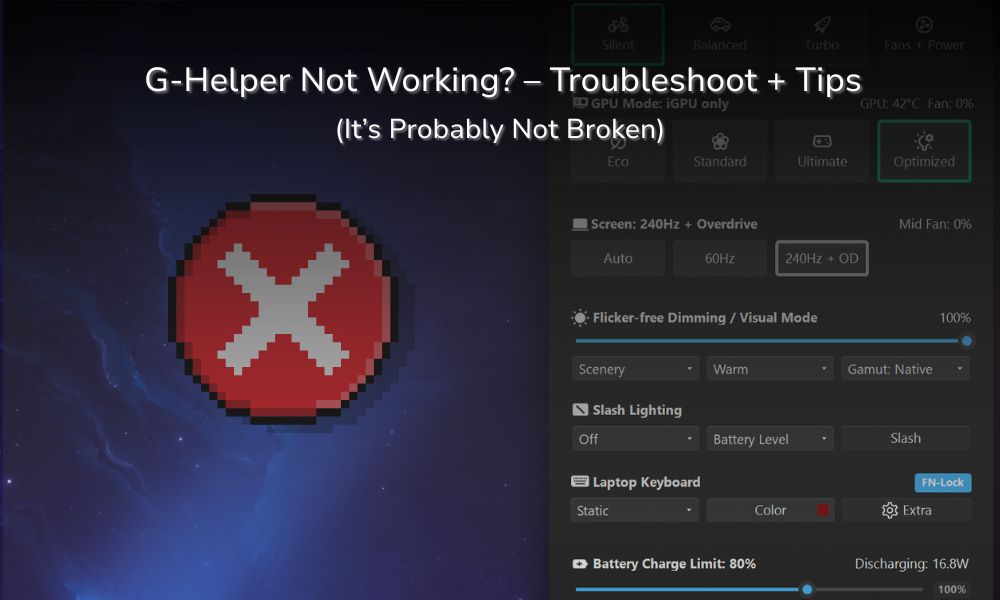
G-Helper Not Working? 3 Easy Fixes That Actually Work (2026)
G-Helper not opening, not starting on boot, and not showing your GPU temp are the 3 complaints that fill up the search results for this thing; turns out most of these are normal behaviors, but changeable as well. I went digging through Task Scheduler (What G-Helper uses to start) expecting to find something misconfigured, and found the opposite — a completely clean setup with zero conditions holding it back. So if you landed here with G-Helper not working the way you expect, there’s a decent chance nothing is actually wrong.
G-Helper is a free open-source app made by a developer called Seerge that replaces ASUS’s Armoury Crate. It controls your fan profiles, power modes, GPU switching, and battery charge limit, and it does it in a few megabytes instead of a few gigabytes. If you don’t have it yet there’s a full G-Helper install walkthrough on the site, but you don’t need it for anything below. And once everything’s behaving, my best G-Helper settings guide has the exact profiles I run day to day.
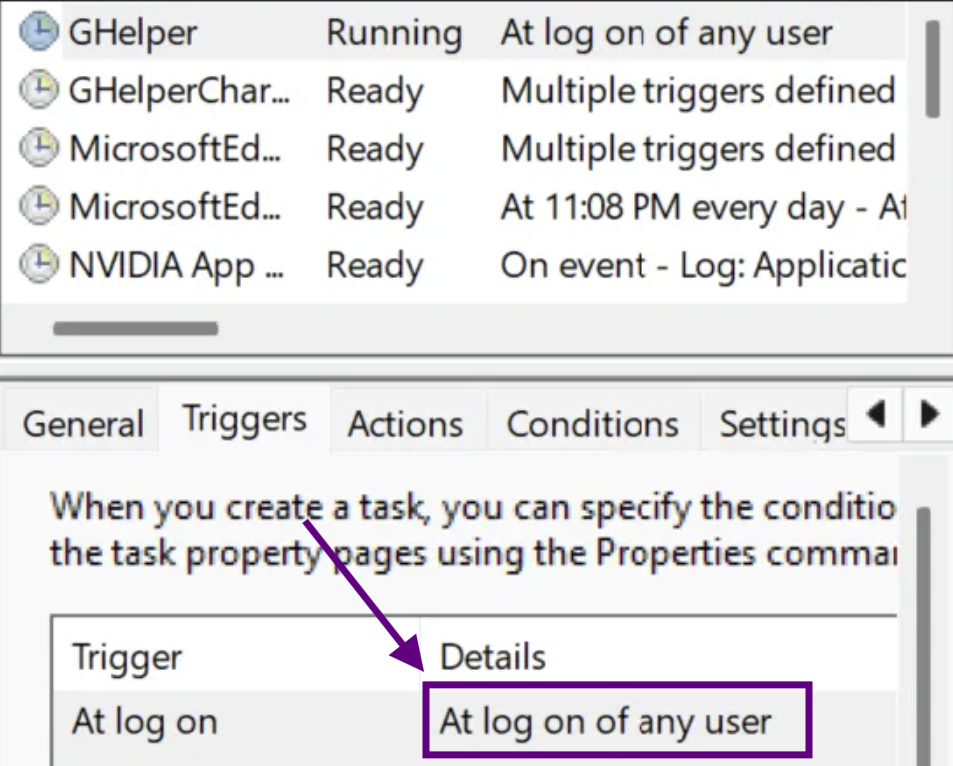
Here’s the scheduled task G-Helper uses to open itself if you checked Run on Startup.
What “G-Helper not working” actually means in 3 cases
| Symptom | What’s really happening | Fix |
|---|---|---|
| App won’t open / no window | It did open, the tray icon is hidden | Pin the G icon in taskbar settings |
| Missing on startup or very late | Cold boot contention, not a broken task | Usually nothing. Check the task exists |
| No GPU temp showing | Your dGPU is off in Eco mode | Switch to Standard, or ignore it |
Now, G-Helper has a reputation for being flaky that I don’t really think it earns. Most reports of G-Helper not working trace back to something Windows is doing rather than the app itself, and after months of running it daily, every “failure” I ran into turned out to be either Windows hiding something, or the hardware doing exactly what it was told.
“G-Helper not opening” is almost always the hidden tray icon
This is the most common version of G-Helper not working, and the most anticlimactic. When people report G-Helper not opening, what’s usually happened is that it opened perfectly fine and went straight to the system tray, and Windows 11 tucked the icon into the overflow menu where nobody looks.
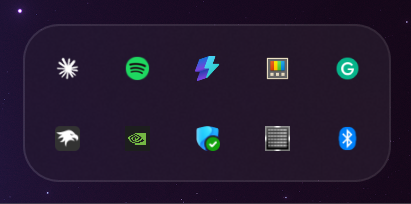
The project’s own FAQ calls this out directly, saying to check the tray for the (G) icon and noting that Windows likes to hide all icons so you may need to click the little ^ arrow. That’s from the docs, not from me — my icon has been pinned since the first week.
G-Helper keeps disappearing? Pin the icon
Right-click your taskbar and open Taskbar Settings, scroll to Other system tray icons, and switch G-Helper on. Once it’s pinned, the whole class of “G-Helper keeps disappearing” problems goes away, because you can see whether the thing is running instead of guessing. If you’d rather not change the setting, the icon is still there — click the small ^ arrow at the left end of your tray to expand the hidden ones.
The FAQ also notes that most of your Fn-key hotkeys need either G-Helper running in the tray or the ASUS Optimization service running. So if you’ve quit G-Helper and your hotkeys stopped working, those two things are connected and it’s not a bug. And if G-Helper keeps disappearing on you after every restart, that’s the icon behaving the same way rather than the app quitting on its own.
What “G-Helper is already running” actually means
If you double-click the app and get told G-Helper is already running, that’s the same problem wearing a different hat. It only allows one instance at a time, so the message is confirmation that it launched successfully and is sitting in the tray you can’t see. It’s the same root cause as G-Helper not opening, just with a dialog box attached. Nothing has failed.
Pin the icon and the message stops happening, because you’ll stop trying to launch a copy of something that’s already open.
G-Helper not running on startup — I checked the scheduled task
G-Helper doesn’t launch itself through the normal Windows startup folder. It registers a task in Task Scheduler, which lets it run with admin rights without hammering you with a UAC prompt every time you log in. That’s why “disable and re-enable run on startup” advice tends to miss, and why G-Helper not running on startup rarely gets fixed by flipping that switch.
Checking it takes about a minute, and you don’t need to change anything while you’re in there:
- Press the Windows key, type Task Scheduler, and open it
- In the left panel, click Task Scheduler Library itself — not any of the folders underneath it
- Find GHelper in the list that fills the middle panel
- Click it once, then use the tabs that appear in the bottom half of the window
That second step is the one that got me for a minute, because I went poking through the ASUS folder and the other subfolders first and came up empty. The GHelper task sits loose in the root alongside the Edge updater and the Nvidia stuff.
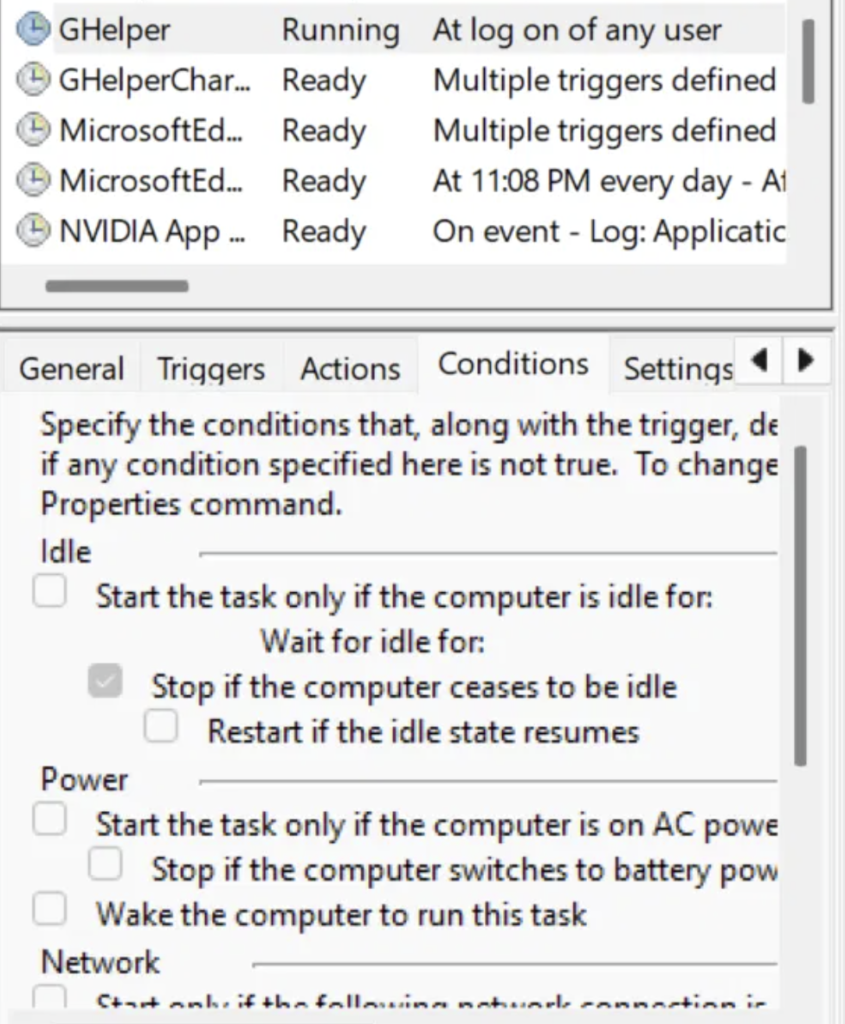
On the Triggers tab, mine shows a single entry, “At log on of any user.” Then I opened the Conditions tab expecting the usual laptop trap, which is a “start the task only if the computer is on AC power” checkbox quietly stopping things from running on battery. Every condition was unchecked. No AC power requirement, no idle requirement, no network wait. Nothing holding it back at all.
For most of you guys, if you’ve got G-Helper not running on startup, the scheduled task probably isn’t your problem, and G-Helper not working on boot usually comes down to what else Windows is busy with at the same time. Confirm the task exists and confirm Conditions is empty, and if both are true, I would say stop chasing that thread. My own Conditions tab is in the screenshot.
Why a cold boot takes 30 to 60 seconds
I’ve got my lid close set to full shutdown instead of sleep, because I’m hauling this thing around campus all day and I’d rather not open my bag to a warm laptop that’s eaten 20% of its charge doing nothing. Great for battery, but it means I never get a warm boot. Every start is a cold one.
When the laptop has been sitting powered off for a few days, G-Helper takes somewhere between 30 seconds and a minute to show up after I’m at the desktop. That’s Windows doing pending update work, Defender catching up, and every driver initializing at once, with the G-Helper logon task queued in behind all of it. The task fires on time, the app just has to wait its turn. That’s what G-Helper not running on startup looks like on a machine that’s been off for a while.
If you’re seeing the same and your scheduler config is clean, don’t worry about it.
The second task nobody notices: GHelperCharge
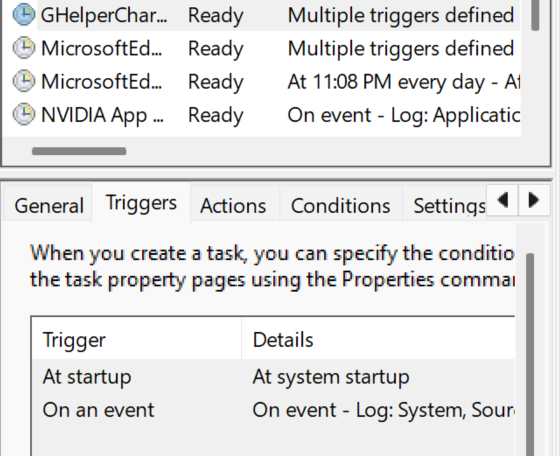
Sitting right under GHelper in the task list is a second task called GHelperCharge, configured completely differently — “At system startup” plus an event trigger from the System log, instead of the single logon trigger the main app uses.
System startup fires before anyone logs in. So G-Helper splits your battery charge limit off into its own task that runs earlier than the app itself, specifically so your limit lands before you’re even at the login screen.
G-Helper battery limit not working after a restart
This is where that second task matters. The official FAQ says the BIOS resets settings on restart including your charge limit, and that it only gets reapplied once you log in and G-Helper starts, meaning your laptop may keep charging in that window. That’s the explanation you’ll see repeated everywhere, and it’s why people report G-Helper battery limit not working when they check the number too early.
But the existence of a separate startup-triggered charge task means that gap is narrower than the FAQ describes, at least on current builds. The limit isn’t waiting on you to log in.
If yours isn’t sticking at all, the FAQ points at two other causes worth checking before anything else. ASUS services can overwrite the limit after G-Helper sets it, and there’s a Stop button under Extra settings for exactly that. Some models also only support the 80% setting, so an odd number like 75% may simply be ignored — set it to exactly 80% and see if it works. There’s a full breakdown of the 80% charge limit if you want the reasoning behind the number itself.
G-Helper not showing GPU temp or CPU temp
This one gets reported as G-Helper not working constantly. If you’ve got G-Helper not showing GPU temp, the overwhelmingly likely reason is that your dedicated GPU is switched off.
I run the battery profile most days, which means Eco mode — the setting that hands all graphics duty to the integrated GPU inside your CPU and shuts the dedicated card off entirely. A GPU that’s powered down doesn’t report a temperature, so the field goes blank. The FAQ confirms this and adds a second case, which is Windows putting the dGPU to sleep on its own to save power.
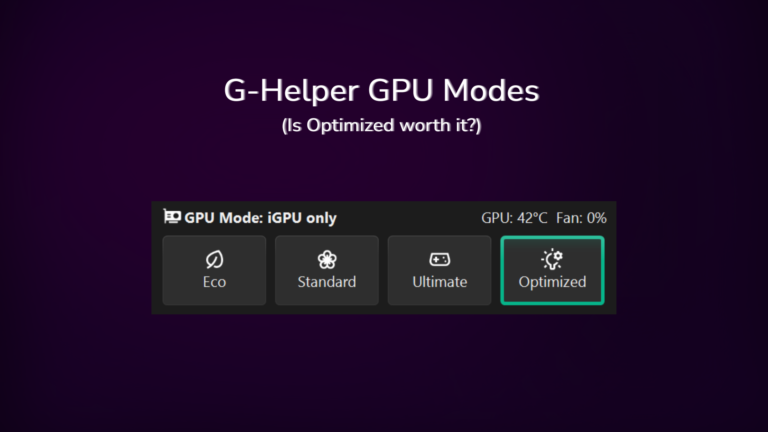
Flip to Standard mode and the reading comes back — that’s the GPU Mode row on G-Helper’s main window, no restart needed. There’s a full breakdown of what each GPU mode costs you covering Eco, Standard, Ultimate and Optimized, but the one-line version is that no temp reading means no powered GPU, which is what you asked for when you picked Eco. G-Helper not showing GPU temp in Eco mode is the setting doing exactly its job.
One thing about Eco mode long term, straight out of the FAQ rather than something I’ve hit: if your dGPU stays disabled for about 15 days, Windows decides the device is gone and removes it along with its driver during automated disk cleanup. It comes back as “Microsoft Basic Display Adapter” and needs a driver reinstall. Switching to Standard once in a while resets that timer, which is an easy habit if you live in Eco like I do.
Where G-Helper genuinely falls short: Slash lighting
Everything so far has been G-Helper not working as a misunderstanding, but this one is a genuine limit. The G16 has a Slash panel, the little LED strip on the lid that does animations and notifications. G-Helper’s control over it is very basic compared to what ASUS ships. When I wanted to actually test what the panel could do, I ended up going back to Armoury Crate for it.
Honestly though, I don’t lose sleep over it. Slash lighting is a battery drain for what amounts to a light show on a lid I can’t see while I’m using the laptop, so mine is off permanently and has been for months. If lid lighting is a big deal to you, that’s a genuine reason to keep Armoury Crate installed alongside, and the full comparison between the two goes deeper on what each one gives up.
When I do need to hand lighting control over, I just close G-Helper from the tray. It usually comes back on its own afterward — I’ve only had to relaunch it manually once.
The thing that actually breaks G-Helper
These are the causes where G-Helper not working is real rather than cosmetic, and they come from the project’s documentation and issue reports rather than things I’ve run into.
Leftover ASUS services fighting it. The FAQ points at this repeatedly — ASUS services can overwrite settings after G-Helper applies them, and there’s a Stop button under Extra settings that shuts down the whole list. You’ll find it by opening G-Helper and clicking Extra in the main window. If a setting you changed silently reverts, look here first.
A damaged ASUS System Control Interface driver. This driver is required for both G-Helper and Armoury Crate to work at all, so if it’s broken neither app functions. This is the most involved fix on the list, so leave it until the others come up empty. Press the Windows key, type Device Manager, open it, expand System Devices, and find ASUS System Control Interface. Right-click it, choose Uninstall device, check “attempt to remove driver,” then install the current version from the ASUS support page for that driver and restart.
Windows taking over your lighting. On newer models Windows itself can drive laptop lighting and will fight whatever G-Helper is doing. The FAQ’s fix is Settings, Personalization, Dynamic Lighting, turn it off there. I went through that and every other lighting control in my G-Helper keyboard backlight guide.
Actual crashes. If G-Helper genuinely crashes rather than misbehaving, the maintainer asks for the error text. Press the Windows key, type Event Viewer, open it, then go to Windows Logs and Application in the left panel and look for recent red Error entries mentioning GHelper.exe. That error text is what makes a bug report useful instead of noise.
Why the official troubleshooting page won’t help
The G-Helper wiki has a page literally titled Troubleshooting, and it opens by stating that the section isn’t related to G-Helper in any way — it only exists because people kept showing up at the repo with general laptop problems. What follows is EC resets, GPU driver reinstalls, power plan resets, and SFC scans. All useful for an ASUS laptop, none of it about the app.
So when you search for a G-Helper problem and end up on the project’s own troubleshooting page, you’re reading general laptop advice by the maintainer’s own admission. The actual app answers are scattered through the FAQ page instead, which is a lot less obvious.
Still stuck with G-Helper not working? Do this
- Check the tray, clicking the ^ arrow to expand the hidden icons
- Confirm the GHelper task exists in the Task Scheduler Library root and its Conditions tab is empty
- In G-Helper, open Extra and hit Stop on the ASUS services, then see if the behavior changes
- Check Event Viewer under Windows Logs and Application for GHelper.exe errors
- Reinstall the ASUS System Control Interface driver from Device Manager
- Only then reinstall G-Helper itself
Reinstalling is the first thing most people reach for and it’s the worst opening move, because it wipes your configuration and tells you nothing about the cause. Don’t do what I nearly did and nuke a working setup over a 40-second boot delay.
FAQ
Why is G-Helper not responding?
If the window has genuinely frozen rather than just being hidden in the tray, check Event Viewer under Windows Logs then Application for errors mentioning GHelper.exe. That error text is what the maintainer asks for in bug reports. A frozen window with no logged error is usually worth one close-and-relaunch before anything more serious.
Why is my G-Helper brightness not working?
The documented cause is a known Nvidia driver issue that shows up when you shut down or restart with the GPU disabled, which happens in Eco or Optimized mode on battery. The FAQ’s fix is enabling Start/Stop Nvidia services under Extra settings. There’s also a Windows setting worth checking under System, Display, Advanced Display — “automatically manage color for apps” can mess with how your display behaves.
Does G-Helper have to stay running in the tray?
Yes, for most of what you want from it. The FAQ is explicit that your Fn-key hotkeys need either G-Helper running or the ASUS Optimization service running. Quitting G-Helper entirely means losing hotkeys unless you’ve kept the ASUS service alive as a backup. If you try to launch a second copy, you’ll be told G-Helper is already running, which is your confirmation the first one is still alive in the tray.
Is it worth reinstalling G-Helper when something breaks?
Rarely, and it should be near the bottom of your list. The common symptoms of G-Helper not working — no window, late startup, missing temps — all trace back to Windows behavior or your own settings rather than a damaged install. Reinstalling throws away your fan curves and power profiles and usually leaves you with the same symptom. If you do decide to start fresh, remove it properly first, since deleting the exe alone leaves both of those scheduled tasks behind. Here’s how to uninstall G-Helper completely.