Windows 11 Start Menu Styler: The Only Theme I Kept
The Windows 11 Start Menu Styler is a Windhawk mod that swaps the look of your Start menu using themes other people have already built. Each theme gets shown to you in the description, letting you pick one from a drop-down. That’s the whole thing. You don’t edit any config files and you don’t restart.
I installed it because I wanted my setup to look cleaner and more minimal, and after going through every theme in the list, TranslucentStartMenu was the one that stuck. I’ve been running it since I started with Windhawk a couple of months back, completely stock, and I haven’t touched a single setting since.
Now if you just want it working, here’s the short version: install Windhawk, search the mod, hit install, open settings, pick a theme from the Theme dropdown. Once you click save, it applies instantly. Everything below is the reasoning, the theme I’d actually recommend, and one test I ran that didn’t go how the documentation said it would. If all you came here for was how to use Windows 11 Start Menu Styler, that’s genuinely it.
Everything here is off my ROG Zephyrus G16 on Windows 11 25H2, running Windhawk 1.7.3 and Start Menu Styler 1.7.
How to use Windows 11 Start Menu Styler
There are 4 steps and honestly the fourth one is just “look at it.”
- Get Windhawk installed if you haven’t already. I walked through that whole process in my Windhawk install guide, including the antivirus stuff.
- Hit Explore in Windhawk and search for “Start Menu Styler.” The one you want is by m417z, same author as the taskbar mod.
- Install it, then click into the Settings tab.
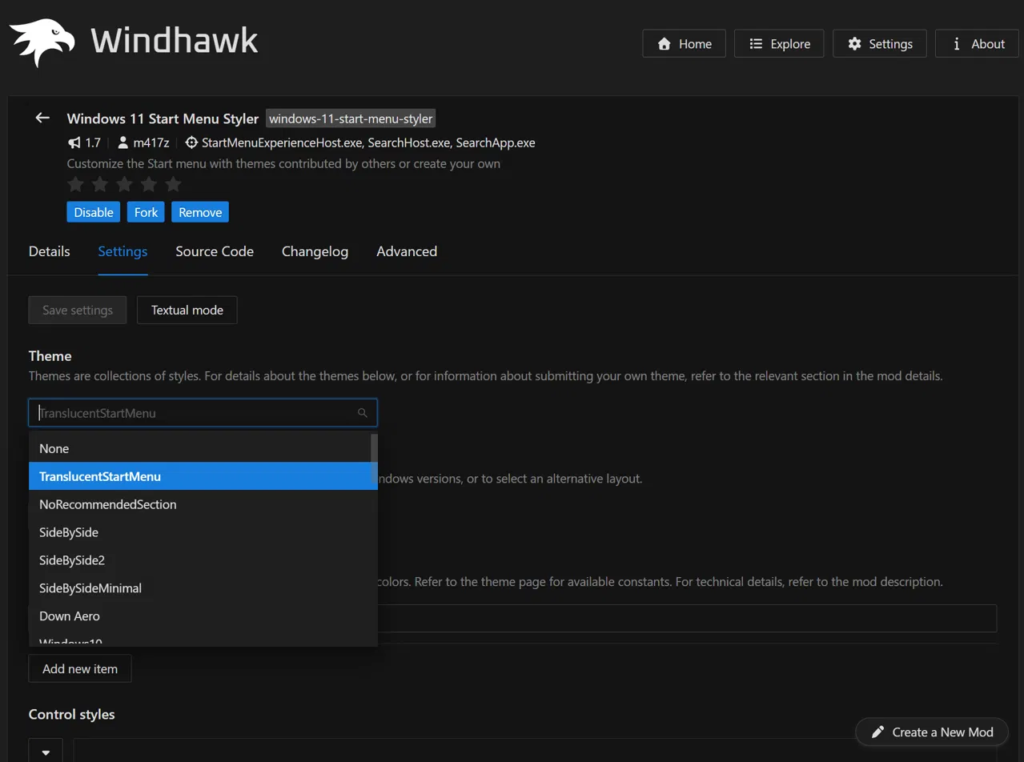
- Open the Theme dropdown and pick one, then click Save.
That’s it. The change lands the second you click Save, with no sign out or Explorer restart. When I first set it up I was half expecting to have to reboot like every other Windows tweak, and it just applied while I was still looking at the settings page. So that’s how to use Windows 11 Start Menu Styler in full, and most of you guys will never need to touch anything past that dropdown.
Where the Windows 11 Start Menu Styler settings live
Everything worth touching is on the Settings tab of the mod page inside Windhawk. The Theme dropdown sits at the top, and underneath it you get Control styles and Resource variables, which are for people writing their own styles from scratch.
I use it exactly as it ships and haven’t needed either of those. If you do want to go down that road, the mod links out to the official styling guide and a tool called UWPSpy that lets you inspect the Start menu elements live. That’s a genuinely deep rabbit hole and not one I’ve felt the need to go down.
The Windows 11 Start Menu Styler themes, and why I picked the one I did
The mod ships with a big list of themes built into the dropdown, and the description page shows screenshots of all of them, so I sat there and went through every single one before committing.
They look cool. But that’s not what I’m going for. Most of the Windows 11 Start Menu Styler themes are doing something loud, whether that’s a full Windows 10 tile layout, a side-by-side split, or a heavy glass effect, and after a few minutes of each one, I found them distracting. You flick your Start menu open and closed 40 times a day, and anything loud gets old fast when you see it that often. That’s why I decided to go for something more minimal.
Why TranslucentStartMenu won
It blends into whatever’s already on your screen. That’s the entire pitch and it’s the reason it doesn’t wear out.
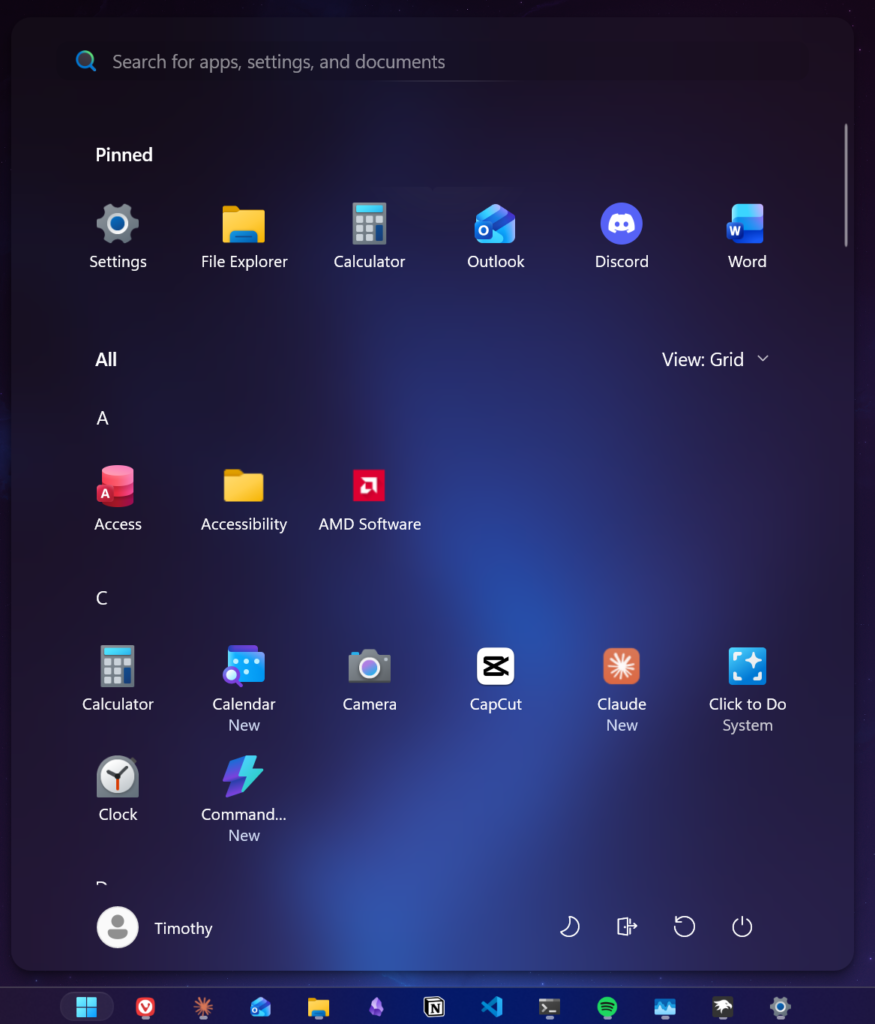
The stock Windows 11 Start menu has this blunt, solid slab feel to it, like a panel got dropped on top of your desktop. Translucent takes that away. You can see my wallpaper’s glow coming up through the bottom half of the panel in the screenshot below, and the search bar loses that separate darker band it normally sits in, so the whole thing reads as one surface instead of stacked boxes.
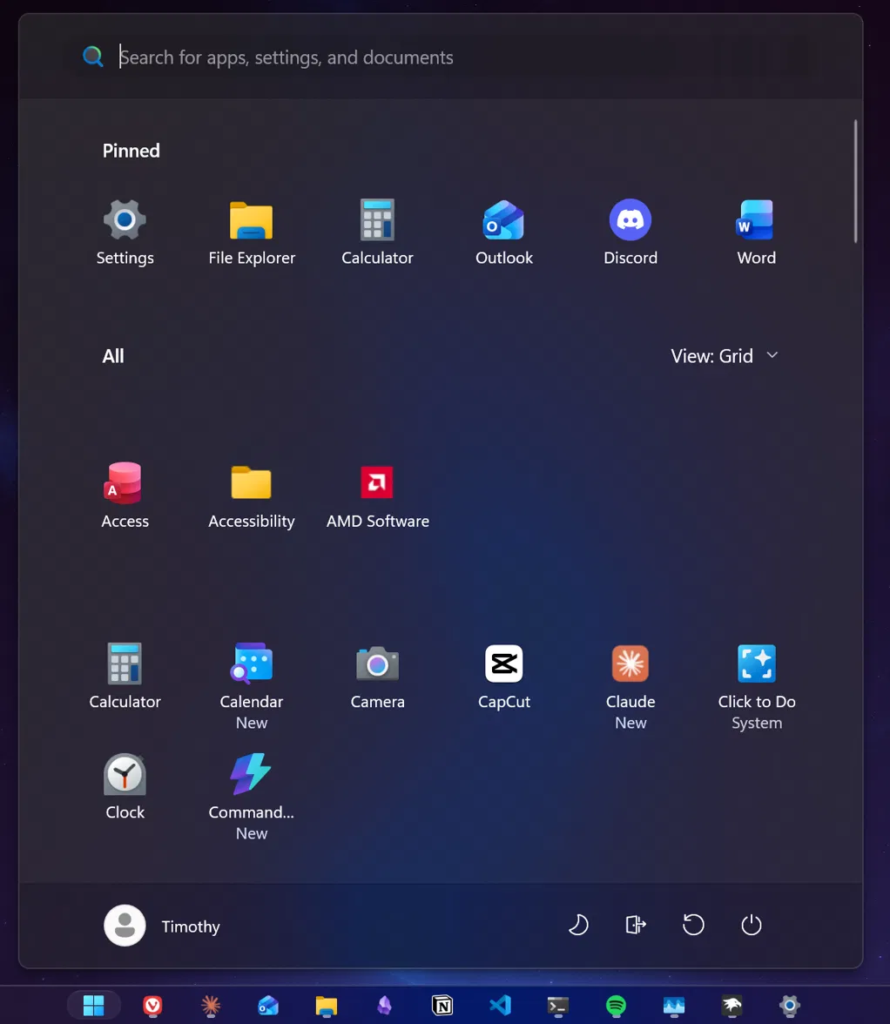
It’s a small change. But it’s something that I know would become an eyesore once more if I turned it off.
The ones I passed on
NoRecommendedSection is probably the most popular theme in the list, since the Recommended section is the single most complained-about part of Windows 11’s Start menu. Didn’t apply to me, because I’d already turned Recommended off in Windows’ own settings before I ever touched Windhawk. If you haven’t, that theme is a one-click fix and it’s a perfectly good reason to install this mod on its own.
Down Aero, Windows10, SideBySide and the rest all fell into the same bucket for me. Nice to look at for 30 seconds, too much going on for something I open constantly. Not bad themes, just not what I wanted out of a Start menu. None of the other Windows 11 Start Menu Styler themes lasted more than a few minutes on my machine.
I tested it on battery saver, and the docs were wrong
Here’s the part I actually went out of my way to check, and it’s the part nobody else covers.
Reading through the mod’s documentation, there’s a note about the blur brush it provides, saying a fallback color gets used in place of the blur effect when battery saver is on or when transparency effects are disabled in system settings. If you’re on a laptop like me, that’s a big deal, because it would mean your nice translucent Start menu quietly goes flat and opaque every time your battery gets low enough to trip battery saver.
So I turned battery saver on, opened Start, and screenshotted it. Then turned it off and did the same.
Nothing changed. The transparency was still there, wallpaper glow coming through the panel exactly like before, with battery saver actively running.
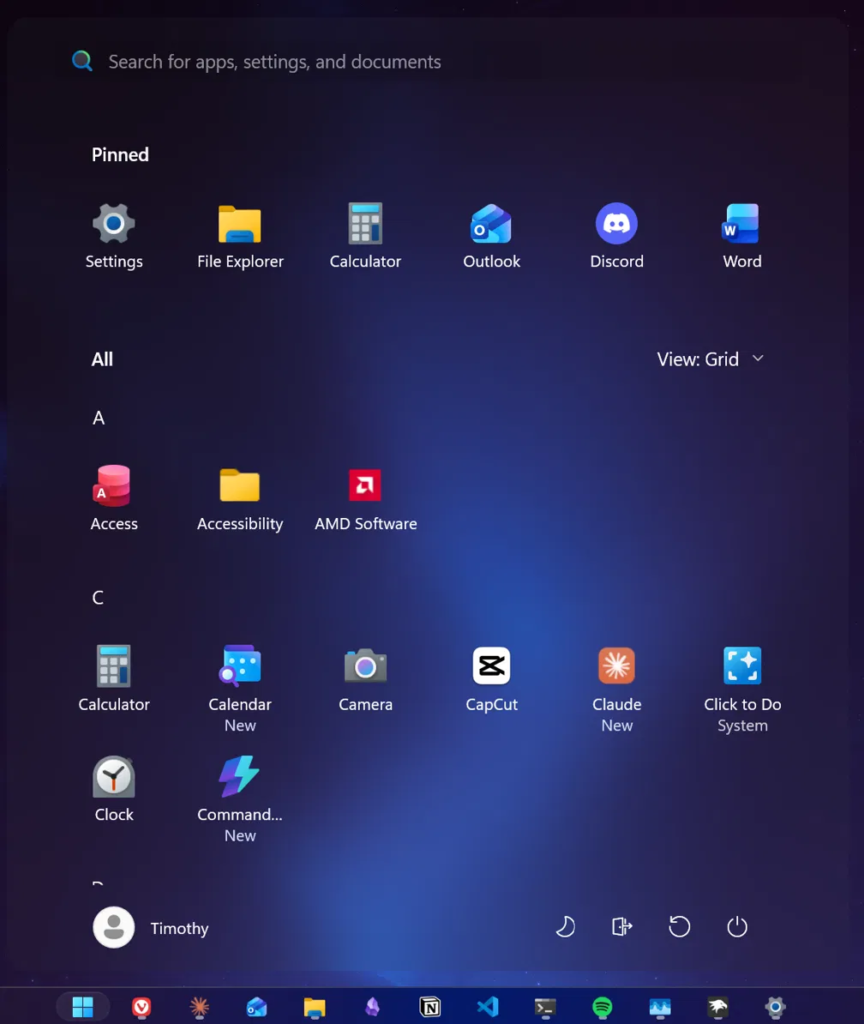
My guess is that TranslucentStartMenu isn’t using that blur brush at all, and is instead overriding the existing acrylic values Windows already uses, which would mean the fallback rule in the docs just doesn’t apply to it. Can’t prove that without digging through the theme’s style definitions, so take it as a theory. What I can tell you is what happened on my G16, which is that the translucency held up.
Good news for you guys running this on a laptop. If you’ve been avoiding transparency effects because you assumed they’d get killed the moment you unplug, that’s one less thing to worry about. And if you want the actual power settings that make a difference on an ASUS machine, that’s over in my best G-Helper settings guide, where the real battery wins are.
Windows 11 Start Menu Styler not working? Check these first
I’ve had this mod running for a couple months and it’s never broken on me, not once, including through Windows updates. So I can’t hand you a big list of failure states from personal experience. What I can give you is the order I’d check things in. Most cases of Windows 11 Start Menu Styler not working come down to 3 things, and they take about a minute to rule out.
Check for a pending mod update. Windhawk doesn’t apply mod updates on its own, it just sticks an “Update available” badge on them and waits for you. I was sitting on version 1.4.1 for months without realizing, while 1.7 was out. Worth saying that when I finally updated, absolutely nothing about my menu changed, so being behind isn’t automatically your problem. But it’s the fastest thing to rule out.
Make sure a theme is actually selected. Sounds stupid, but the dropdown defaults to None, and picking the mod isn’t the same as picking a theme.
Check whether your Windows build moved. These mods hook into Windows components, and Microsoft changes those. Mod authors push fixes when that happens, which loops back to the first point.
If it’s more than this 1 mod misbehaving, the problem is probably Windhawk itself, and my Windhawk not working guide covers that side, starting with the debug log.
The one weird thing I have run into
I’ve got the cursor highlight accessibility feature turned on, and with the theme active, the highlight glitches up into the top-left corner of the Start menu and just sits there as 2 pink blobs. Turn the mod off and it behaves normally.
It’s cosmetic and I’ve lived with it, but it’s real, and it’s the only thing I’ve found that’s genuinely caused by this mod. If you’re seeing stray graphics in the corner of your Start menu and you use pointer highlighting, that’s your culprit rather than a broken install. It looks like Windows 11 Start Menu Styler not working, but the mod is doing its job fine.
Start Menu Styler or Taskbar Styler first?
Install the one you use the most.
For me that was the taskbar, easily, which is why I set up Taskbar Styler before I ever installed this one. The taskbar is on screen permanently and the Start menu shows up for 3 seconds at a time, so the taskbar mod changes more of what you’re actually looking at all day.
That said, they pair well, and both of them are in my full list of the Windhawk mods I keep enabled if you want to see the whole setup. There’s a third one in the same family that does Explorer, and I wrote that up in my Windows 11 File Explorer Styler guide, though it’s the one I’d leave until last since you open Explorer far less than either of these.
Windows 11 Start Menu Styler FAQ
Is Windows 11 Start Menu Styler safe?
If you’re asking is Windows 11 Start Menu Styler safe, the short version is yes. It’s reviewed before it hits the Windhawk marketplace, and the full source is viewable, same as every other mod on there. It’s still third-party code hooking into a Windows process, so if you want the honest full picture on what that means, I went through all of it in is Windhawk safe.
Can it make my Start menu look like Windows 10?
Yeah, Windows10 is one of the Windows 11 Start Menu Styler themes built into the dropdown, plus a couple of Metro-style variants. I tried it and went another direction, but if the Windows 10 layout is what you’re after it’s already sitting there in the list.
Where does the custom style code come from?
The Control styles and Resource variables boxes take targeting code written against the Start menu’s XAML elements. The styling guide repo linked from the mod page has a collection of ready-made snippets for common requests, which is where I’d start rather than writing your own from nothing.
Is the mod on GitHub?
It is, under the ramensoftware windhawk-mods repo, and the Source Code tab inside Windhawk shows you the same thing without leaving the app. (Side note: Fellow Ramen enjoyer found lol)
My pick: TranslucentStartMenu
TranslucentStartMenu is the only theme out of the whole list I kept, and I’ve changed nothing about it since the day I installed it. That’s about the highest praise I can give a customization mod.
If you’re on a laptop and you were worried about transparency effects dying on battery, my testing says you’re fine. And if you only install one Windhawk styling mod, make it whichever part of the interface you actually stare at.
If a theme looks off on your Start menu, drop the theme name and your Windows build in the comments and I’ll take a look.