Install MyASUS Without the Microsoft Store (Tested 2026)
Trying to install MyASUS without the Microsoft Store sounds like it should be easy, since every other app has a download button, but every MyASUS download link ASUS gives you just sends you to the Store. If your Store is broken or blocked, that’s the end of the official route, and the rest of the results are third-party download sites, which isn’t where you want an app that talks to your fans and battery coming from.
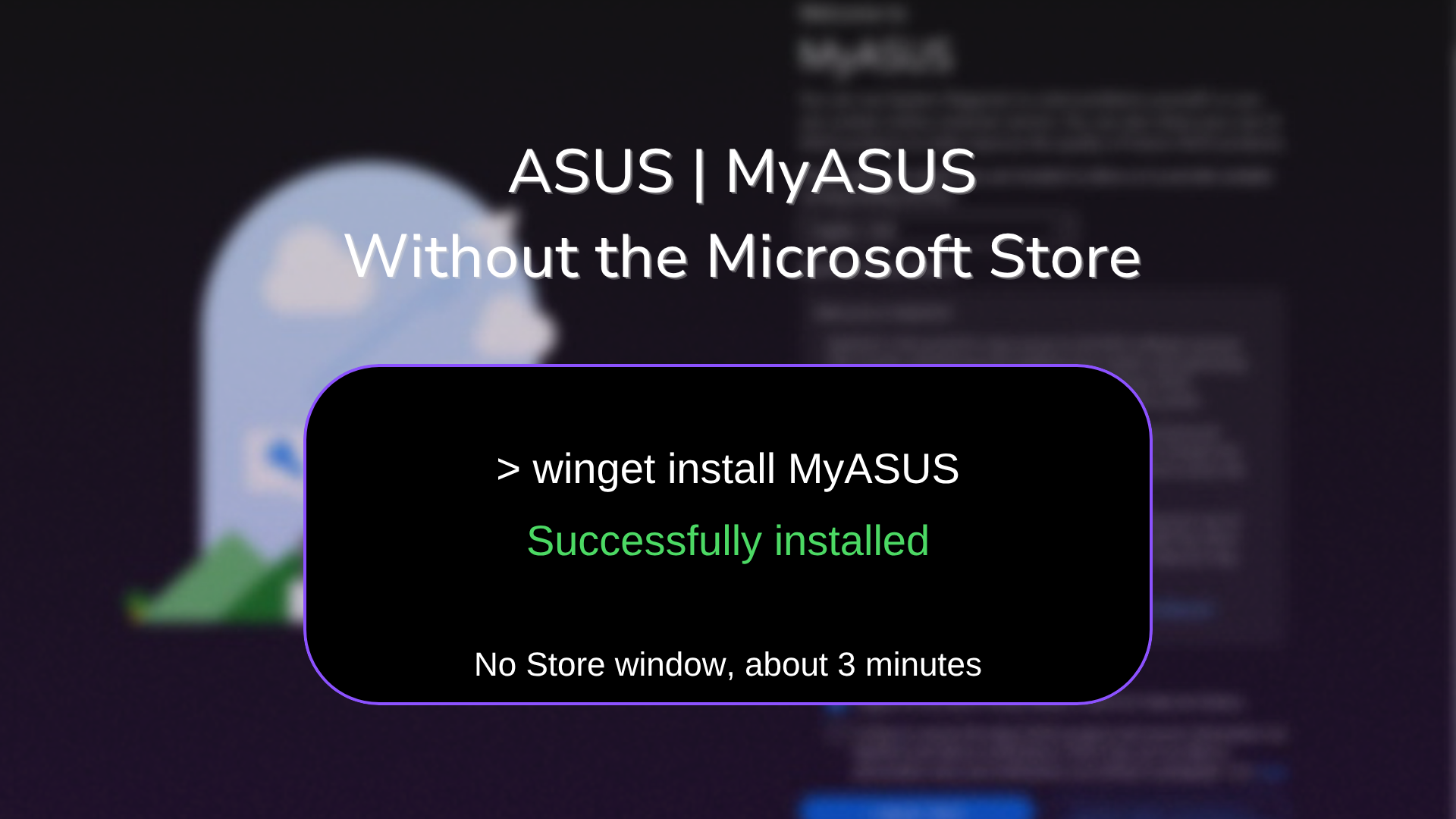
I found a way that uses a tool already built into Windows 11, and it had MyASUS installed on my Zephyrus G16 in about 3 minutes without the Store window ever opening. Whether your Store is stuck on installing or you just want MyASUS installed from a command, I’ll go through the exact steps and what MyASUS does the first time you open it down below.
After I installed MyASUS with winget instead of the Store app:
- Install time: 179.7 seconds, no Store window
- Version installed: MyASUS 4.0.77.0, the same package as the Store
- First launch: Updated the ASUS System Control Interface driver before setup could continue
- Uninstall: 2.9 seconds with the same tool
- Zephyrus G16 (GA605WI)
- Ryzen AI 9 HX 370
- RTX 4070 Laptop
- Windows 11 Home 26H2
- MyASUS 4.0.77.0
Build 26300 · ASUS System Control Interface 3.1.72.0 · Armoury Crate 6.7.6.0 installed
Why MyASUS Is Stuck in the Microsoft Store
ASUS only publishes MyASUS as a Microsoft Store app, and its own install guide only covers searching for it in the Store and clicking Install. There’s no standalone .exe on the support pages for my G16, which is why people end up on sites offering an “offline installer”.
Windows 11 comes with winget, Microsoft’s command-line app installer, and it can install Store apps directly by their Store ID. It still downloads MyASUS from Microsoft’s servers, so you get the official, signed ASUS package, but you never touch the Store app itself. When I looked it up, winget even listed MyASUS as Offline Distribution Supported: true, so ASUS allows it to be installed outside the Store app.
Before You Install: Check ASUS System Control Interface
MyASUS needs the ASUS System Control Interface driver (SCI) to do anything past the basics, and ASUS says to check for it first:
- Right-click the Start button and click Device Manager.
- Click the arrow next to System devices.
- Look for ASUS System Control Interface.
If it’s there, you’re good. If it’s missing, download it from your model’s page on ASUS’s support site under Software and Utility before installing MyASUS. Mine already had SCI 3.1.70.0, and MyASUS still wanted a newer one, which I’ll get to below.
How to Install MyASUS Without the Microsoft Store
Here’s how to install MyASUS without the Microsoft Store using winget:
- Right-click the Start button and click Terminal (Admin), then click Yes on the permission prompt.
- Paste the command below and press Enter.
- Wait for Successfully installed. Mine took 179.7 seconds, most of it downloading.
- Open MyASUS from the Start menu.
winget install --id 9N7R5S6B0ZZH --source msstore --accept-package-agreements --accept-source-agreements9N7R5S6B0ZZH is MyASUS’s ID on the Microsoft Store, and the 2 accept flags agree to the Store terms and ASUS’s license so it doesn’t stop to ask. If you’d rather read ASUS’s license first, run it without them and type Y when winget asks. Microsoft’s winget documentation has the rest of the options.
I ran this as admin and it worked first try. I didn’t test it on a PC with the Microsoft Store app fully removed, and since the msstore source still goes through Microsoft’s Store servers, a PC where the Store service itself is blocked may still fail.
Install MyASUS without Microsoft Store on Windows 10
winget ships with newer Windows 10 builds too, as part of App Installer. The steps are the same, opening Windows PowerShell (Admin) instead of Terminal. I only tested on Windows 11 26H2, so I left Windows 10 untested.
What Happens the First Time You Open MyASUS
Installing was the quick part, because MyASUS has a few screens to get through before it’s usable, and the first one isn’t optional.
1. The ASUS System Control Interface update
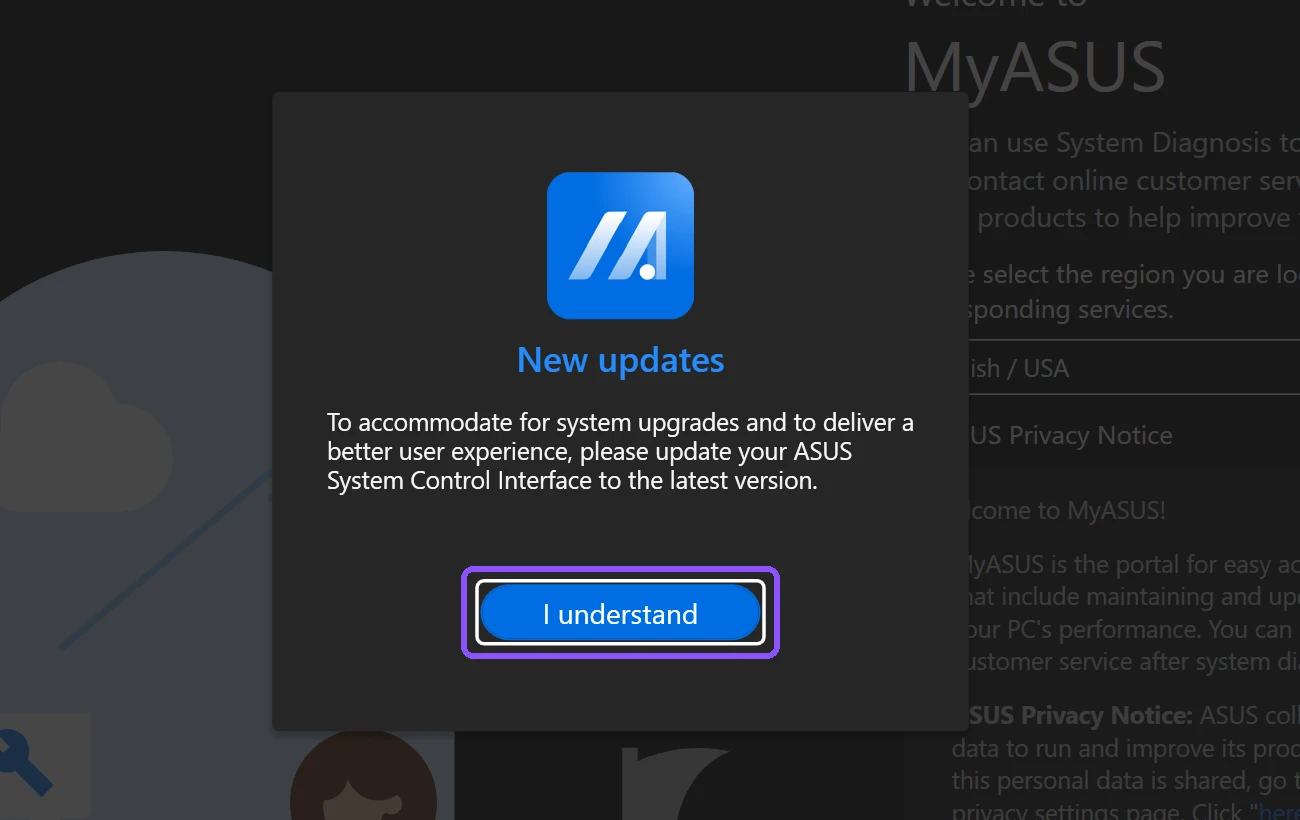
A New updates box asked me to update the ASUS System Control Interface, with I understand as the only button. Clicking it updated the driver from 3.1.70.0 to 3.1.72.0 in about 30 seconds, then said Your device has been updated to the latest version. Personally I’m not okay with an app forcing an update on you like that, because whatever the update is, I’d rather get a choice, and here the only button is agreeing to it.
2. Region and privacy notice
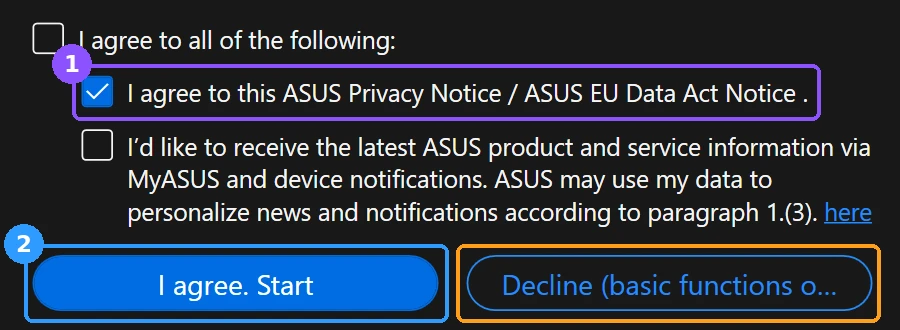
Pick your region, then tick I agree to this ASUS Privacy Notice / ASUS EU Data Act Notice (#1 in the screenshot below) and click I agree. Start (#2). The box underneath is for ASUS marketing news and can stay unticked. There’s also Decline (basic functions only), outlined in orange, if you don’t want to agree at all.
3. ASUS account and ASUS Switch
Next is an ASUS account sign-in. Click Next to skip it, everything I tested worked without an account. Then it offers ASUS Switch for moving files from an old PC over Wi-Fi, an external drive or Dropbox, which you can skip with Skip ASUS Switch.
4. The restart banner
Home then loaded with a yellow Please restart the system to ensure the functions work properly banner, caused by the driver update. You can restart, or restart the 5 ASUS services the way I did in MyASUS not working, which cleared it without a reboot.
Download MyASUS Without Microsoft Store: What About Other Sites?
Searching for a MyASUS download without the Microsoft Store mostly turns up third-party sites offering the Store package as a file. MyASUS installs background tasks and talks to the same driver that controls your fans and battery, and winget pulls ASUS’s signed package straight from Microsoft, so you know exactly where your copy came from.
Those sites don’t always give you what they say either. When I checked FileHorse, one of the top results for a MyASUS download, its download was a file called MyASUSSplendid_ASUS_Z_V5.0.0.298, which is ASUS’s Splendid screen color driver installer and not the MyASUS app at all.
How to Uninstall MyASUS the Same Way
winget removes it just as fast. This finished in 2.9 seconds on my laptop:
winget uninstall --id 9N7R5S6B0ZZH --source msstoreIt removed the app, its data and both background processes, and left a tiny C:\ProgramData\ASUS\MyASUS folder and 2 old firewall rules. Whether you need MyASUS at all is a separate question, which I answered in is MyASUS necessary.
MyASUS Install FAQ
Is there an official MyASUS .exe download?
Not that I found. ASUS’s install guide and download buttons all point to the Microsoft Store, and the .exe files on third-party sites aren’t from ASUS’s own pages.
Does winget install the same MyASUS as the Store?
Yes. It installed MyASUS 4.0.77.0, listed in Windows as B9ECED6F.ASUSPCAssistant, which is the Store package.
What if the Store says MyASUS is “currently not available”?
That’s the message people on Reddit get when every ASUS download button sends them to the Store. winget pulls from the same Store catalog without opening the Store app, so it’s the next thing to try, but my laptop never showed that error, so I left that case untested. If winget fails too, paste its error in the comments.
Will MyASUS still update itself?
It’s the Store package, so it should update through Microsoft’s Store service like any Store app. You can also run winget upgrade –id 9N7R5S6B0ZZH to check manually. I didn’t wait for an update during testing, so I left that untested.
If winget threw an error for you instead of installing, paste the error line in the comments along with your Windows version and I’ll take a look.