G-Helper Keyboard Backlight: Every Setting, and What It Actually Costs
The G-Helper keyboard backlight costs about 1-2W at max on my G16, which is less than I expected before I measured it. So if you came here because you’d heard the lighting was eating your battery, that’s mostly not where your watts are going, and the bigger wins are in the rest of my G-Helper battery settings. The thing people get wrong more often is per-key RGB — G-Helper does have a per-key editor, but it’s for external ASUS keyboards, and your laptop deck almost certainly can’t do per-key regardless of what software you run.
Everything here is off my ROG Zephyrus G16 (2024, GA605WI) with the Ryzen AI 9 HX 370 and an RTX 4070, running G-Helper 0.283.0 on Windows 11.
Where the G-Helper keyboard backlight settings live
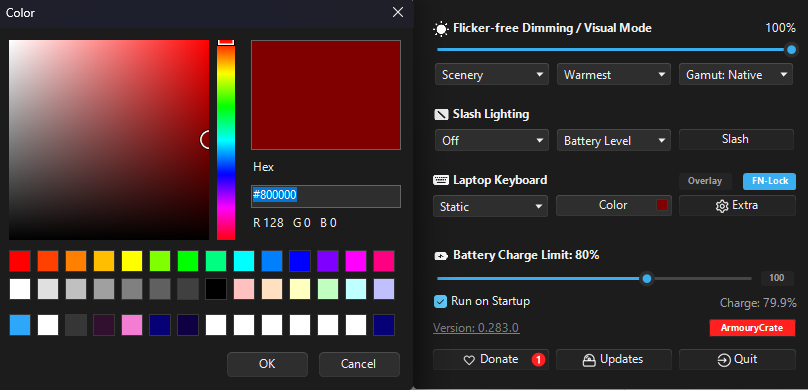
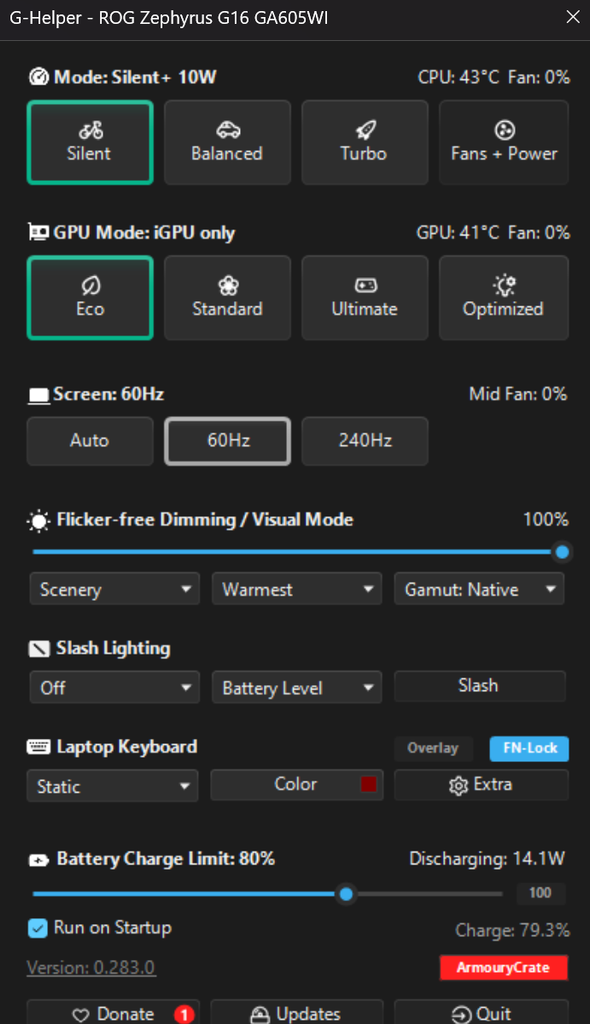
The G-Helper keyboard backlight controls are split across 2 windows, which is the main reason people give up hunting for the brightness slider. In the main G-Helper window there’s a Laptop Keyboard row near the bottom with an effect dropdown (mine sits on Static), a Color swatch, and an Extra button. Effect and color are the only 2 things living out here.
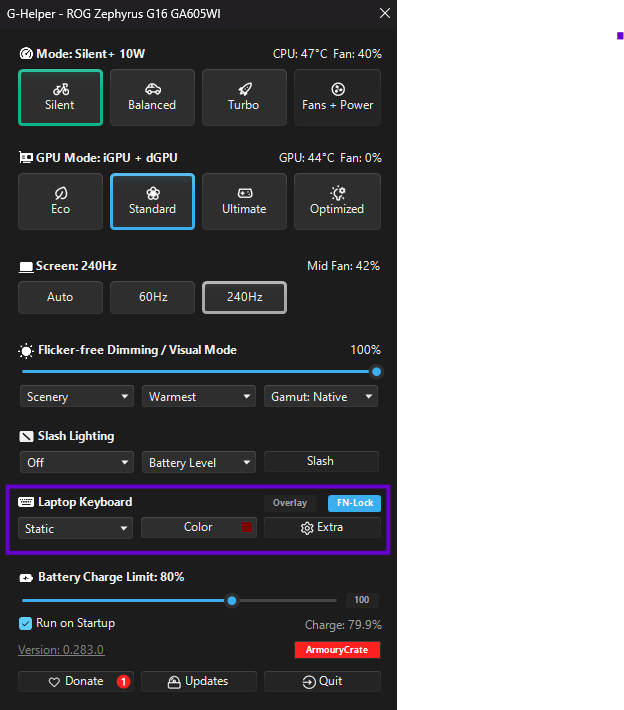
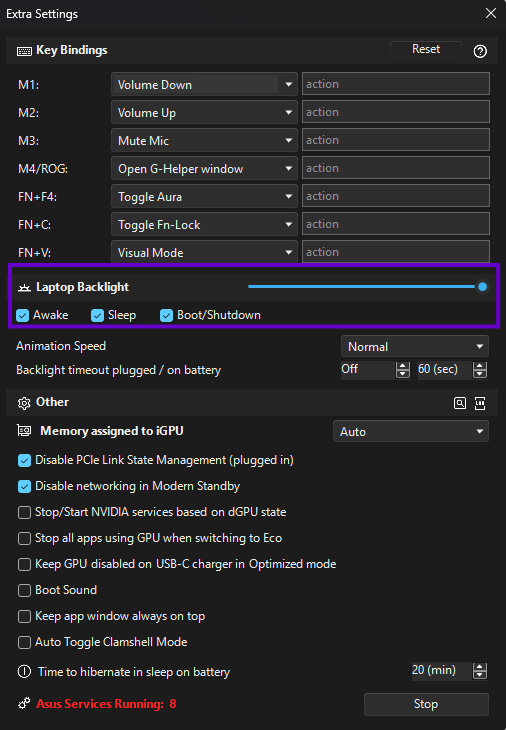
Everything else is behind Extra, in the Laptop Backlight block of the Extra Settings window. That’s where you’ll find the brightness slider, Animation Speed, the Awake / Sleep / Boot/Shutdown checkboxes that decide when the lighting is allowed to be on at all, and the Backlight timeout plugged / on battery boxes.
Neither window has an Apply button for lighting. G-Helper writes the change the moment you click, which is different from the fan curve section where nothing happens until you confirm.
One thing worth knowing up front, because it trips people up: your settings get written to the keyboard controller, not held in memory by the app. I rebooted mine and the color and effect came back exactly as I left them, with G-Helper not yet loaded. You don’t need the app running in the tray to keep your color.
What G-Helper RGB control actually gives you on a laptop
Now here’s where expectations need adjusting. G-Helper RGB control on the laptop deck is effects and brightness. That’s the whole surface area for the G-Helper keyboard backlight.
The effects, one at a time
You get 5 of them in that dropdown.
- Static — one color, always on. What I use.
- Breathe — fades that color in and out.
- Color cycle — walks through the spectrum on its own, ignores your color pick.
- Rainbow — the wave that came on your laptop out of the box.
- Strobe — flashes. I’ve never found a reason to use this one that wasn’t “showing someone it exists.”
For the effects that cycle colors on their own, the official FAQ notes that setting your color to black turns on random color selection. Small thing, but it’s not labeled anywhere in the interface.
How to change your G-Helper keyboard color
Click the Color swatch, pick from the wheel, done. G-Helper keyboard color changes apply live so you can drag around the wheel and watch the deck follow.
The catch is what “the deck” means on your specific machine. ASUS lists the GA605 keyboard as 1-Zone RGB, which means every key gets the same color, always. There’s no gradient, no zones, no left-half-red-right-half-blue. If you pick a color and the entire board changes together, that’s not a bug, that’s your hardware.
The Slash Lighting toggle is separate
If you’ve got a G16 with the Slash Lighting strip on the lid, that runs on its own dropdown and ignores your G-Helper keyboard backlight settings entirely. Mine stays Off permanently. It’s pointed away from you while you’re using the laptop, so it’s spending power to be seen by other people, and I’d rather not.
Does G-Helper do per key RGB?
Short version: not on your laptop keyboard. The G-Helper keyboard backlight does one color at a time on a Zephyrus, period.
G-Helper per key RGB does exist in the app, but it’s for external ASUS keyboards. Plug in a supported board — ROG Azoth, Falchion, Strix Flare, Strix Scope II, Claymore II, TUF K1 or K3 — and a button with that keyboard’s name appears in the main window. Click it and you get an on-screen picture of the layout where you click individual keys to paint them, plus key remapping and battery settings. Colors save to the keyboard itself.
That documentation is what people find when they search for per-key, and it answers a completely different question than the one they asked. The laptop deck doesn’t get that editor. There’s an open feature request on GitHub asking for it and it hasn’t landed.
Here’s the part that makes this a non-issue for most of you though: your laptop probably can’t do per-key in the first place. ASUS reserves per-key lighting for specific machines — the Strix SCAR line and a few others — handled through Aura Creator. The Zephyrus line is 1-zone. So on a G16, going back to Armoury Crate to get per-key RGB gets you nothing, because Armoury Crate can’t paint individual keys on hardware that has one lighting zone either. This isn’t G-Helper holding out on you.
If you’re on a SCAR or something else with real per-key hardware and you genuinely use it, that’s the one honest reason to keep Armoury Crate installed alongside.
G-Helper keyboard light not working: 3 things to check
Most of the G-Helper keyboard light not working reports come down to something else grabbing control of the keyboard. Only one program can own it at a time, so if the G-Helper keyboard backlight won’t respond to anything you click, start here. If it’s the app itself that won’t open or won’t start on boot, that’s a separate problem and I went through those in G-Helper not working.
Windows Dynamic Lighting is holding it
Windows 11 ships its own RGB control layer and it will quietly take the keyboard from whatever else you installed. Symptom is specific: your color won’t change, or it sits on a default blue or rainbow no matter what you click in G-Helper.
Go to Settings > Personalization > Dynamic Lighting and turn it off. Also check the Use Dynamic Lighting on my devices toggle underneath, since that one can stay on independently.
Armoury Crate is still running
If you installed G-Helper but never actually removed the ASUS software, they’re both reaching for the keyboard. Close Armoury Crate and any other ASUS lighting app. If the G-Helper keyboard backlight starts responding the moment you do, that’s your answer.
Your Fn keys died with the ASUS services
This one catches people who followed a debloat guide. Most of the Fn-key functions on ASUS laptops need either G-Helper sitting in your system tray or the ASUS Optimization service running. On my G16, Fn+F4 is bound to Toggle Aura in G-Helper’s own key bindings, so stopping the services and quitting G-Helper instead of minimizing it means the G-Helper keyboard backlight stops responding to that key entirely. The keys aren’t broken — nothing is listening.
Two fixes. Leave G-Helper in the tray, which is what it’s designed for, or turn ASUS Optimization back on from Extra > Services.
Rebinding the lighting keys
Once you’re in Extra anyway, Key Bindings at the top of that same window lets you reassign M1 through M4, Fn+F4, Fn+C and Fn+V to whatever you want, with a Reset button if you make a mess of it. Mine are on Volume Down, Volume Up, Mute Mic and Open G-Helper window, but Toggle Aura sits in that same dropdown if you’d rather have your lighting toggle somewhere easier to reach.
What the lighting actually costs on battery
So back to the number that started this. Idle desktop on battery, nothing else changing, the G-Helper keyboard backlight fully off and then cranked to max: about 1-2W of difference.
1-2W isn’t nothing, but it’s nowhere near the villain it gets made out to be in forum threads. For context, when I measured the G-Helper GPU modes on this same laptop, the gap between Eco and Standard came out at 5-10W. Your GPU mode is worth several times more than your lighting, so if you’re hunting battery life, go fix that first and come back to the keyboard later.
How to cut the G-Helper keyboard backlight drain
If you’re squeezing anyway, the G-Helper keyboard backlight timeout is the setting worth knowing about. You get 2 separate timeouts in Extra > Laptop Backlight, one for plugged in and one for on battery, so the lights shut off after a set number of seconds with no typing and come back the instant you touch a key. Mine are set to Off plugged in and 60 sec on battery, with Awake, Sleep and Boot/Shutdown all checked.
Worth flagging if you ever try measuring this yourself: that 60-second timeout will switch the lighting off mid-test and quietly ruin your numbers. Set the timeout to Off while you measure, then put it back.
My own approach is blunter than that — the lighting lives off, and I turn it on for dark rooms. Static, brightness low, off again when the lights come back on. Not really about the watts at that point, I just don’t need it lit at 2pm.
FAQ
Can G-Helper control RGB?
Yes, on any supported ASUS laptop. You get 5 lighting effects (static, breathe, color cycle, rainbow, strobe), your own color, and brightness control. Effect and color are in the main window, brightness and timeouts are behind the Extra button. What you don’t get on the laptop deck is per-key painting.
Does G-Helper support per key RGB?
Only for supported external ASUS keyboards like the ROG Azoth, Falchion and Strix Flare, which get an on-screen layout editor for painting individual keys. Laptop keyboards don’t have this, and most ASUS laptops — including the Zephyrus G16 — use 1-zone lighting that can’t do per-key regardless of software.
Why won’t my keyboard backlight change color in G-Helper?
Usually Windows Dynamic Lighting has taken control of the keyboard. Turn it off under Settings > Personalization > Dynamic Lighting. If that doesn’t do it, make sure Armoury Crate isn’t still running, since only one app can control the lighting at a time.
Does the G-Helper keyboard backlight drain battery?
About 1-2W at maximum brightness on my G16, measured on an idle desktop. That’s real but small next to your GPU mode or screen brightness, so it’s not the first place to look if you’re chasing runtime.
If your G-Helper keyboard backlight is still stuck on a color you didn’t pick after turning off Dynamic Lighting, drop your laptop model and what effect you’ve got selected in the comments and I’ll help you track it down.