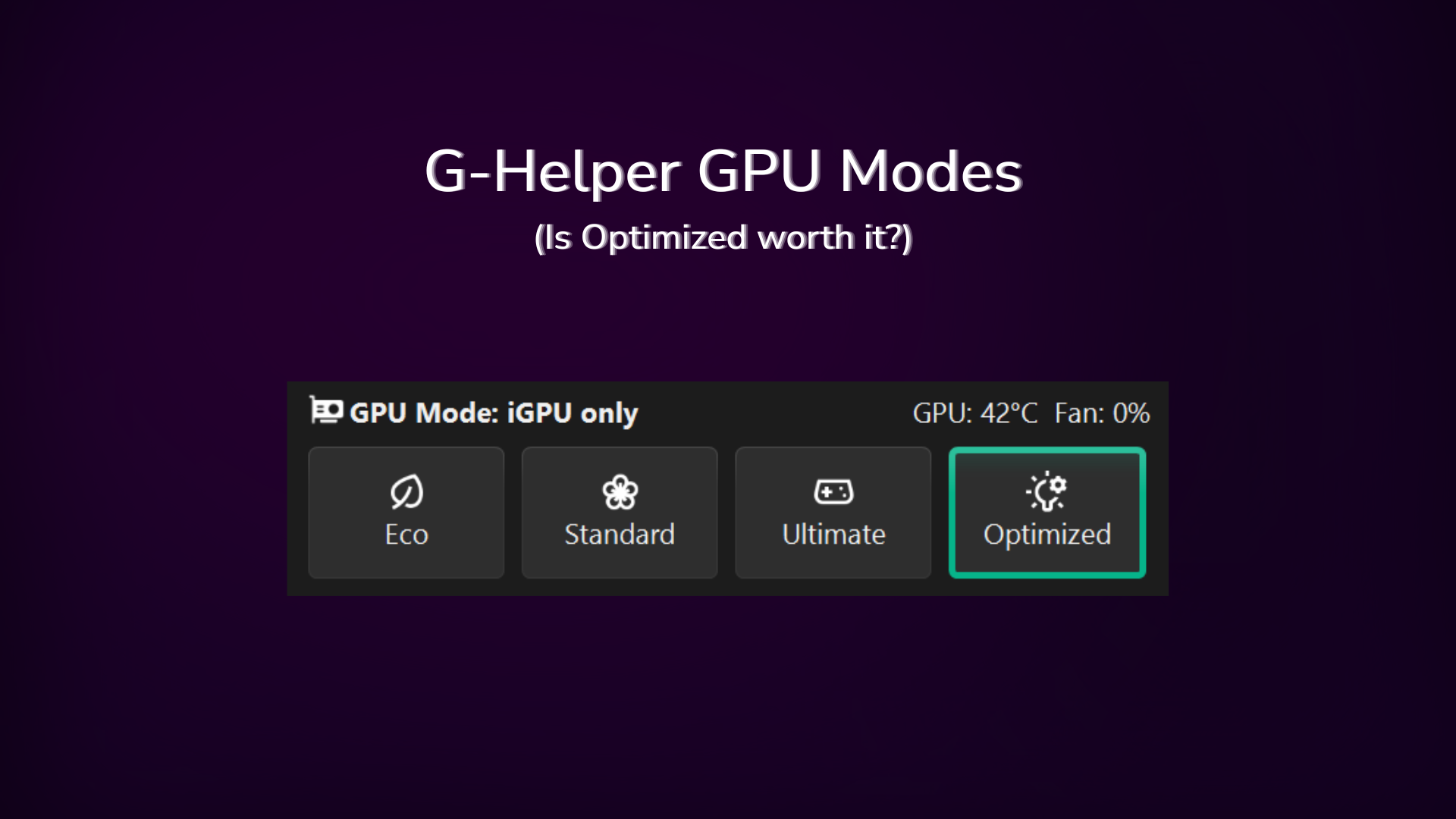
G-Helper GPU Mode: Eco, Standard, Ultimate and Optimized Explained
My Zephyrus G16 idles at about 13W in Standard mode with a live 4070 in the system, which is only 5–10W off what Eco gets me. Where the two actually separate is the spikes — Standard jumps hard the moment something wakes the dGPU up, and my real-world average lands nearer 20W once I’m doing things.
So the real decision isn’t just Eco versus Standard for battery. It’s knowing which of the 4 modes routes your display through which chip, because that’s what changes your frames, your G-Sync, and whether you need to reboot to get it. The Standard vs Ultimate mode question is where most of that lives, and picking the best G-Helper GPU mode comes down to how you use the laptop rather than which one sounds fastest.
Where to find the G-Helper GPU mode picker
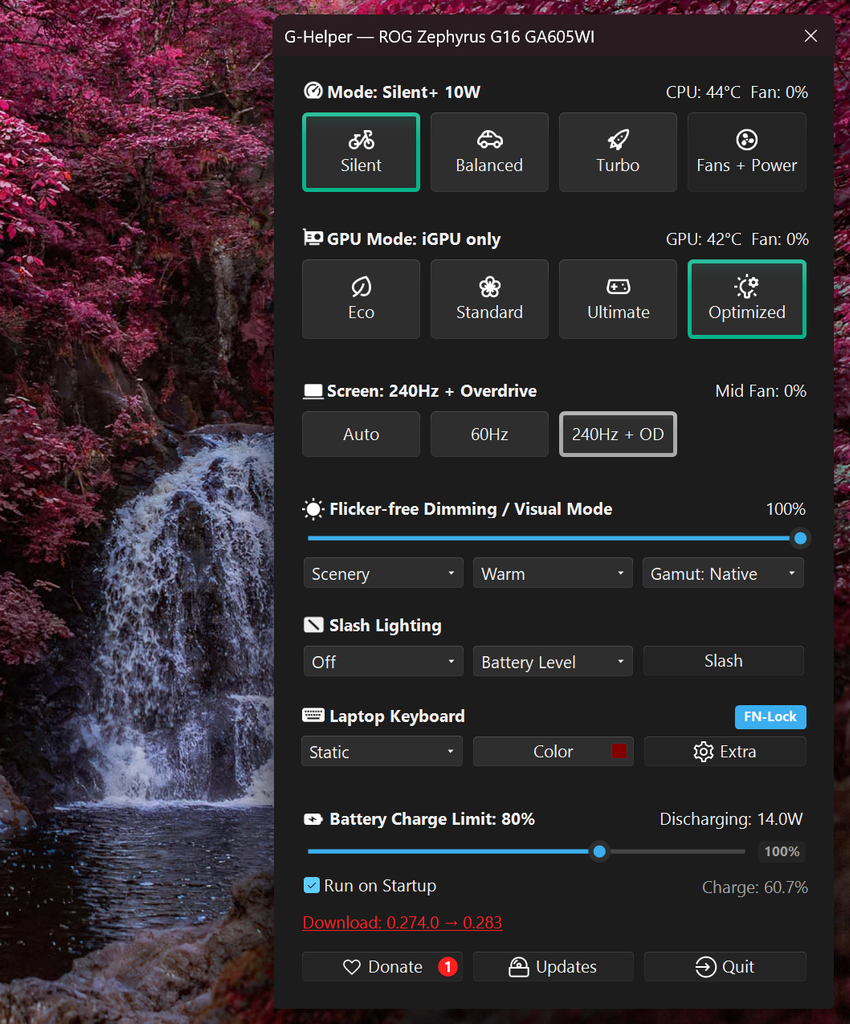
Open G-Helper and the GPU Mode row sits right on the main window, under your performance modes. No submenu, no advanced panel. Click the mode you want and it applies — except for Ultimate, which throws a restart prompt first, and I’ll get to why.
Quick definition before anything else, since half of this only makes sense with it. Your laptop has 2 graphics chips. The iGPU is built into the CPU, weak but cheap on power. The dGPU is the dedicated card — mine’s an RTX 4070 — which is enormously faster and drinks power to match. The G-Helper GPU mode is just deciding which one is doing what.
What each of the 4 modes actually does
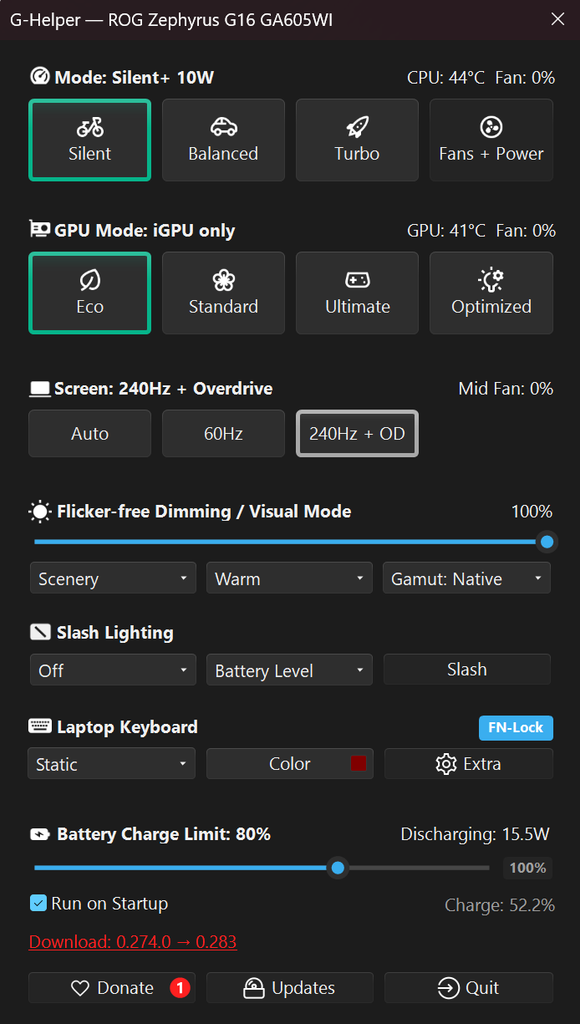
Eco shuts the dGPU off completely. Everything runs on the iGPU. Your 4070 is powered down and won’t show a temperature in G-Helper, because there’s nothing to report.
Standard is the normal Optimus setup. Both chips are alive, the dGPU renders the heavy stuff, and the iGPU handles the light work.
Ultimate flips the MUX switch and hands the display directly to the dGPU. The iGPU gets cut out of the picture entirely, which is the whole basis of the Standard vs Ultimate mode difference further down.
Optimized isn’t a 5th behavior, it’s automation — Standard while you’re plugged in, Eco the moment you unplug.
Eco vs Standard: idle draw, and where it spikes
Now here’s the part I think gets oversold online. Sitting idle in Standard, my G16 pulls around 13W with the dGPU alive and available, and swapping to G-Helper Eco mode only buys me somewhere in the range of 5–10W on top of that.
The gap opens up once you start doing things. Standard jumps much harder than Eco does, and my average across actual use lands closer to 20W. That’s not because the 4070 is a wasteful chip — for heavy rendering it’s far more efficient than the iGPU could ever be. It’s that waking a dGPU costs a fixed chunk of power no matter how small the job is, so something trivial kicking it on means you pay the full wake cost for basically nothing in return. Eco’s real value is refusing to let that happen.
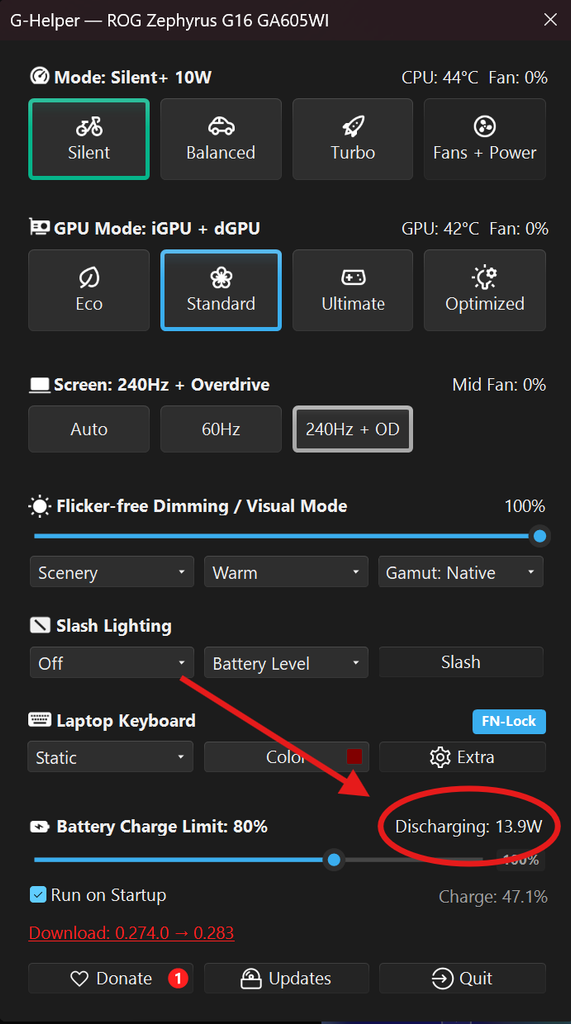
Worth saying plainly: that 13W isn’t the GPU mode’s doing. It’s the undervolt, the CPU power limits on Silent, the fan profile, the refresh rate, and the rest of my G-Helper battery settings that I’d tuned before I touched GPU modes at all. An untuned G16 pulls far more than that in the exact same mode, so if you’re chasing battery and you haven’t undervolted yet, you’re optimizing the wrong setting first — my G-Helper undervolt guide is where the bigger win lives, and a G-Helper GPU mode change stacks on top of it rather than replacing it.
Temperature-wise, I never saw a meaningful difference between the two, though I run the Silent fan profile permanently, so my numbers won’t tell you much there.
Standard vs Ultimate mode — why the jump is so big
Here’s the catch though. In Standard, the dGPU is doing the rendering, but it doesn’t own your screen. The iGPU does. So every finished frame gets copied from the 4070 over to the integrated chip before it ever reaches the panel, and that copy costs you. It’s also why G-Sync doesn’t work on the internal display in Standard — the dGPU isn’t the one talking to it.
That surprised me when I first felt it. Both modes use the dGPU, so I expected them to feel close, and they don’t. Ultimate removes the middleman — the G-Helper MUX switch physically reroutes the panel to the dGPU, so frames go straight out. That’s the whole reason the Standard vs Ultimate mode gap is so much larger than it sounds like it should be, and when I run a heavy game I take the FPS jump every time.
Why the G-Helper GPU mode change needs a reboot
The cost is the reboot. A G-Helper MUX switch is a hardware-level change, so Windows has to come back up with the new display path. It’s a nuisance, nothing worse, but it does mean Ultimate isn’t something you flip on for 10 minutes.
Battery-wise, Ultimate is the one that actually hurts. Draw climbs hard because the dGPU is permanently driving your display whether you’re gaming or reading a PDF. Don’t leave it on.
Panel behavior is unaffected during light use, for what it’s worth — my 240Hz screen looks and runs identically in Standard and Ultimate when I’m just browsing.
The best G-Helper GPU mode for daily use
I run Optimized every day, and it’s the best G-Helper GPU mode for most of you guys. Plugged in you get Standard for free, unplug and it drops to Eco without you thinking about it.
The exception is portable chargers. When I know I need the laptop alive for a full day of classes and I’m running off a bank, I pin it to Eco manually instead. Optimized would still let the dGPU spin up while the bank is feeding it, and that drains the bank way faster than the laptop alone would.
So, short version:
- Gaming or heavy rendering → Ultimate, and accept the reboot
- Plugged in, general use → Optimized or Standard
- On battery normally → Optimized handles it
- On a portable charger, or squeezing out a whole day → Eco, manually
G-Helper GPU mode not showing? Check for a MUX switch
This one gets reported as a bug constantly and it isn’t one. If your G-Helper GPU mode section is missing entirely, your laptop doesn’t support the feature at the hardware level. G-Helper Eco mode needs the ability to power the dGPU down, Ultimate needs a physical G-Helper MUX switch, and plenty of models have neither.
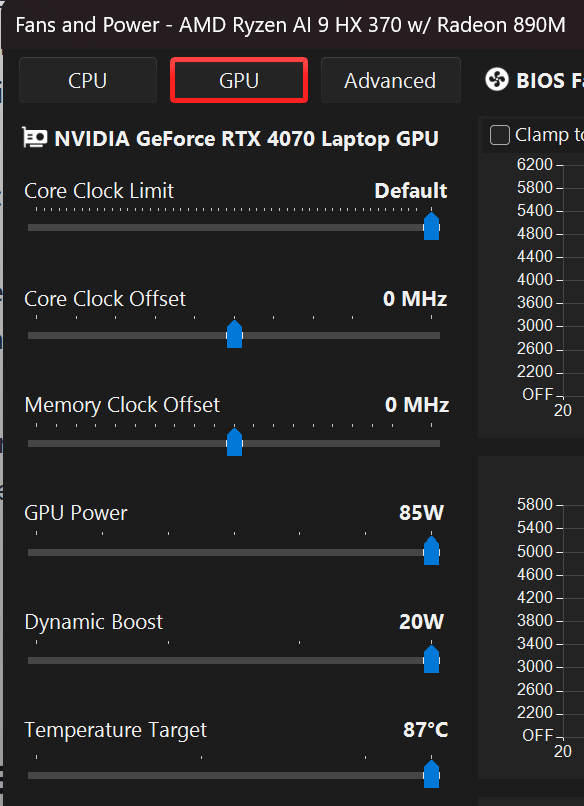
G-Helper can’t add hardware. The G-Helper GPU mode not showing means the option was never there — Armoury Crate wouldn’t show it either. Cheaper and older models are the usual case, and single-GPU laptops obviously have nothing to switch between.
Related, and worth knowing: if the modes are there but G-Helper Eco mode refuses to apply, or your brightness controls break after shutting down in Eco, that’s a documented Nvidia driver issue rather than a G-Helper one. Go to Extra settings and enable Start/Stop Nvidia services, which handles the driver state across shutdown. The G-Helper project on GitHub tracks these driver-side quirks, and they come up often enough that the developer built the toggle specifically for them.
The 15-day G-Helper Eco mode problem nobody warns you about
I haven’t hit this one personally, since my laptop never sits untouched that long, but it’s documented in the official G-Helper FAQ and it’s the most expensive thing that can go wrong with a G-Helper GPU mode.
Leave the dGPU disabled in Eco for 15 days straight and Windows decides the device is gone for good. Its automated disk cleanup silently removes the driver package. Next time you switch to Standard, your 4070 comes back as “Microsoft Basic Display Adapter” throwing error 10 or 28 in Device Manager, and only a full Nvidia driver reinstall fixes it.
Two ways out. The lazy one is just flipping to Standard occasionally, which resets the timer. The permanent one is killing that specific cleanup task — run this in PowerShell as admin:
Set-ItemProperty 'HKLM:\SOFTWARE\Microsoft\Windows\CurrentVersion\Explorer\VolumeCaches\Device Driver Packages' -Name Autorun -Value 0Running Optimized daily sidesteps it on its own, since you’re bouncing in and out of Standard every time you plug in.
What I came from
I ran Armoury Crate before this and the GPU modes were broadly the same set, right down to the same G-Helper MUX switch behavior underneath. The difference was everything around them — the AI-driven “optimization” kept deciding things on my behalf, and I wanted a picker that does what I clicked and nothing else. That’s the whole reason I switched, and I went through the full comparison in my G-Helper vs Armoury Crate breakdown.
Worth pairing this with your CPU side too, since GPU mode alone won’t carry your battery — my G-Helper CPU Boost guide covers the other half.
FAQ
How much battery does Eco mode actually save?
On my Zephyrus G16, Standard idles near 13W and G-Helper Eco mode saves roughly 5–10W on top. The bigger difference is in the spikes — Standard climbs much faster under load, since waking the dGPU has a fixed power cost regardless of how light the task is.
Does Ultimate mode need a restart?
Yes. Ultimate flips a physical G-Helper MUX switch, so Windows has to reboot to pick up the new display path. Eco and Standard apply instantly, which is part of why the Standard vs Ultimate mode choice isn’t one you make casually.
Why is my G-Helper GPU mode section missing?
Your laptop doesn’t support dGPU disabling or a MUX switch at the hardware level. G-Helper GPU mode not showing is not a bug, and no other utility will show it either.
Is Optimized mode safe to leave on?
Yes, and it’s what I run daily — for most people it’s the best G-Helper GPU mode to just leave alone. The one time I override it is on a portable charger, where I force Eco so the bank lasts.
Why don’t I see a GPU temperature?
You’re in Eco or Optimized on battery, so the dGPU is off. No chip, no reading. I covered that and the other common false alarms in my G-Helper not working guide.