G-Helper Core Clock Offset: Best Setting Tested (2026)
I raised the G-Helper core clock offset to +200 on my Zephyrus G16 expecting free frames, and Cyberpunk 2077 went from 94.08 FPS to 94.89, which is less than 1 FPS.
The slider sitting right above it did a lot more, since 1 change there made my graphics card run cooler and pull far less power while costing me fewer frames than I expected. So whether you’re trying to squeeze out more FPS or you just want a cooler and quieter laptop, I’ll go through what each of these sliders did on my own laptop down below.
Everything here is off my ROG Zephyrus G16 (GA605WI) with the Ryzen AI 9 HX 370 and RTX 4070, running G-Helper 0.285.0 on Windows 11 26H2 with NVIDIA driver 595.97, in Balanced mode with the GPU mode on Standard and the charger plugged in.
What the G-Helper Core Clock Offset Does
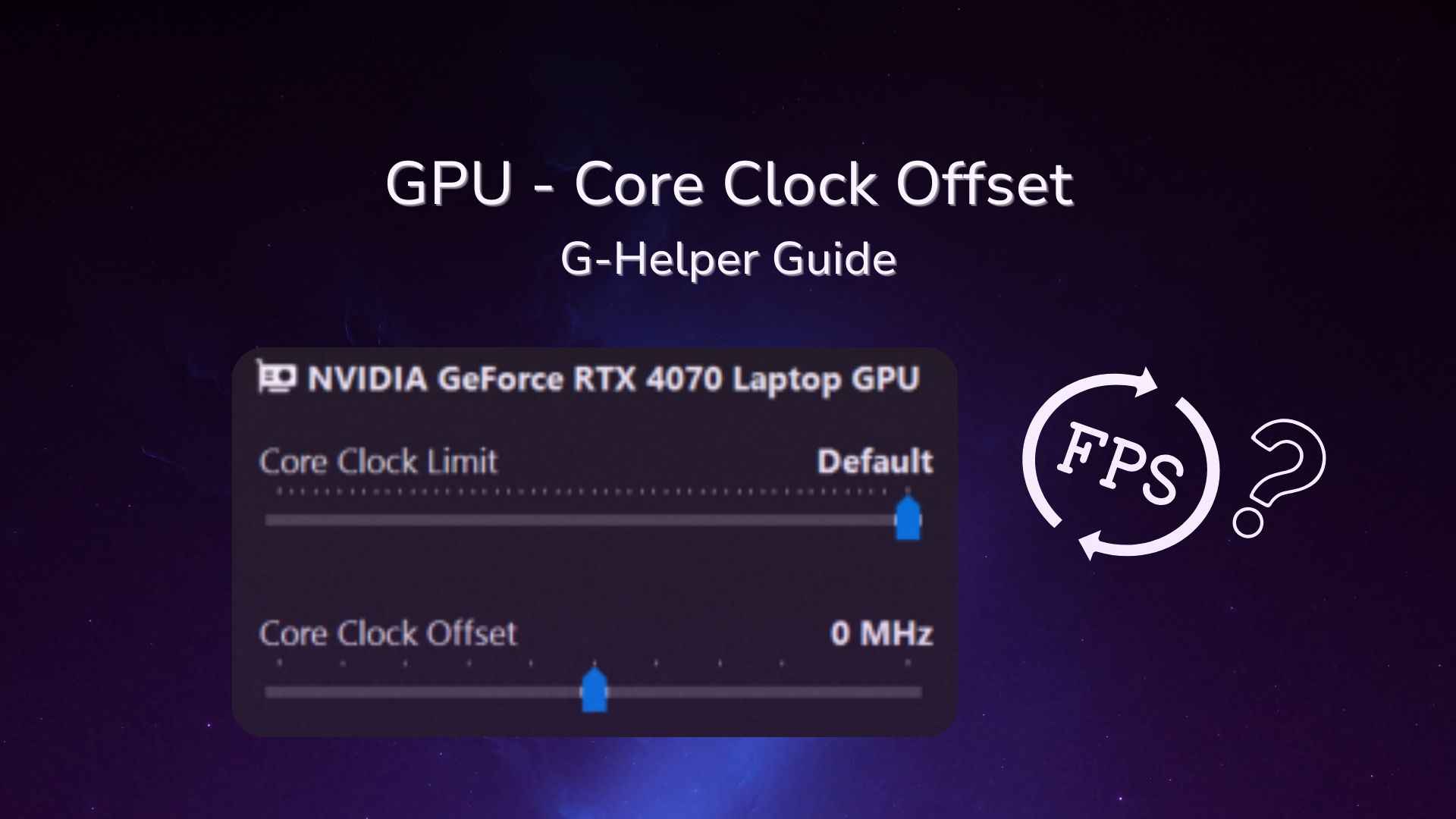
Your graphics card runs at a speed measured in MHz, and it picks that speed based on how much power it’s being given. The G-Helper core clock offset adds extra MHz on top at every power level, so the card is supposed to run a little faster without pulling any more power. G-Helper’s FAQ sums it up as same power, more speed.
There are 2 other sliders in the same spot that work with it. The Core Clock Limit puts a ceiling on how fast the card is allowed to go, and the Memory Clock Offset does the same kind of speed bump for the card’s memory. I sorted out all 6 sliders in the next section so you know which ones I touched.
Where to Find the GPU Sliders
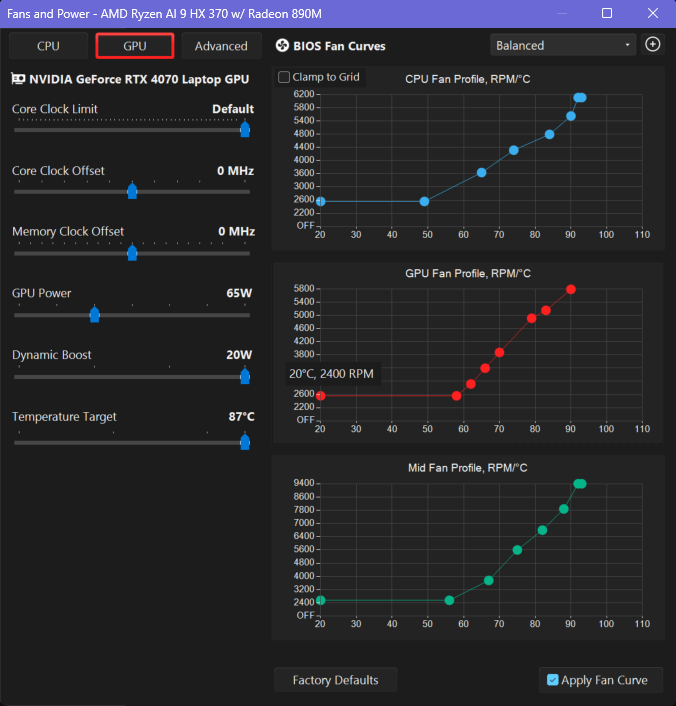
Open G-Helper, click Fans + Power, then click the GPU tab at the top left. The table below has every slider on that tab with the stock value mine was sitting at.
| Slider | Stock value on my G16 | What it does |
|---|---|---|
| Core Clock Limit | Default | Caps the card’s top speed |
| Core Clock Offset | 0 MHz | Adds speed at the same power |
| Memory Clock Offset | 0 MHz | Adds speed to the card’s memory |
| GPU Power | 85W | The card’s base power budget |
| Dynamic Boost | 20W | Extra power the card can borrow from the CPU |
| Temperature Target | 87°C | The temperature the card tries to stay under |
Setting the G-Helper core clock offset
Drag Core Clock Offset to the right to raise it. The slider stops at +250 out of the box, and the FAQ says G-Helper will ask for admin permission to change it. Your dedicated graphics card also has to be on, so if you’re in Eco, switch your G-Helper GPU mode to Standard first.
G-Helper GPU Overclock: What +200 Did to My FPS
Raising the offset is the G-Helper GPU overclock, so I tested it first on its own. I used the Cyberpunk 2077 built-in benchmark at 1080p on the Ultra preset with FSR 2.1 on Quality, because at those settings my graphics card was the part holding the game back, sitting at 93% to 98% load. I read the temperature and power off the G-Helper overlay partway through each run, and the results are in the table below.
| Core Clock Offset | Average FPS | Min FPS | Max FPS | GPU temp | GPU power |
|---|---|---|---|---|---|
| 0 MHz | 94.08 | 71.32 | 118.28 | 76° | 94.6W |
| +200 MHz | 94.89 | 72.90 | 119.07 | 76° | 94.2W |
The +200 run came out 0.81 FPS ahead, which is under 1% and smaller than the difference I normally see between 2 identical runs. The card pulled the same 94W and sat at the same 76° either way, so the FAQ was right about the power staying put, and the extra speed just didn’t turn into frames I could measure.

Why you might see no gain at all
Before that test I ran the same benchmark on the Medium preset with FSR on Auto, and the offset did even less there. Stock gave me 111.31 FPS, +100 gave me 110.96 and 108.64, and +200 gave me 110.44 and 110.06. At those lighter settings my graphics card was only around 62% busy while the CPU sat at 95°C, so the CPU was the part setting the frame rate and a faster graphics card had nothing to add.
So if you raise the offset and your FPS doesn’t move, check your GPU load before you blame the slider. I had no flicker and no crashes at +200 across 5 runs.
G-Helper GPU Undervolt: The Clock Limit Test
Now the second test gave me a result I could actually measure. The FAQ’s method for a G-Helper GPU undervolt is to raise the offset and then lower the Core Clock Limit, so the card gets to a given speed on less power and then stops before the top end, where extra power buys very little. I kept the offset at +200 and tried 2 limits, which you can see in the table below.
| Offset | Core Clock Limit | Average FPS | Min FPS | GPU temp | GPU power |
|---|---|---|---|---|---|
| 0 MHz | Default | 94.08 | 71.32 | 76° | 94.6W |
| +200 MHz | 2150 MHz | 90.37 | 72.25 | 71° | 72.9W |
| +200 MHz | 2005 MHz | 85.67 | 71.58 | 67° | 61.2W |
At 2150 MHz I lost 3.71 FPS, about 4%, and the card pulled 21.7W less, which is 23% off its power draw, while running 5° cooler. The minimum FPS stayed between 71 and 73 in every run, so the dips you’d actually feel in a game didn’t get any worse.

Which G-Helper core clock limit to pick
I’d honestly take the cooler laptop, so 2150 MHz is the G-Helper core clock limit I’d run. Dropping to 2005 MHz cost me 8.41 FPS, close to 9%, and that’s more than I want to give up. If max FPS matters more to you than heat, leave the limit on Default.
This test has a few limits, since I did 1 run per setting, the 2005 MHz temperature and power were read at a different scene than the other 2, and I left the limit untested with the offset at 0, so I haven’t measured how much the offset adds to the undervolt.
G-Helper Memory Clock Offset
The G-Helper memory clock offset stayed at 0 MHz in every run above, so none of these numbers include it. It works the same way as the core slider, with the same +250 ceiling out of the box. The one thing I’d watch if you try it is your FPS going down as you raise it, since graphics memory pushed too far tends to lose speed before it shows any glitches.
Why Your Offsets Reset (or Don’t)
G-Helper saves these sliders per mode, so an offset you set in Turbo doesn’t exist in Balanced until you set it there too. The developer explains in this GitHub issue that the offsets get applied at the driver level and stay until a reboot or until another app like MSI Afterburner changes them, and that G-Helper re-applies whatever the current mode has saved each time it starts, wakes from sleep or sees the charger plugged in or pulled.
That one got me while I was setting up. My Turbo mode had +150 saved on both clock sliders from a long time ago, and after I clicked into Turbo once and went back to Silent, G-Helper’s log showed the +150 still active even though Silent had nothing saved. So if you test an offset in 1 mode and then switch, restart your laptop before you trust your numbers.
For those of you who want to go past +250, G-Helper’s power user settings page lists config.json lines that raise the slider range, like "max_gpu_core": 300,, though I stayed inside the stock range for everything in this post.
FAQ
What are the best G-Helper GPU settings?
On my G16 with the RTX 4070, I’d run Core Clock Offset at +200 with Core Clock Limit at 2150 MHz for a cooler laptop at about 4% fewer frames, or leave everything at stock for the most FPS. The offset on its own didn’t give me a gain I could measure.
Does raising the core clock offset cause instability?
It can if you go past what your card handles, and it shows up as flickering textures, a frozen game or a crash. I had none of that at +200 over 5 runs. The offsets clear on a reboot, so a restart gets you back to stock if a setting goes wrong.
Why is G-Helper GPU undervolt not working?
Check that you’re not in Eco mode, since the FAQ says the dedicated GPU has to be enabled for the clock sliders to work. They’re also for Nvidia cards, and they’re saved per mode, so make sure you’re in the mode you set them in.
Is this the same as the CPU undervolt in G-Helper?
No. The CPU undervolt is a separate slider under the Advanced tab, and I covered it in my G-Helper undervolt guide.
These sliders are 1 piece of a full setup, and my best G-Helper settings guide has the rest. If you’ve tried the G-Helper core clock offset and got a real FPS gain out of it, drop your laptop model, your GPU and the number you landed on in the comments, since I’d like to see where it does pay off.