ASUS Battery Care Mode: What It Is and Is 80% Worth It?
You spend a lot of your time plugged in, so does being at 100% hurt you? Short answer: Yes, it does. ASUS Battery Care Mode is the setting that fixes it, and you’ll find it in Armoury Crate, the My ASUS app, or G-Helper depending on what you’ve got installed. If you set the limit and it doesn’t seem to stick after a restart, that one has its own explanation over in G-Helper not working. Here I’ll teach you about the foundations of battery lifespan while guiding you through setting it up in whichever one you use. I personally found this information needed when first getting my laptop, so I hope someone else can too.
How Laptop Batteries Degrade
Every single laptop out there, including yours (If you have one), uses a lithium battery. These batteries are used because of their high energy storage and relatively cheap production. The only downside, though, is their degradation over time. It’s inevitable for Lithium batteries to have chemical Degradation over time. What does this do? It essentially limits the max amount of energy they can hold. So let’s say 10% of your battery degraded over time. Although you can still charge to 100%, that 100% is only filling up 90% of the battery remaining, lowering your total charge. Luckily, there are some easy ways to slow it down.
What is Battery Care Mode on ASUS laptops?
ASUS Battery Care Mode is a setting on ASUS laptops that caps how far your battery will charge, with options for 60%, 80%, or the standard 100%. Setting it to 80% means your laptop stops charging at 80% and simply runs off the wall from there, which slows down how quickly the battery wears out over the years you own it.
ASUS includes this mode in both Armoury Crate and the My ASUS app. This setting is also available if you followed my previous guide and replaced them with G-Helper. Why capping it matters comes down to how lithium batteries degrade.
The speed at which they degrade gets much faster when they are stretched to their limits, specifically within 20% of each extreme. That means when they are at 80%-100% and from 0%-20%, your battery will degrade significantly faster than usual. ASUS Battery Care mode keeps your laptop within a safe range, slowing degradation and thereby lengthening your laptop’s battery lifespan. If you’re wondering what your personal battery health is, go to the command prompt and type this: powercfg /batteryreport
My Personal Experience
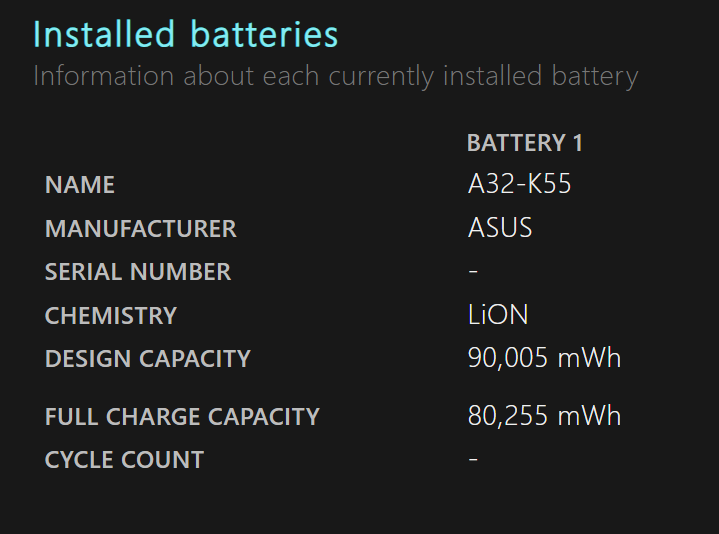
When I bought my current laptop, an ASUS G16 Zephyrus (2024), I ended up getting it refurbished. It was an excellent deal, but when I checked my battery health, I thought surely it would be good, it’s only 2 years old after all. Turns out it had tanked down to 90% health! This means the previous user, while they didn’t hurt the computer, kept it plugged in at 100% power for a considerable amount of time.
Now I took care to instantly put the 80% battery charge limit on, and ever since I had it (around 2 months) it has barely dropped by around 0.5%. This shows that such a mode will allow you to elongate the health of your battery much longer (and keep its worth if you sell it). If you’re tracking your GHelper battery health the same way I am, that battery report is the number to watch month to month rather than trusting how long a charge feels like it lasts.
60%, 80%, or 100% — which one should you pick?
This is the part that trips people up, since ASUS gives you 3 options and no real explanation of what separates them. Here’s how I’d think about it.
80% is the one to use. It keeps you out of the 80-100% range where the fastest wear happens, and you’re only giving up a fifth of your runtime to get there. For a laptop that spends most of its life on a desk, this is the setting.
60% is for a laptop that basically never moves. If yours is docked to a monitor and hasn’t run on battery in months, the tighter cap slows wear further. But you’re now carrying a machine that dies in a couple of hours the one time you unplug it, and honestly the difference in wear between 60 and 80 is a lot smaller than the difference between 80 and 100.
100% is a temporary setting, not a default. Flip to it the night before a travel day or a long stretch of classes, then put it back. That’s the actual workflow, and it’s why the setting is a slider rather than a one-time decision.
How to Enable Battery Care Mode
Wherever you set it, the result is identical, since all three apps are flipping the same switch your laptop already has built in. Use whichever one you’ve actually got installed.
In the My ASUS app
Open My ASUS and head into the Customization section, where you’ll find the power and performance settings. Battery Care Mode sits in there with the three charge options, so pick 80% and you’re done. This is the route most people end up on, since My ASUS comes preinstalled on nearly every ASUS laptop.
In Armoury Crate
Armoury Crate keeps the same setting under its device section, listed as the battery charge limit. Same three options, same outcome. If you have both apps installed, changing it in one will usually reflect in the other, because neither app is really storing the setting itself.
In G-Helper

Since I’m using G-Helper, I’ll show you how to check if you have Battery Care enabled there. Going into the G-Helper menu, look for the Battery Charge Limit slider outlined in the screenshot, and just set it to 80%. If you aren’t using G-Helper and think you want to siphon some more efficiency and battery out of your laptop, you can peep my G-Helper Installation Guide, and if you’re wondering whether it’s trustworthy first, I answer that in is G-Helper safe.
When to turn it off
Now that your battery is protected, make sure to keep the battery charge limit on whenever your laptop is sitting on the charger or simply not being used for long periods. The only time you really need to set it back is if you know you’re going to be using it outside for a lengthened amount of time. For example, if I have multiple classes lined up for the day, I’ll make sure to charge it to 100%, so I’m not that one guy who goes around asking for a charger after his laptop dies. Yeah, once and never again.
This article was a simpler version of a deeper topic, and if you want the full chemistry, Battery University’s guide to prolonging lithium batteries goes through it rigorously. If you’re curious about another way you can be power efficient for your new (or older) laptop, please check out my undervolt guide to see a new but wonderful way to save battery every day, or my best G-Helper settings guide if you want every battery tweak I use in one place.
ASUS Battery Care Mode FAQ
Is Battery Care Mode good, or does it hurt anything?
It’s good, and it doesn’t hurt anything. The only thing you lose is the top 20% of your runtime while it’s enabled, and you can turn that back on whenever you need it. Nothing about capping the charge damages the battery or the laptop, since you’re just telling the charging circuit to stop early. My own machine dropped 0.5% of health on the 80% cap, against the 10% the previous owner burned through running it at 100%.
How do I set the 80 percent battery limit on an ASUS laptop?
Whichever of the 3 apps you have installed. My ASUS keeps it under Customization, Armoury Crate lists it under the device section as the battery charge limit, and G-Helper has it as a slider right in the main menu. All 3 are flipping the same built-in switch, so pick whichever is already on your machine.
Does Battery Care Mode work if I uninstall Armoury Crate?
Yes. The limit is stored by the laptop itself rather than by the app that set it, which is why the setting carries over between My ASUS, Armoury Crate and G-Helper. Uninstalling the app you used doesn’t reset the cap, it just means you’ll need one of the others installed to change it later. If you’re weighing up whether to remove Armoury Crate at all, I measured exactly what it runs in the background, and I went through which of the ASUS OLED Care settings survive losing it too.
Will the charge limit drain my battery down to 80% on its own?
No, it won’t discharge to get there. If you’re sitting at 100% when you enable it, the laptop simply stops charging and runs off the wall, and you’ll drift down to the cap over normal use rather than in one go.