

How to Install G-Helper on Your ASUS Laptop (Full Setup Guide)
Here I’ll take you through how to install G-Helper and get it set up properly on your laptop. G-helper is a simple and effective open-source tool made by a developer named Seerge, allowing for technical control at the click of a button. After making the switch myself, I’ve found it miles better than Armoury Crate (ASUS alternative), and if you’re wondering why it might be worth the switch, please check out my post on G-Helper vs Armoury Crate. I will be writing this from the ASUS perspective, but any software will work fine as long as you remove it before the G-Helper download.
Prerequisites
G-Helper’s lightweight architecture doesn’t require anything except being on Windows 10/11.
Step 1: Uninstall Armoury Crate and My ASUS
Our first step will be the removal of the current hardware control, as Armoury Crate can inhibit G-Helper’s main functions, and it’s running a lot more in the background than it looks like (I counted 11 Armoury Crate processes when I reinstalled it). One quick caveat: make sure you download any updates you see on your app before you delete them; you might not be up to date.
Head over to the ASUS support page, click “see all downloads”, and download the Armoury Crate remover tool. I know this sounds weird, “Download an installer?”, but just deleting it on Windows wouldn’t clean up all of the background processes, possibly leading to some complications.
Once it’s downloaded, go through the setup and let the tool run. Once it finishes, make sure to restart your laptop. As for the My ASUS app, simply delete it from your Windows apps as you would for any app.
Step 2: G-Helper Download and Run
Now that you’ve gotten rid of the ASUS software, head over to the G-helper Download page and download G-Helper. This should be pretty straightforward as it’s a single executable, which is a big part of why the G Helper install is so much quicker than Armoury Crate’s. Once you finish installing, G-helper should pop up in your system tray (if not, just drag it in there). This system tray will be where it will live from now on, giving you control over your laptop at a moment’s notice. If you’re having second thoughts about handing hardware control to a third-party tool, I break down exactly what it touches in is G-Helper safe.

Side note – if anything is grayed out or missing, check out the updates button on the bottom!
How to open G-Helper after installing
This trips up more people than you’d think, so it’s worth its own section. G-Helper doesn’t behave like a normal app that throws a window at you every time it starts. It lives in your system tray, that little cluster of icons down by your clock, and a lot of people finish the install and assume nothing happened.
To open G-Helper, click the small upward arrow next to your clock to expand the hidden icons, then click the G-Helper icon and the window pops right up. If you’d rather not dig around for it every time, drag the icon out of that hidden tray and onto the visible part of your taskbar so it’s always one click away. That’s what I did on day one and I’ve never had to hunt for it since.
If the icon isn’t there at all, G-Helper most likely isn’t running rather than not being installed. Hit the Windows key, type G-Helper, and launch it from there, then follow the startup step further down so it opens itself from then on.
Step 3: Configuration
Now from here on, you’re free to use it how you want, but these are the first few changes I’d make after your G-Helper download, and they’re the starting point for the full G-Helper settings profiles I run day to day on my ASUS Zephyrus.
Battery limit

Now I know this sounds counterintuitive, but set your battery to an 80% charge limit. In order to keep your laptop’s battery healthy for as long as possible, try to keep it at 80% whenever possible, especially if it’s just sitting plugged in. This is important because lithium batteries get most worn out from 0-20% and 80-100%, so make sure that’s the first thing you change. I go into the reasoning properly in my ASUS Battery Care Mode guide, including what it did to my own battery health over four months.
Choose your performance mode
Looking at the top of your G-Helper, you can see 2 different sections here that allow you to change your laptop’s output based on your needs. Here I’ll give a quick overview of the modes so you can choose to your liking, and if you want the deeper version, I went through what each one actually routes where in my G-Helper GPU mode guide.
Modes:
- Silent – Keeps your laptop the coolest and quietest, best for browsing.
- This is where I live most of the time, whether I’m at home in bed or in class trying to stay silent.
- Balanced – Allows for more power, but also drains the battery quicker
- Turbo – Used for high-intensity tasks such as playing video games or editing YouTube videos
- Sidenote – Try to mainly use when the charger is plugged in
GPU Modes
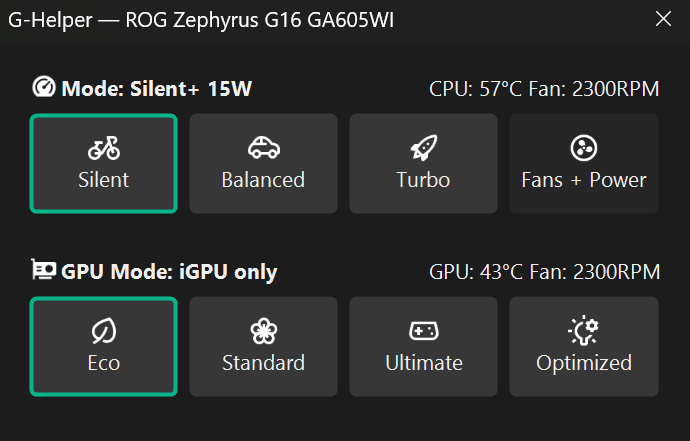
- ECO – Turns off your dedicated graphics card, saving a lot of power
- Standard – Shares the burden between your i-GPU and d-GPU
- i-GPU = your integrated GPU (inside CPU)
- Ultimate – Switches to only your dedicated GPU
- Gets the best graphics performance
- Stay aware that the dedicated GPU is very power-hungry
- I turn this on when I’m gaming for an FPS boost
Final checks

Once you’ve got your basic setup working, make sure to check “Run on Startup”, so G-helper will open whenever you reboot your PC. If it then takes its time showing up on a cold boot, or doesn’t appear at all, that’s worth reading before you start changing things, and I covered the usual causes in G-Helper not working.
This covers the majority of the basic setup for your new G-Helper. Going over those few checks will give you constant control over your laptop’s usage, saving you time and, especially, battery life. If it turns out G-Helper isn’t for you, it’s a portable app, but there’s still a right way to uninstall G-Helper so it doesn’t leave anything running.



[…] In this guide we’re going to be using G-Helper, a free app used to edit laptops and tweak specs with ease. If you don’t have G-helper installed, you can check out my installation guide here. […]